|
|
| # AstrBot Knowledge Base |
|
|
| > [!TIP] |
| > Requires AstrBot version >= 4.5.0. |
|
|
| 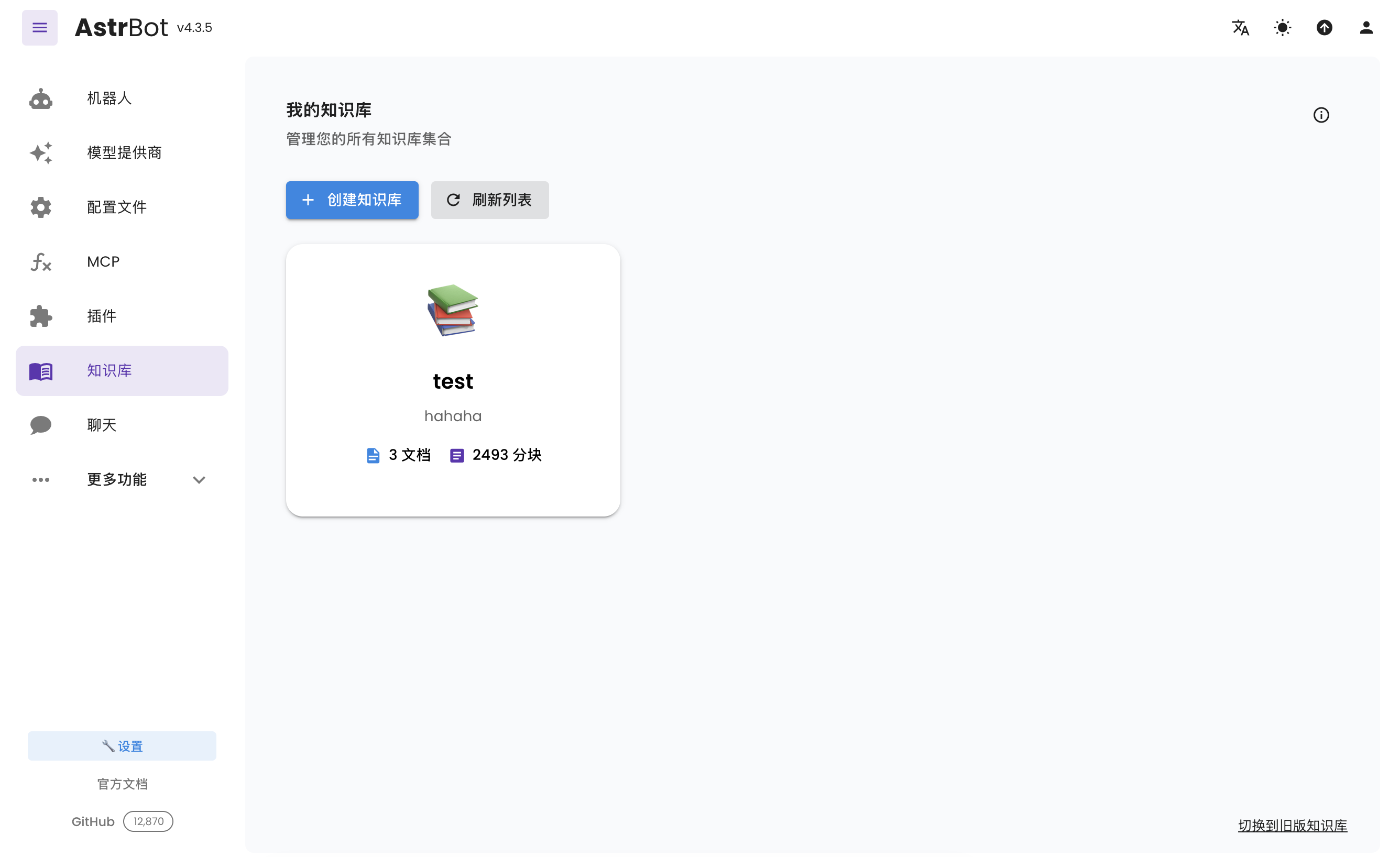 |
|
|
| ## Configuring Embedding Model |
|
|
| Open the service provider page, click "Add Service Provider", and select Embedding. |
|
|
| Currently, AstrBot supports embedding vector services compatible with OpenAI API and Gemini API. |
|
|
| Click on the provider card above to enter the configuration page and fill in the configuration. |
|
|
| After completing the configuration, click Save. |
|
|
| ## Configuring Reranker Model (Optional) |
|
|
| A reranker model can improve the precision of final retrieval results to some extent. |
|
|
| Similar to configuring the embedding model, open the service provider page, click "Add Service Provider", and select Reranker. For more information about reranker models, please refer to online resources. |
|
|
| ## Creating a Knowledge Base |
|
|
| AstrBot supports multiple knowledge base management. During chat, you can **freely specify which knowledge base to use**. |
|
|
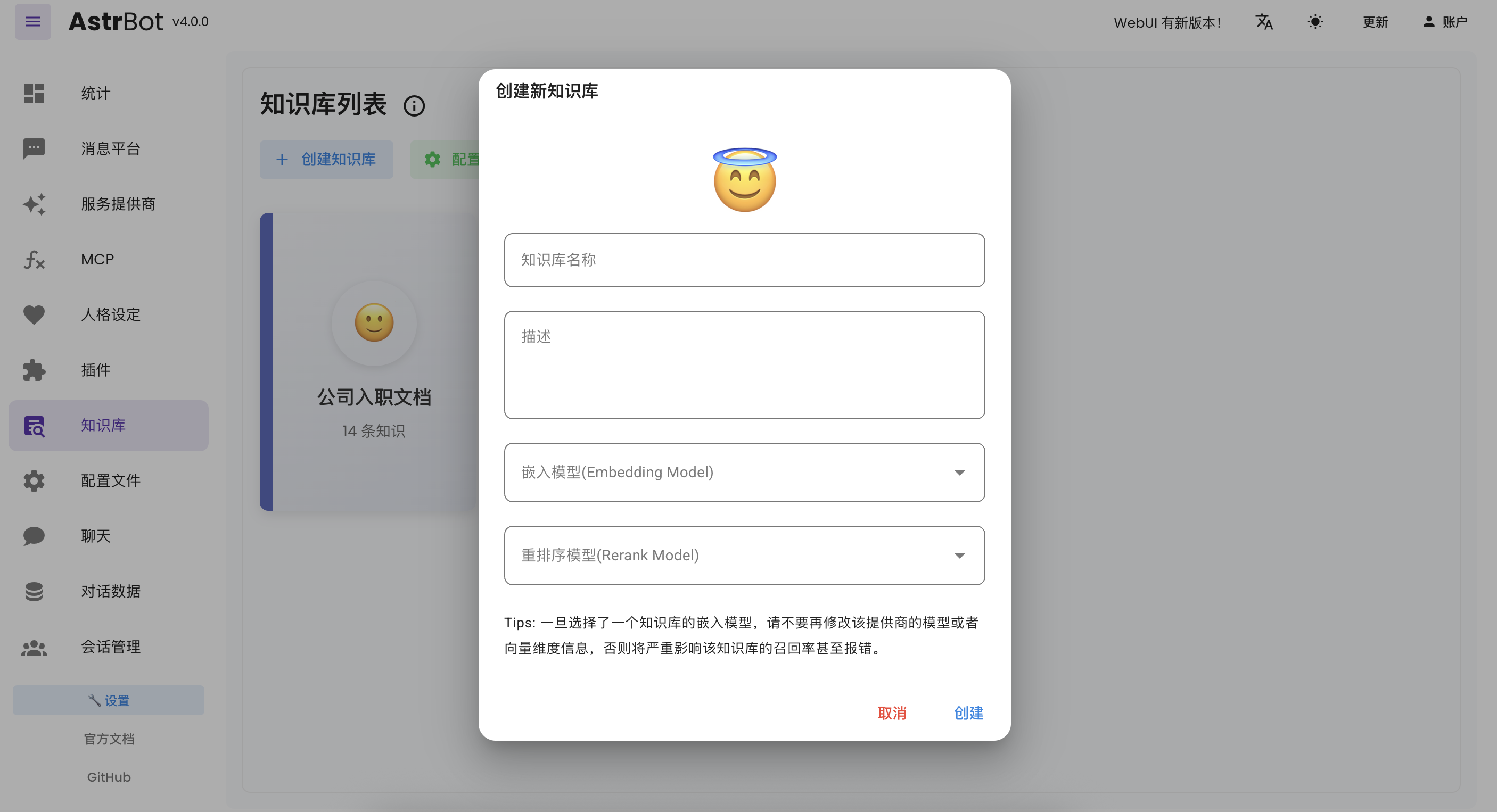
| Enter the knowledge base page and click "Create Knowledge Base", as shown below: |
|
|
|  |
|
|
| Fill in the relevant information. In the embedding model dropdown menu, you will see the embedding model and reranker model you just created (reranker model is optional). |
|
|
| > [!TIP] |
| > Once you've selected an embedding model for a knowledge base, do not modify the **model** or **vector dimension information** of that provider, as this will **seriously affect** the retrieval accuracy of the knowledge base or even **cause errors**. |
|
|
| ## Uploading Files |
|
|
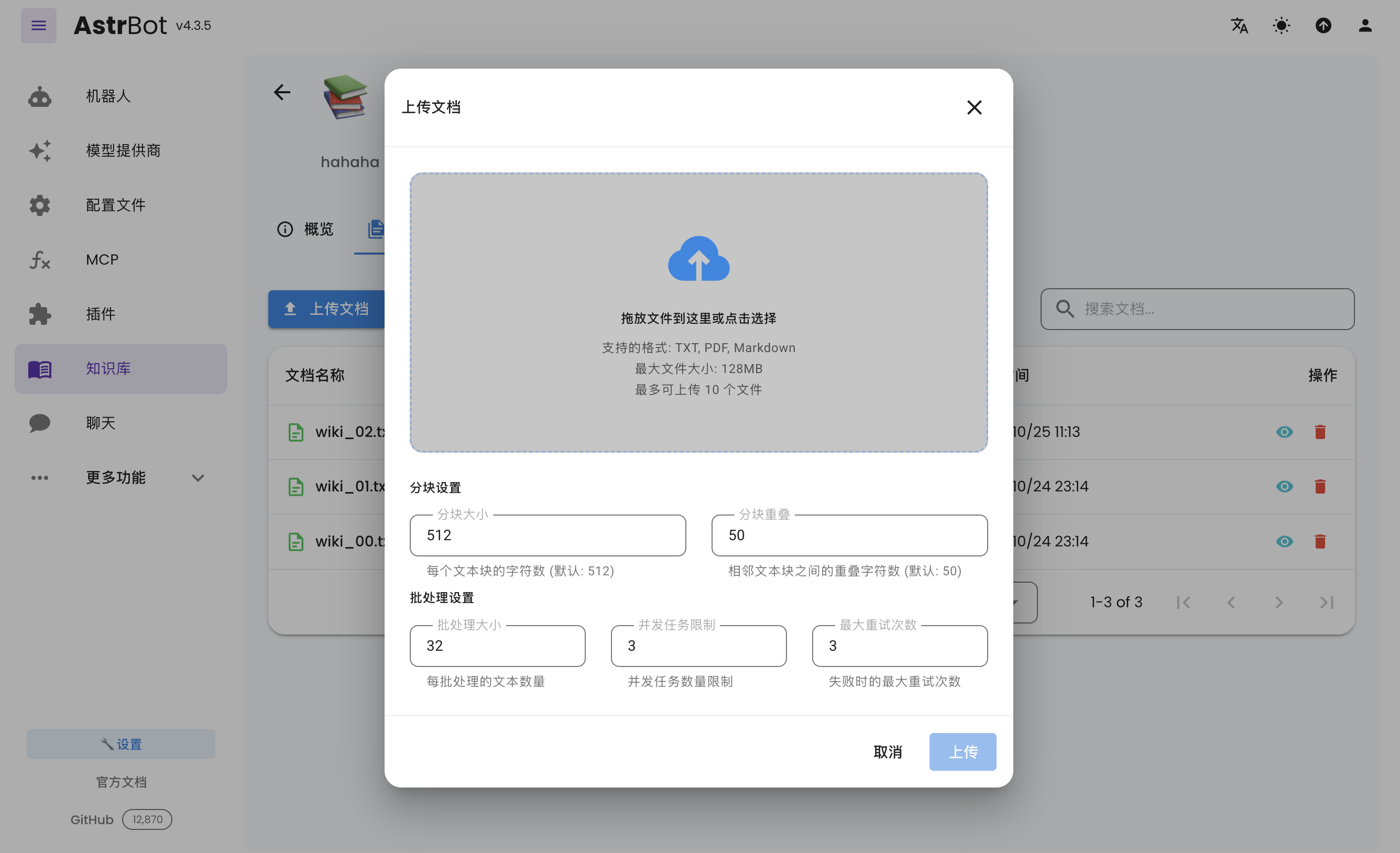
| After creating a knowledge base, you can upload documents to it. Up to 10 files can be uploaded simultaneously, with a maximum size of 128 MB per file. |
|
|
|  |
|
|
| ## Using the Knowledge Base |
|
|
| In the configuration file, you can specify different knowledge bases for different configuration profiles. |
|
|
| ## Appendix 2: Applying for Free Embedding Models |
|
|
| ### PPIO Cloud |
|
|
| 1. Open the [PPIO Cloud website](https://ppio.cn/user/register?invited_by=AIOONE) and register an account (accounts registered through this link will receive a 15 RMB voucher). |
| 2. Go to the [Model Marketplace](https://ppio.cn/model-api/console) and click on Embedding Models. |
| 3. Click on BAAI:BGE-M3 (as of 2025-06-02, this model is free on this platform). |
| 4. Find the API integration guide and apply for a Key. |
| 5. Fill in the AstrBot OpenAI Embedding model provider configuration: |
| 1. API Key is the PPIO API Key you just applied for |
| 2. embedding api base: enter `https://api.ppinfra.com/v3/openai` |
| 3. model: enter the model you selected, in this example `baai/bge-m3`. |
|
|

