

File size: 2,721 Bytes
8ede856 | 1 2 3 4 5 6 7 8 9 10 11 12 13 14 15 16 17 18 19 20 21 22 23 24 25 26 27 28 29 30 31 32 33 34 35 36 37 38 39 40 41 42 43 44 45 46 47 48 49 50 51 52 53 54 55 56 57 58 59 60 |
# AstrBot Knowledge Base
> [!TIP]
> Requires AstrBot version >= 4.5.0.
## Configuring Embedding Model
Open the service provider page, click "Add Service Provider", and select Embedding.
Currently, AstrBot supports embedding vector services compatible with OpenAI API and Gemini API.
Click on the provider card above to enter the configuration page and fill in the configuration.
After completing the configuration, click Save.
## Configuring Reranker Model (Optional)
A reranker model can improve the precision of final retrieval results to some extent.
Similar to configuring the embedding model, open the service provider page, click "Add Service Provider", and select Reranker. For more information about reranker models, please refer to online resources.
## Creating a Knowledge Base
AstrBot supports multiple knowledge base management. During chat, you can **freely specify which knowledge base to use**.
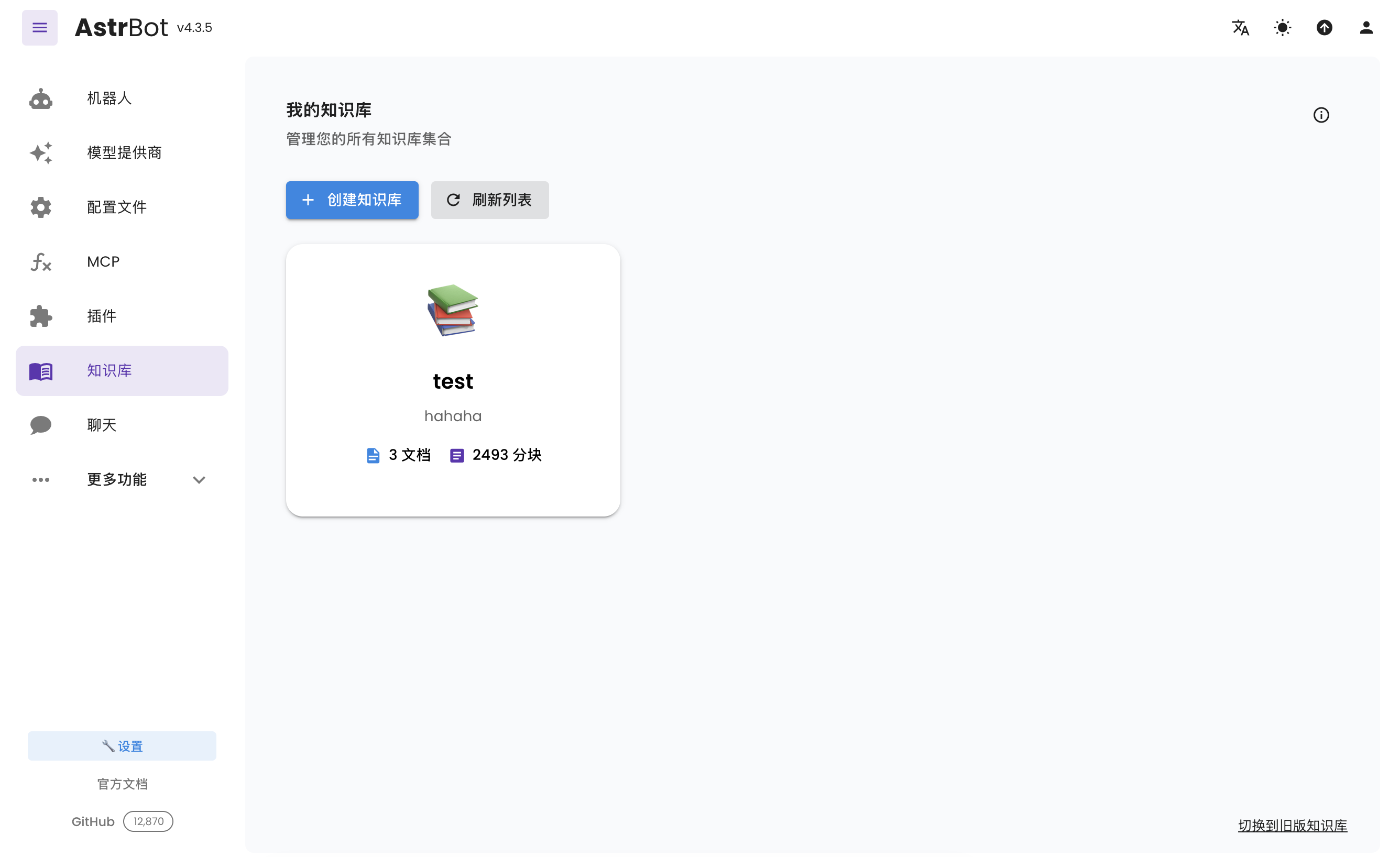
Enter the knowledge base page and click "Create Knowledge Base", as shown below:
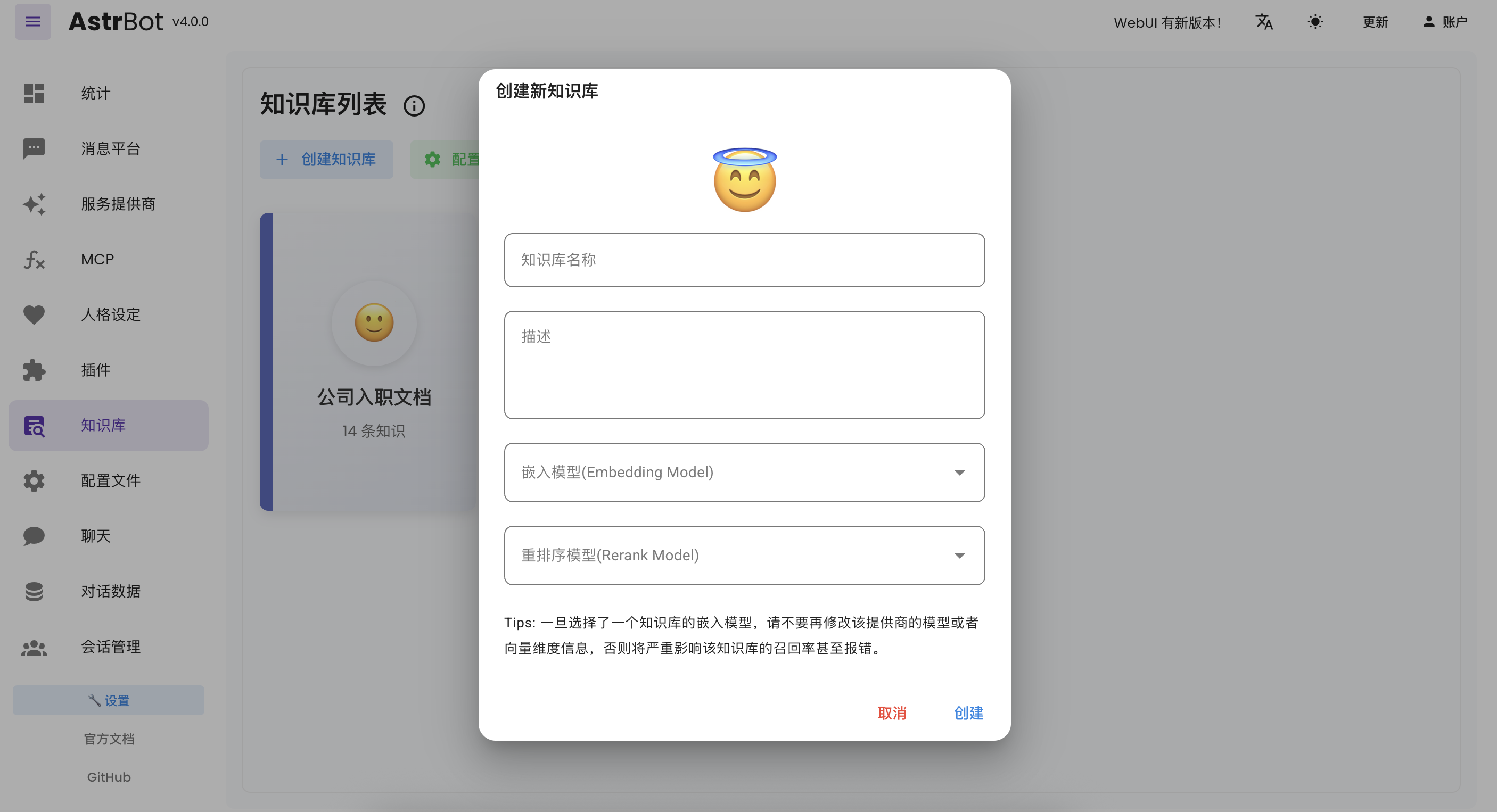
Fill in the relevant information. In the embedding model dropdown menu, you will see the embedding model and reranker model you just created (reranker model is optional).
> [!TIP]
> Once you've selected an embedding model for a knowledge base, do not modify the **model** or **vector dimension information** of that provider, as this will **seriously affect** the retrieval accuracy of the knowledge base or even **cause errors**.
## Uploading Files
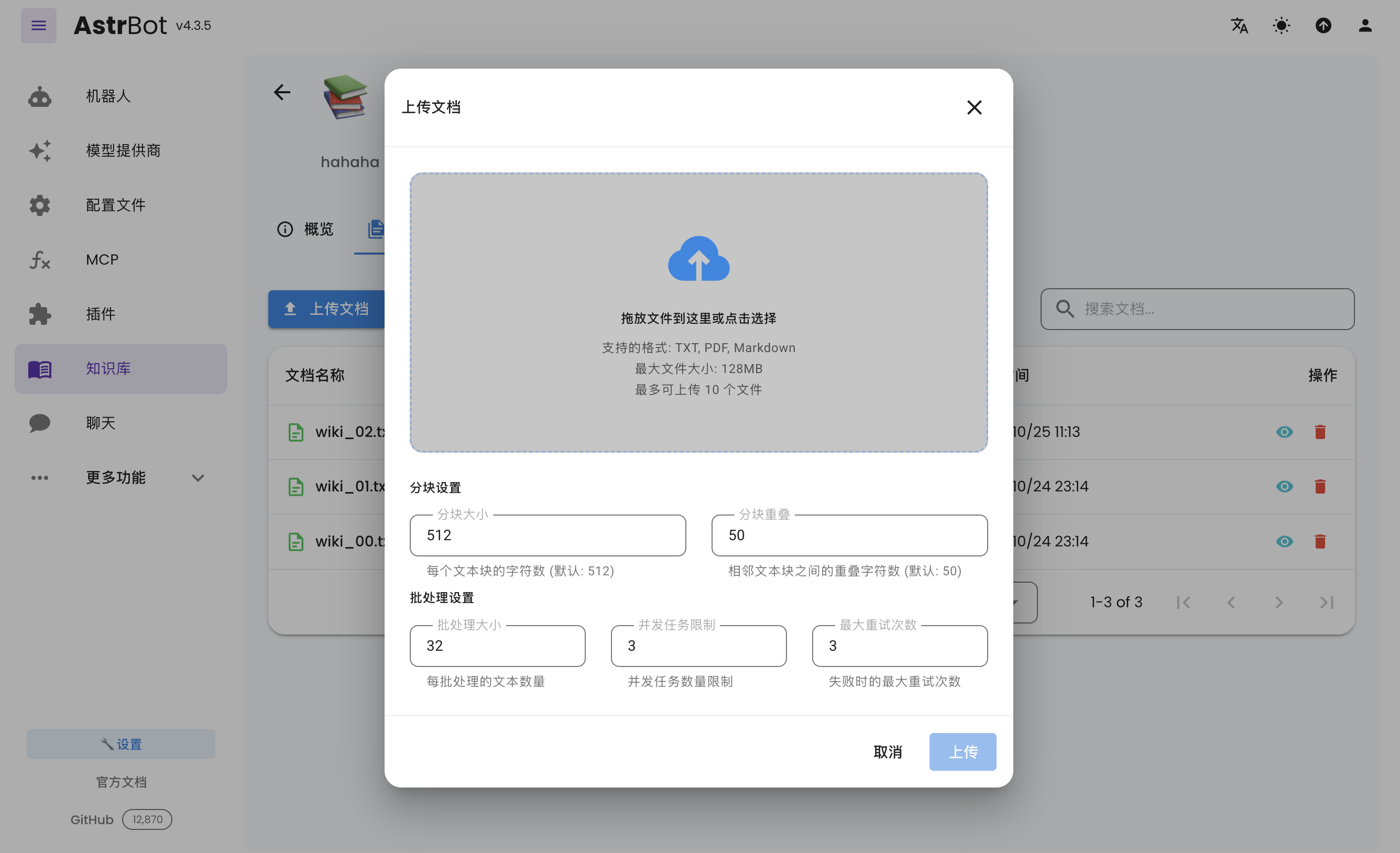
After creating a knowledge base, you can upload documents to it. Up to 10 files can be uploaded simultaneously, with a maximum size of 128 MB per file.
## Using the Knowledge Base
In the configuration file, you can specify different knowledge bases for different configuration profiles.
## Appendix 2: Applying for Free Embedding Models
### PPIO Cloud
1. Open the [PPIO Cloud website](https://ppio.cn/user/register?invited_by=AIOONE) and register an account (accounts registered through this link will receive a 15 RMB voucher).
2. Go to the [Model Marketplace](https://ppio.cn/model-api/console) and click on Embedding Models.
3. Click on BAAI:BGE-M3 (as of 2025-06-02, this model is free on this platform).
4. Find the API integration guide and apply for a Key.
5. Fill in the AstrBot OpenAI Embedding model provider configuration:
1. API Key is the PPIO API Key you just applied for
2. embedding api base: enter `https://api.ppinfra.com/v3/openai`
3. model: enter the model you selected, in this example `baai/bge-m3`.
|