| # 使用 AstrBot 启动器部署 AstrBot |
|
|
| ## AstrBot 一键启动器 |
|
|
| AstrBot 一键启动器支持 Windows、MacOS、Linux 等多端部署。 |
|
|
| 0. 打开 [AstrBotDevs/astrbot-launcher](https://github.com/AstrBotDevs/astrbot-launcher) |
| 1. **(可选但推荐)** 给本项目点个 [**Star ⭐**](https://github.com/AstrBotDevs/astrbot-launcher),你的支持是作者更新和维护的动力! |
| 2. 找到右边的 Releases,点击最新版本的 Release,在新的页面的 Assets 中下载对应你系统的安装器。 |
|
|
| 如,Windows X86 的用户应该下载 `AstrBot.Launcher_0.2.1_x64-setup.exe`,Windows on Arm 的用户应该下载 `AstrBot.Launcher_0.2.1_arm64-setup.exe`,MacOS M 芯片的用户下载 `AstrBot.Launcher_0.2.1_aarch64.dmg`。 |
|
|
| MacOS 用户下载安装好后,可能会遇到 "已损坏,无法打开" 的提示。这是因为 MacOS 的安全机制阻止了未认证的应用运行。解决方法如下: |
|
|
| 1. 打开终端 |
| 2. 输入以下命令并回车: |
| `xattr -dr com.apple.quarantine /Applications/AstrBot\ Launcher.app` |
| 3. 重新尝试打开 AstrBot Launcher 应用 |
|
|
| ## 旧版本 Windows 安装器(不推荐) |
|
|
|
|
| > [!WARNING] |
| > 需要您的电脑上预先安装好 Python 环境(3.10 - 3.13),并且将 Python 添加到环境变量中,否则安装器将无法正常工作。 |
|
|
|
|
| 推荐使用上面提到的 AstrBot 一键启动器来部署 AstrBot,因为它更简单、更自动化、更现代化,适合大多数用户。 |
|
|
| 安装器是一个使用 `Powershell` 编写的脚本,体积小巧,<20KB。需要您的电脑上安装有 `Powershell`,一般 `Windows 10` 及以上版本的设备都会自带这个工具。 |
|
|
|
|
| ### 下载安装器 |
|
|
| 打开 https://github.com/AstrBotDevs/AstrBotLauncher/releases/latest |
|
|
| 下载 `Source code (zip)` 并解压到您的电脑。 |
|
|
| ### 运行安装器 |
|
|
| > 视频和此处不一致,请参考此处!!!如果部署不了,请参阅其他两个部署方式:Docker 部署和 手动部署。 |
|
|
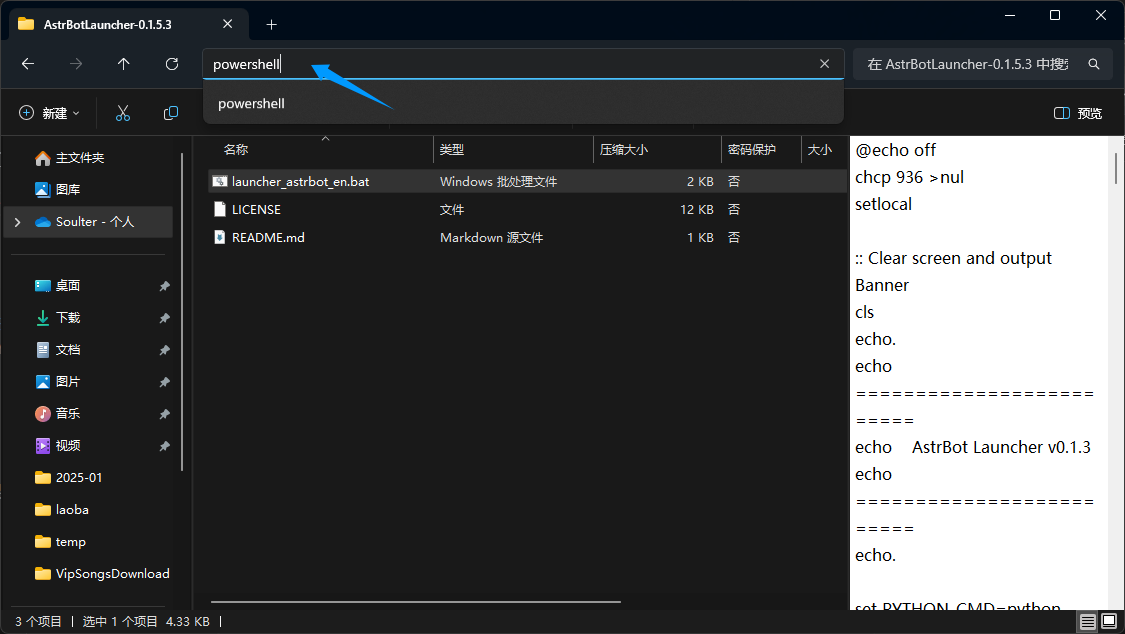
| 解压后,打开文件夹, |
|
|
| 地址栏输入 Powershell 并打开: |
|
|
|  |
|
|
| 将 `launcher_astrbot_en.bat` 批处理文件拖进去回车运行。 |
|
|
| > [!WARNING] |
| > - 这个脚本没有病毒。如果提示 `Windows 已保护您的电脑`,请点击 `更多信息`,然后点击 `仍要运行`。 |
| > |
| > - 脚本默认使用 `python` 指令来执行代码,如果你想指定 Python 解释器器路径或者指令,请修改 `launcher_astrbot_en.bat` 文件。找到 `set PYTHON_CMD=python` 这一行,将 `python` 改为你的 Python 解释器路径或指令。 |
| > |
| |
| 如果没有检测到 Python 环境,脚本将会提示并退出。 |
| |
| 脚本将自动检测目录下是否有 `AstrBot` 文件夹,如果没有,将会从 [GitHub](https://github.com/AstrBotDevs/AstrBot/releases/latest) 自动下载最新的 AstrBot 源码。下载好后,会自动安装 AstrBot 的依赖并运行。 |
| |
| ## 🎉 大功告成! |
| |
| 如果一切顺利,你会看到 AstrBot 打印出的日志。 |
| |
| 如果没有报错,你会看到一条日志显示类似 `🌈 管理面板已启动,可访问` 并附带了几条链接。打开其中一个链接即可访问 AstrBot 管理面板。 |
| |
| > [!TIP] |
| > 默认用户名和密码是 `astrbot` 和 `astrbot`。 |
| > |
| > **当管理面板打开时遇到 404 错误:** |
| > 在 [release](https://github.com/AstrBotDevs/AstrBot/releases) 页面下载dist.zip,解压拖到 AstrBot/data 下。还不行请重启电脑(来自群里的反馈) |
| |
| 接下来,你需要部署任何一个消息平台,才能够实现在消息平台上使用 AstrBot。 |
| |
| |
| > [!TIP] |
| > 如果部署不了,请参阅其他两个部署方式:Docker 部署和 手动部署。 |
| |
| |
| ## 报错:Python is not installed |
| |
| 如果提示 Python is not installed,并且已经安装 Python,并且**也已经重启并仍报这个错误**,说明环境变量不对,有两个方法解决: |
| |
| **方法 1:** |
| |
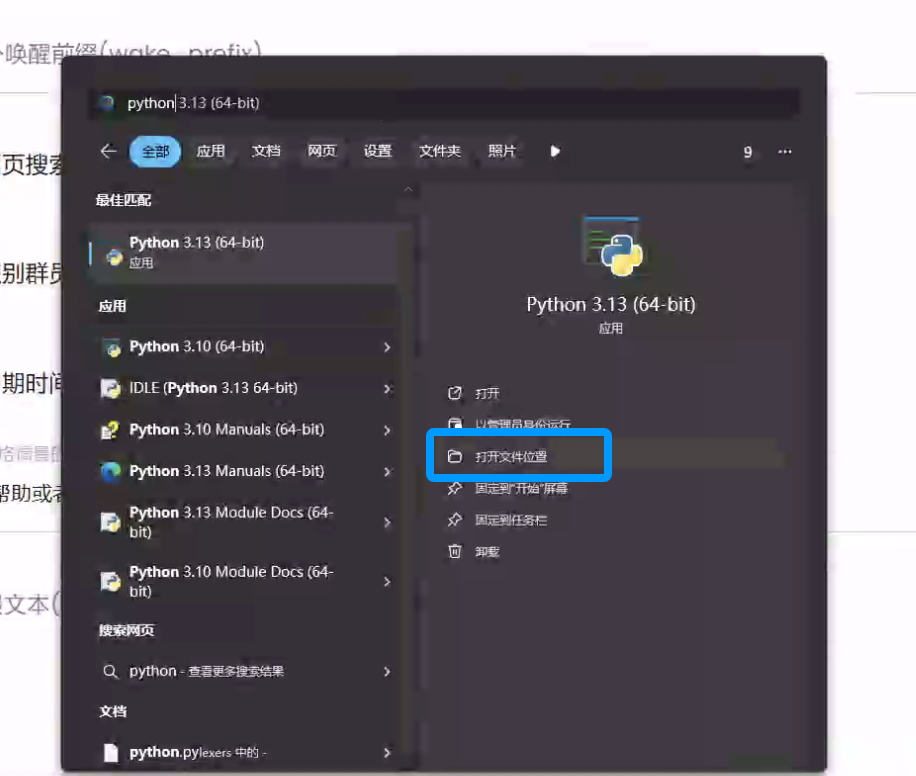
| windows 搜索 Python,打开文件位置: |
| |
|  |
| |
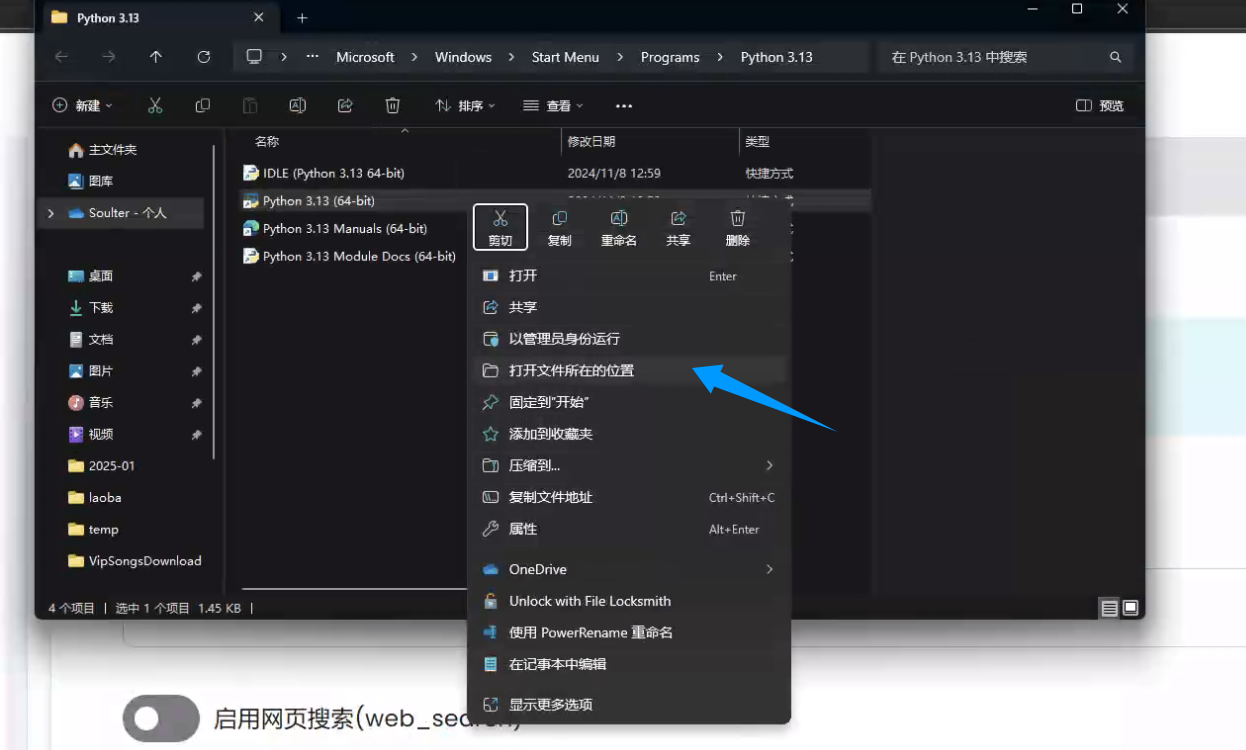
| 右键下面这个快捷方式,打开文件所在位置: |
| |
|  |
| |
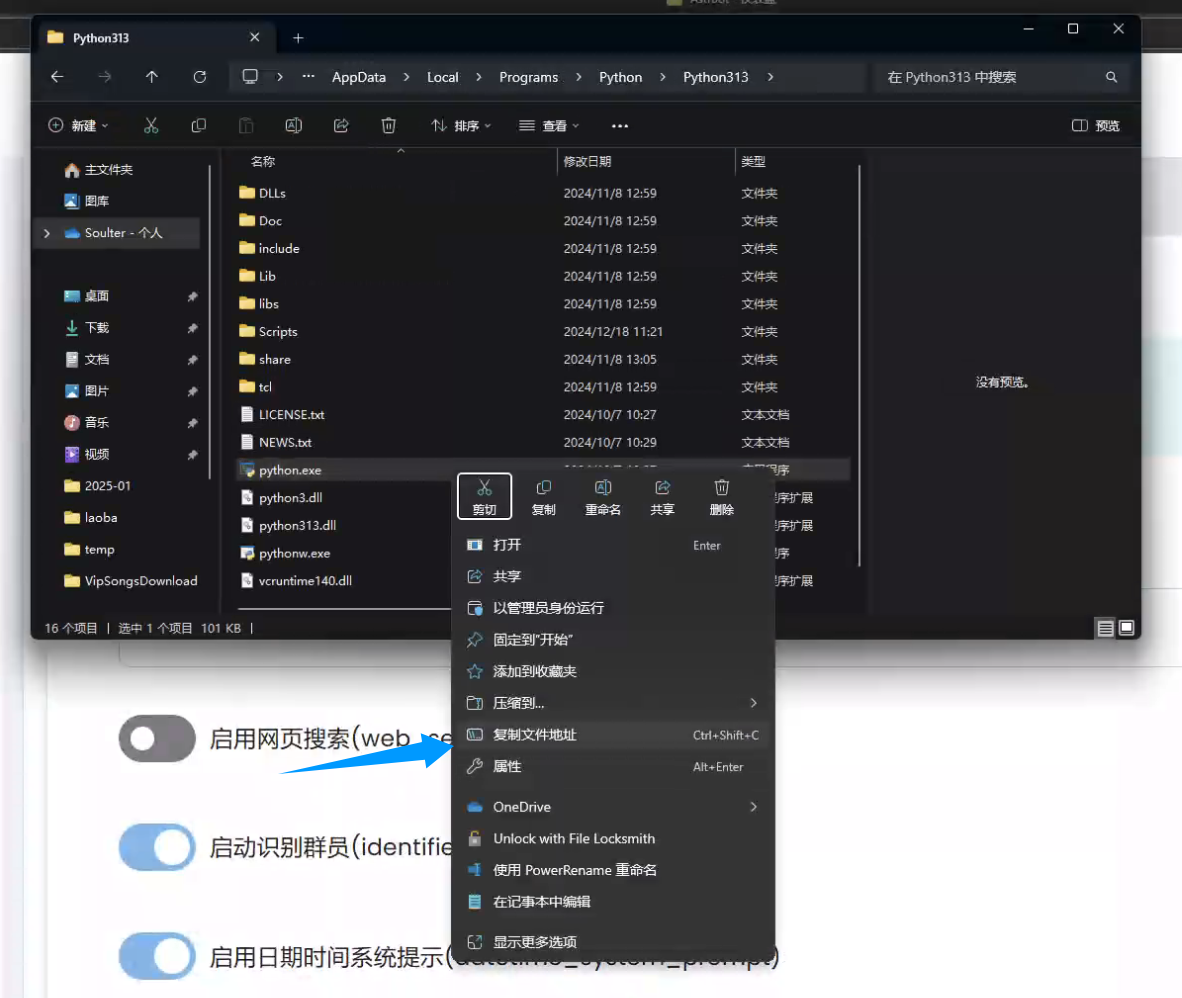
| 复制文件地址: |
| |
|  |
| |
| 回到 `launcher_astrbot_en.bat` 文件,右键点击 `在记事本中编辑`,找到 `set PYTHON_CMD=python` 这一行,将 `python` 改为你的 Python 解释器路径或指令,路径两端的双引号不要删。 |
|
|
| **方法 2:** |
|
|
| 重装 python,并且在安装时勾选 `Add Python to PATH`,然后重启电脑。 |

