

| # Connecting to TokenPony | |
| ## Configuring the Chat Model | |
| Register and log in to [TokenPony](https://www.tokenpony.cn/3YPyf). | |
| Navigate to the TokenPony [API Keys](https://www.tokenpony.cn/#/user/keys) page and create a new API Key. Save it for later use. | |
| Visit the TokenPony [Models page](https://www.tokenpony.cn/#/model) to select your desired model. Note down the model name for later use. | |
| Open the AstrBot WebUI, click `Service Providers` in the left sidebar -> `Add Provider` -> select `TokenPony` (requires version >= 4.3.3) | |
| 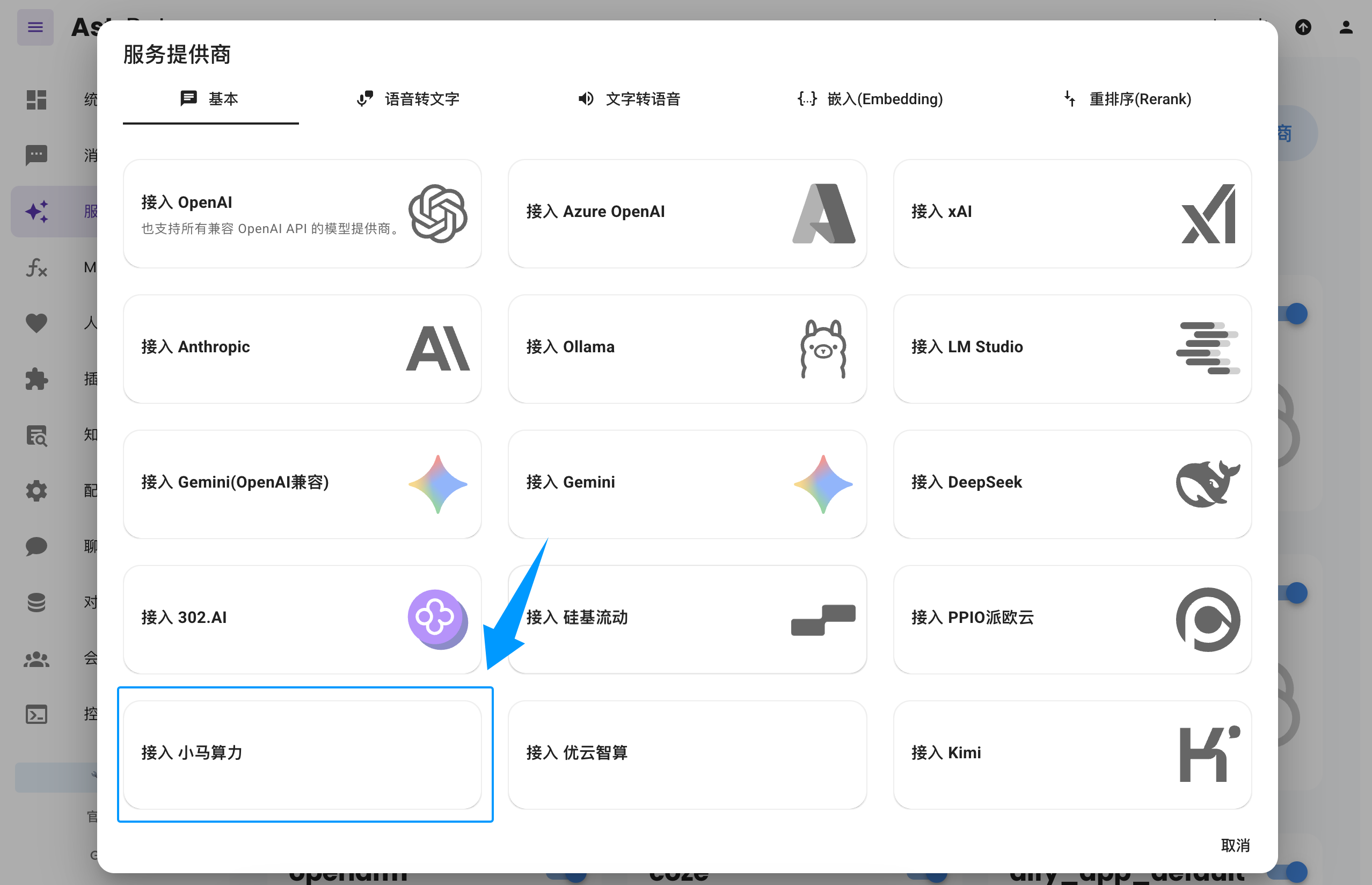 | |
| > If you don't see the `TokenPony` option, you can also click `Connect to OpenAI` as shown in the image and change the `API Base URL` to `https://api.tokenpony.cn/v1`. | |
| Paste the `API Key` and `Model Name` you obtained earlier, then click Save to complete the setup. You can click the `Refresh` button under `Service Provider Availability` to verify whether the configuration is successful. | |
| ## Applying the Chat Model | |
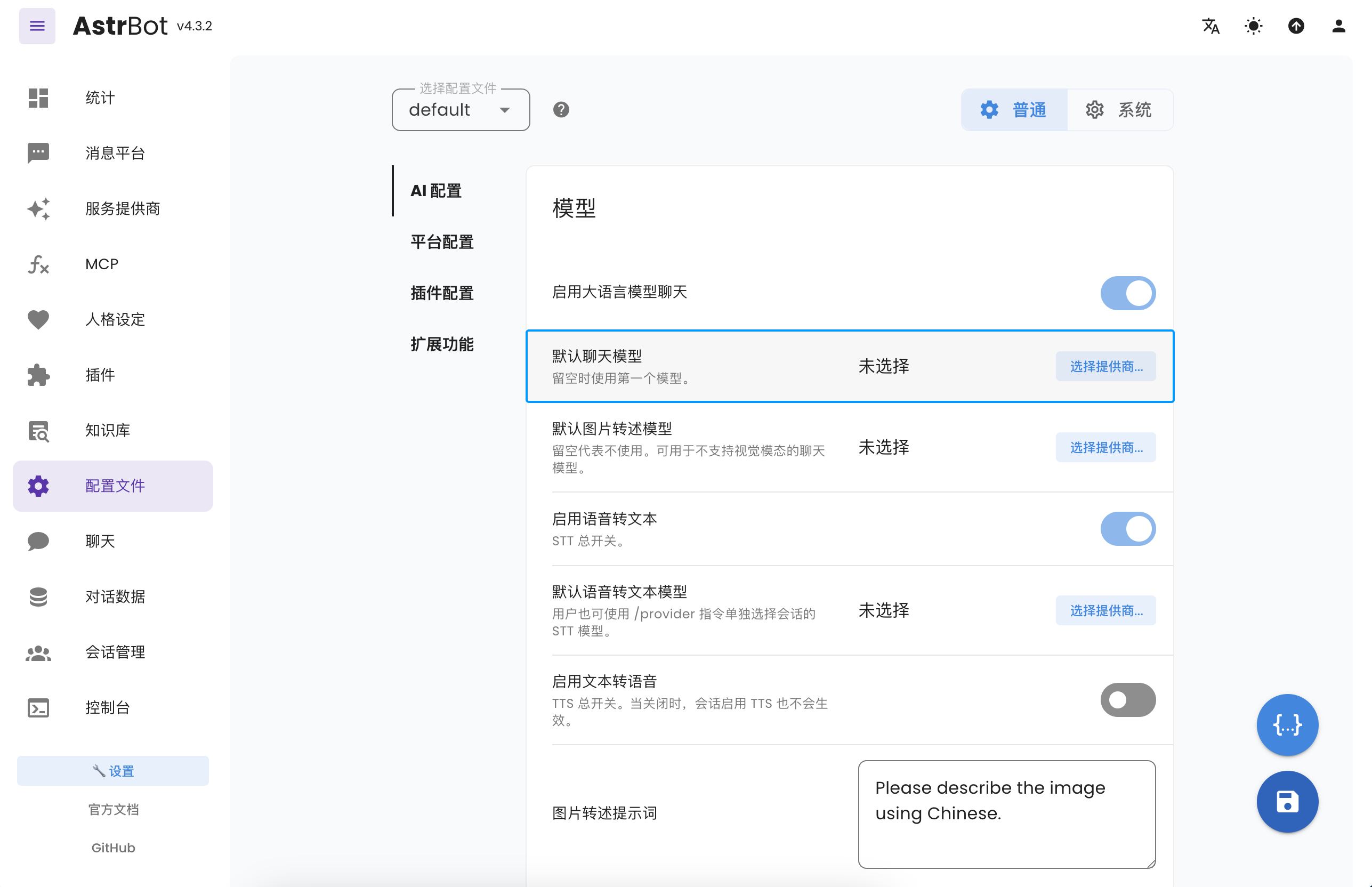
| In the AstrBot WebUI, click `Configuration` in the left sidebar, find `Default Chat Model` under AI Configuration, select the `tokenpony` (TokenPony) provider you just created, and click Save. | |
|  | |