| # Connect QQ via QQ Official Bot (Websockets) |
|
|
| ## Supported Basic Message Types |
|
|
| > Version v4.19.6. |
|
|
| | Message Type | Receive | Send | Notes | |
| | --- | --- | --- | --- | |
| | Text | Yes | Yes | | |
| | Image | Yes | Yes | | |
| | Voice | Yes | Yes | | |
| | Video | Yes | Yes | | |
| | File | Yes | Yes | | |
|
|
| Proactive message push: Supported. |
|
|
| ## Quick Deployment Steps |
|
|
| > Updated: `2026/03/06`. This method only supports `private chat`. |
|
|
| 1. Open [QQ Open Platform](https://q.qq.com/qqbot/openclaw/). Register an account if you don't have one. |
| 2. Click the `Create Bot` button on the right. |
| 3. Obtain your `AppID` and `AppSecret`. |
| 4. In AstrBot WebUI, click `Bots` in the left sidebar, then click `+ Create Bot`, select `QQ Official Bot (WebSocket)`, paste the `AppID` and `AppSecret` into the form, click `Enable`, then click `Save`. |
| 5. Back on the QQ Open Platform page, click `Scan QR Code to Chat` next to your bot, then scan with your mobile QQ to start chatting. |
|
|
| To use the bot in group chats, refer to the `Allow Bot in Channel / Group / Private Chat` section below. |
|
|
| --- |
|
|
| ## Apply for a Bot |
|
|
| > [!WARNING] |
| > 1. QQ Official Bot currently requires an IP whitelist. |
| > 2. It supports group chat, private chat, channel chat, and channel private chat. |
| > 3. Tencent is phasing out Websockets access, so this method is no longer recommended. Please use [Webhook](/en/platform/qqofficial/webhook) instead. |
|
|
| Open [QQ Official Bot](https://q.qq.com) and sign in. |
|
|
| Create a bot, fill in name/description/avatar, then submit for review. After security verification passes, creation is complete. |
|
|
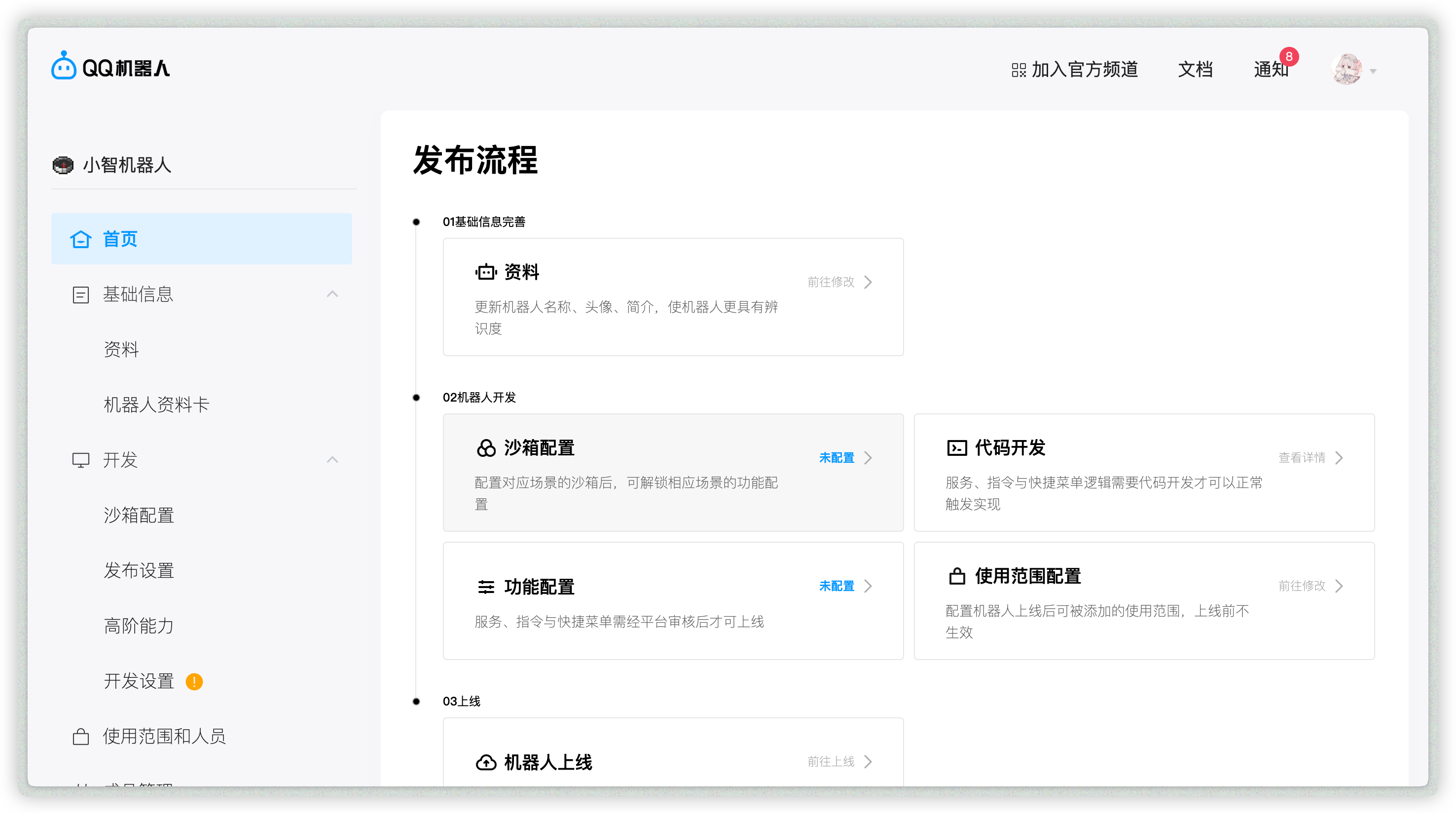
| Open the created bot to enter its management page: |
|
|
|  |
|
|
| ## Allow Bot in Channel / Group / Private Chat |
|
|
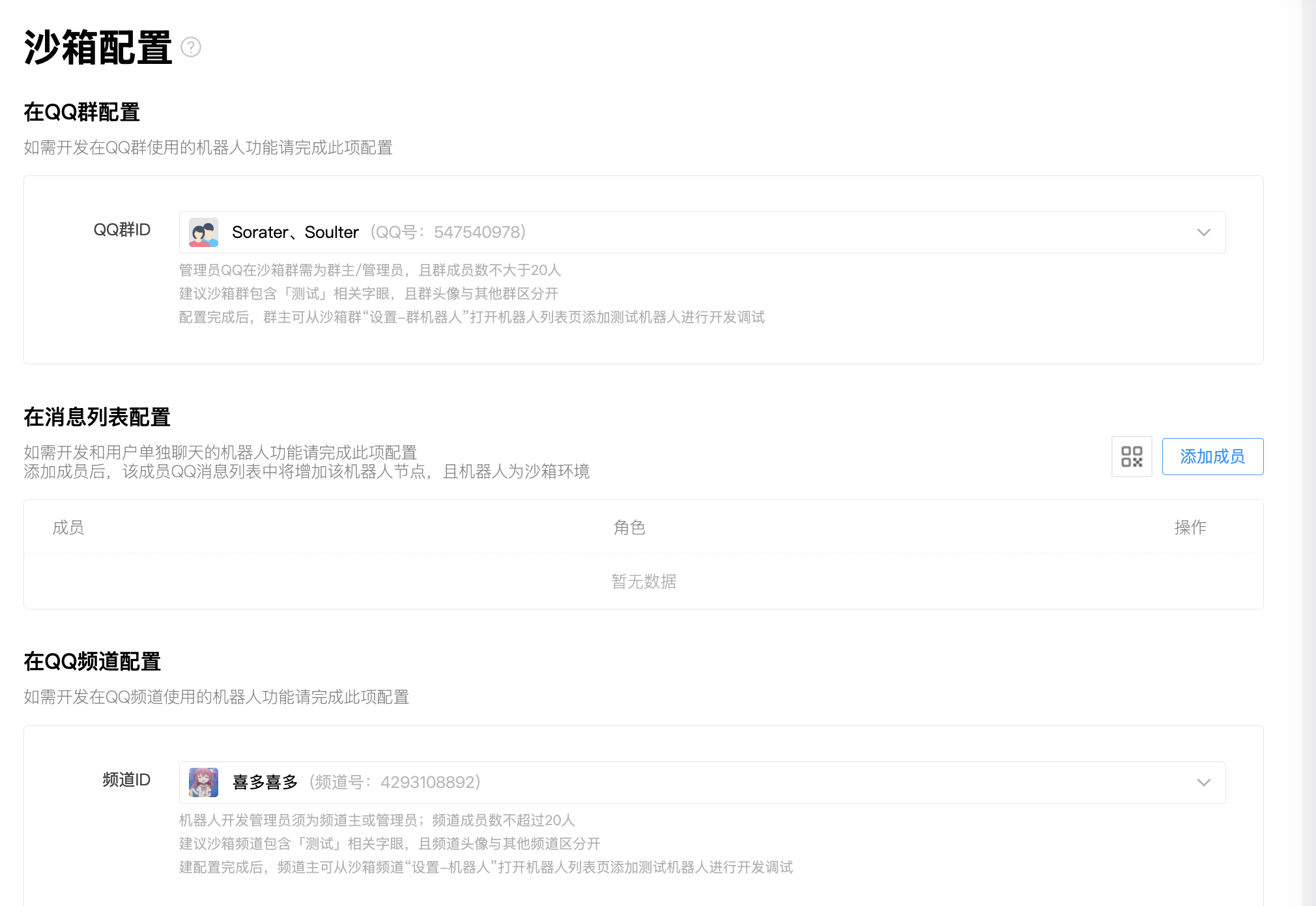
| Open `Sandbox Configuration` to set a sandbox channel / QQ group / QQ private chat (up to 20 members). |
|
|
| Then configure QQ groups, private chat QQ accounts, and QQ channels as needed. |
|
|
|  |
|
|
| ## Get `appid` and `secret` |
|
|
| After adding the bot where you need it, open `Development -> Development Settings`, then copy `appid` and `secret`. |
|
|
| ## Add IP Whitelist |
|
|
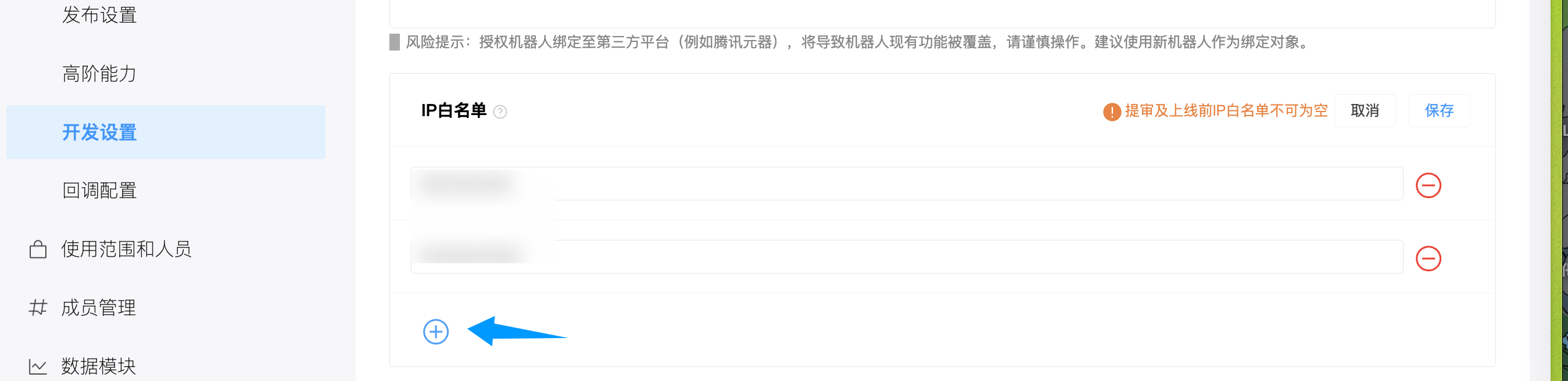
| Open `Development -> Development Settings`, find IP whitelist, and add your server IP. |
|
|
|  |
|
|
| > [!TIP] |
| > If you do not know your server IP, run `curl ifconfig.me` or check [ip138.com](https://ip138.com/). |
| > |
| > In NAT environments without a public IP, the observed IP may change depending on your carrier. Use proxy/tunnel if needed. |
|
|
| ## Configure in AstrBot |
|
|
| 1. Open AstrBot Dashboard. |
| 2. Click `Bots` in the left sidebar. |
| 3. Click `+ Create Bot`. |
| 4. Select `qq_official`. |
|
|
| Fill in: |
|
|
| - ID (`id`): any unique identifier. |
| - Enable (`enable`): checked. |
| - `appid`: from QQ Official Bot platform. |
| - `secret`: from QQ Official Bot platform. |
|
|
| Click `Save`. |
|
|
| ## Done |
|
|
| AstrBot should now be connected. Send `/help` to the bot in QQ private chat to verify. |
|
|

