| # Connecting to LINE |
|
|
| ## Supported Message Types |
|
|
| > Version v4.17.0. |
|
|
| | Message Type | Receive Support | Send Support | Notes | |
| | --- | --- | --- | --- | |
| | Text | Yes | Yes | | |
| | Image | Yes | Yes | | |
| | Voice | Yes | Yes | | |
| | Video | Yes | Yes | | |
| | File | Yes | Yes | | |
| | Sticker | Yes | No | | |
|
|
| Proactive message push: Supported. |
|
|
| ## Create a LINE Messaging API Channel |
|
|
| 1. Open the [LINE Developers Console](https://developers.line.biz/console/) |
| 2. Create or select a Provider |
| 3. Create a `Messaging API` channel (not a `LINE Login` channel) |
| 4. Complete bot initialization on the `Messaging API` page |
|
|
| ## Get Credentials |
|
|
| You need the following values: |
|
|
| - `channel_secret` |
| - `channel_access_token` |
|
|
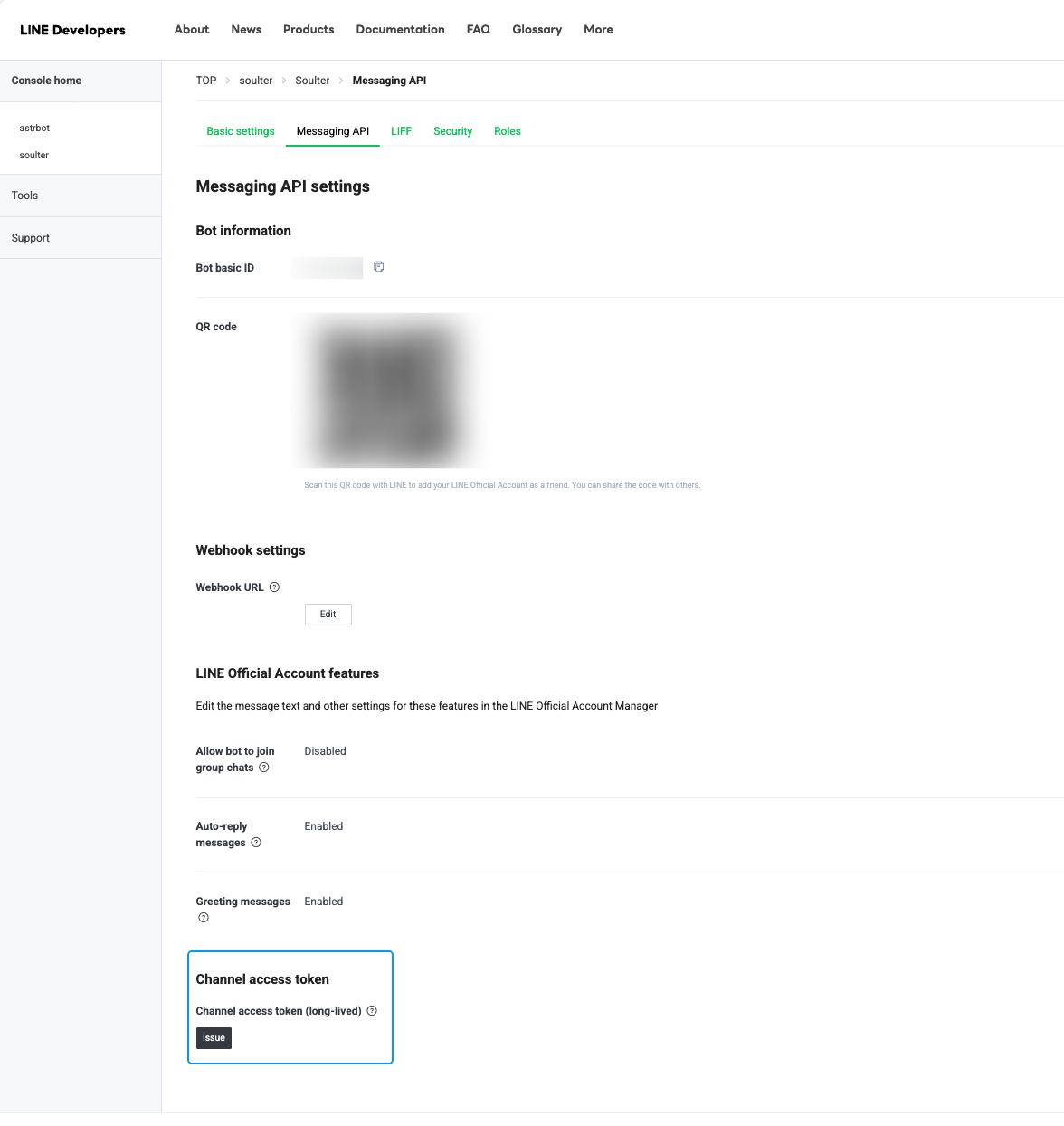
| How to get them: |
|
|
| 1. Open your channel settings page |
| 2. Get `Channel secret` from `Basic settings` |
| 3. Issue a `Channel access token` on the `Messaging API` page |
|
|
|  |
|
|
| ## Configure AstrBot |
|
|
| 1. Open the AstrBot admin panel |
| 2. Click `Bots` in the left sidebar |
| 3. Click `+ Create Bot` |
| 4. Select `line` |
|
|
| Fill in these fields: |
|
|
| - `ID`: Custom identifier to distinguish instances |
| - `Enable`: Checked |
| - `LINE Channel Access Token`: your `channel_access_token` |
| - `LINE Channel Secret`: your `channel_secret` |
| - `LINE Bot User ID`: optional; if empty, AstrBot uses webhook `destination` |
|
|
| Click Save. |
|
|
| ## Configure Callback URL (Unified Webhook) |
|
|
| The LINE adapter supports **unified webhook mode only**. |
|
|
| After saving, click `View Webhook URL` on the bot card and copy the URL. |
|
|
| Then in LINE Developers Console: |
|
|
| 1. Open `Messaging API` |
| 2. Paste the URL into `Webhook settings` -> `Webhook URL` |
| 3. Click `Verify` |
| 4. Enable `Use webhook` |
|
|
| > [!TIP] |
| > If AstrBot is not publicly reachable, set up a public domain and reverse proxy first so LINE can access your webhook URL. |
|
|
| ## Test |
|
|
| 1. Add your Official Account as a friend in LINE |
| 2. Send a message to the bot (for example, `hi`) |
| 3. If the bot replies, setup is successful |
|
|
| If you want to use it in a group, invite the Official Account to the group first. |
|
|

