| # Deploy AstrBot with AstrBot Launcher |
|
|
| ## Recommended Method 1: AstrBot One-Click Launcher |
|
|
| AstrBot One-Click Launcher supports Windows, macOS, and Linux. |
|
|
| 0. Open [AstrBotDevs/astrbot-launcher](https://github.com/AstrBotDevs/astrbot-launcher) |
| 1. **Optional but recommended**: give this project a [**Star ⭐**](https://github.com/AstrBotDevs/astrbot-launcher). Your support helps maintainers keep improving it. |
| 2. Find **Releases** on the right, open the latest release, then download the installer for your system from **Assets**. |
|
|
| For example: |
|
|
| - Windows x86 users: `AstrBot.Launcher_0.2.1_x64-setup.exe` |
| - Windows on Arm users: `AstrBot.Launcher_0.2.1_arm64-setup.exe` |
| - macOS Apple Silicon users: `AstrBot.Launcher_0.2.1_aarch64.dmg` |
|
|
| For macOS users, if you see "damaged and can't be opened", it is caused by macOS security restrictions on unsigned apps. Fix it with: |
|
|
| 1. Open Terminal. |
| 2. Run: |
| `xattr -dr com.apple.quarantine /Applications/AstrBot\ Launcher.app` |
| 3. Reopen AstrBot Launcher. |
|
|
| ## Method 2: Legacy Windows Installer |
|
|
| We still recommend the One-Click Launcher above because it is simpler, more automated, and better for most users. |
|
|
| The legacy installer is a `PowerShell` script, very small (<20KB). It requires `PowerShell` (usually built in on `Windows 10` and newer). |
|
|
| > [!WARNING] |
| > `Python 3.10` or later must be installed, and environment variables must be configured. |
|
|
| > [!TIP] |
| > If deployment fails, try Docker deployment or manual deployment instead. |
|
|
| ## Download the Legacy Installer |
|
|
| Open <https://github.com/AstrBotDevs/AstrBotLauncher/releases/latest> |
|
|
| Download `Source code (zip)` and extract it. |
|
|
| ## Run the Legacy Installer |
|
|
| > The video may be outdated. Follow the steps here. |
|
|
| After extraction, open the folder. |
|
|
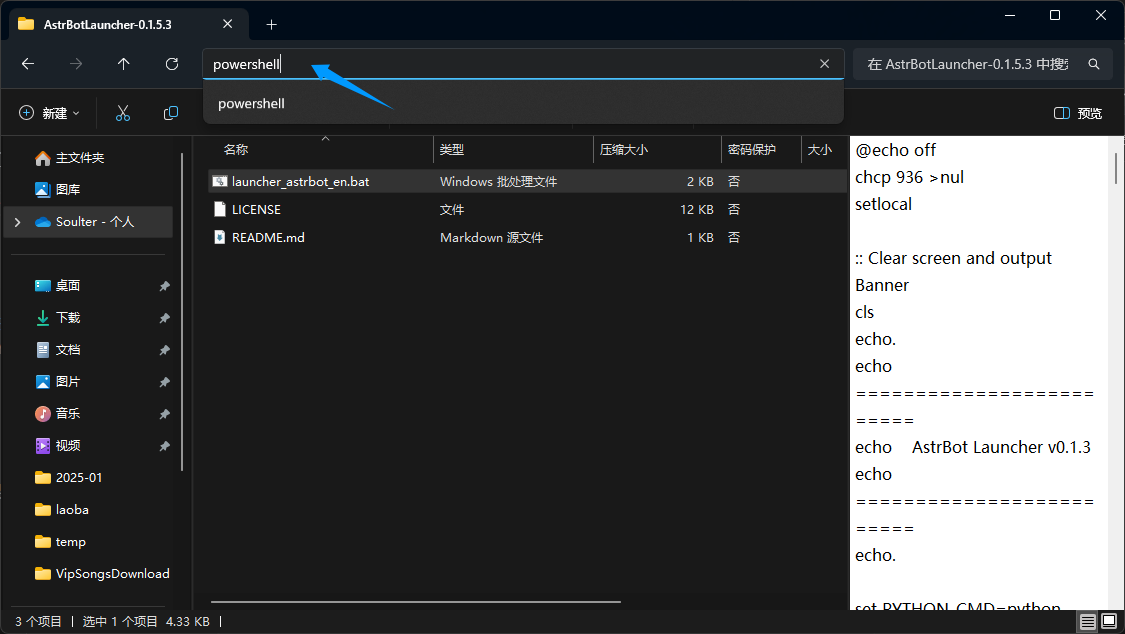
| Type `PowerShell` in the address bar and press Enter: |
|
|
|  |
|
|
| Drag `launcher_astrbot_en.bat` into the PowerShell window and press Enter. |
|
|
| > [!WARNING] |
| > - The script is safe. If you see `Windows protected your PC`, click `More info` and then `Run anyway`. |
| > - By default, it uses `python`. If you want to specify another interpreter path/command, edit `launcher_astrbot_en.bat`, find `set PYTHON_CMD=python`, and replace `python` with your own command/path. |
| |
| If Python is not detected, the script exits with a prompt. |
| |
| The script checks whether an `AstrBot` folder exists. If not, it downloads the latest AstrBot source from [GitHub](https://github.com/AstrBotDevs/AstrBot/releases/latest), installs dependencies, and runs it automatically. |
| |
| ## Done |
| |
| If everything works, you will see AstrBot logs. |
| |
| Without errors, you should see a log like `🌈 Management panel started, accessible at` with several URLs. Open one URL to access AstrBot WebUI. |
| |
| > [!TIP] |
| > Default username and password: `astrbot` / `astrbot`. |
| > |
| > If WebUI returns 404: |
| > Download `dist.zip` from [release](https://github.com/AstrBotDevs/AstrBot/releases), extract it into `AstrBot/data`, then restart the computer if needed. |
| |
| Then deploy at least one messaging platform adapter to start using AstrBot in IM apps. |
| |
| ## Error: Python is not installed |
| |
| If you still get this error after installing Python and restarting, your PATH is likely incorrect. |
| |
| **Method 1** |
| |
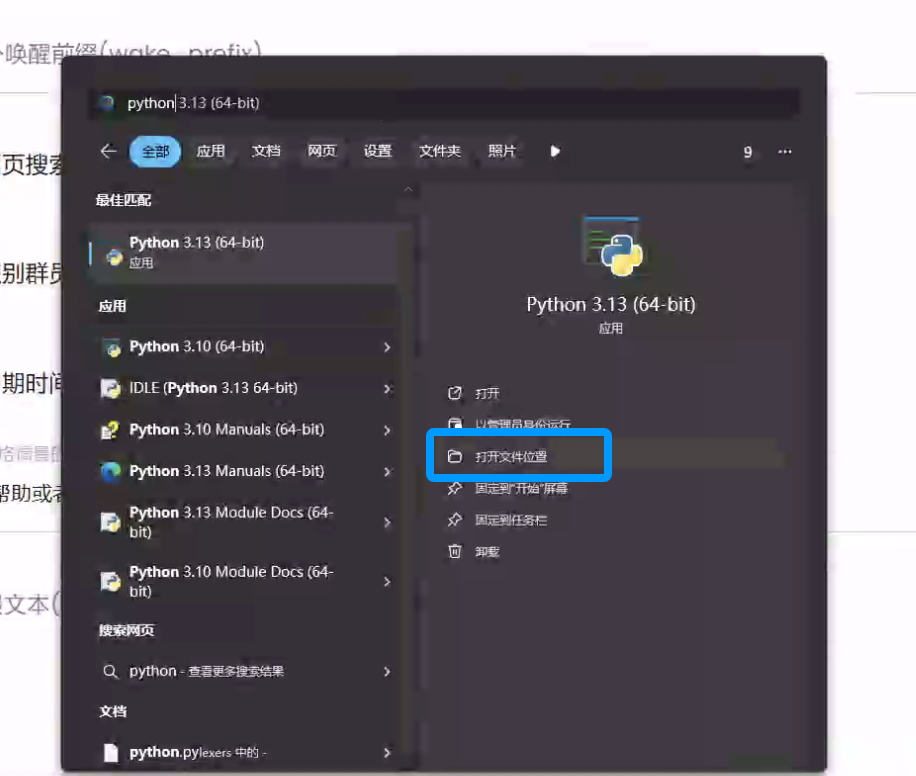
| Search for Python in Windows and open its file location: |
| |
|  |
| |
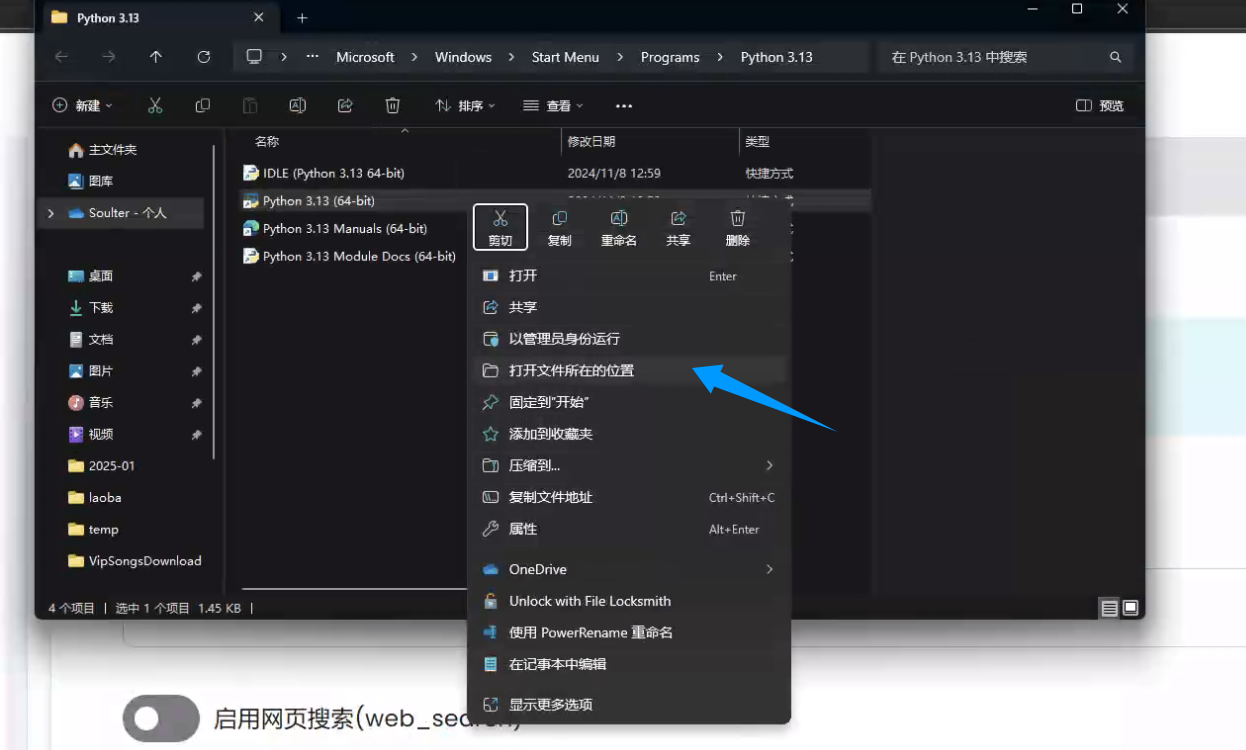
| Right-click the shortcut below and open file location: |
| |
|  |
| |
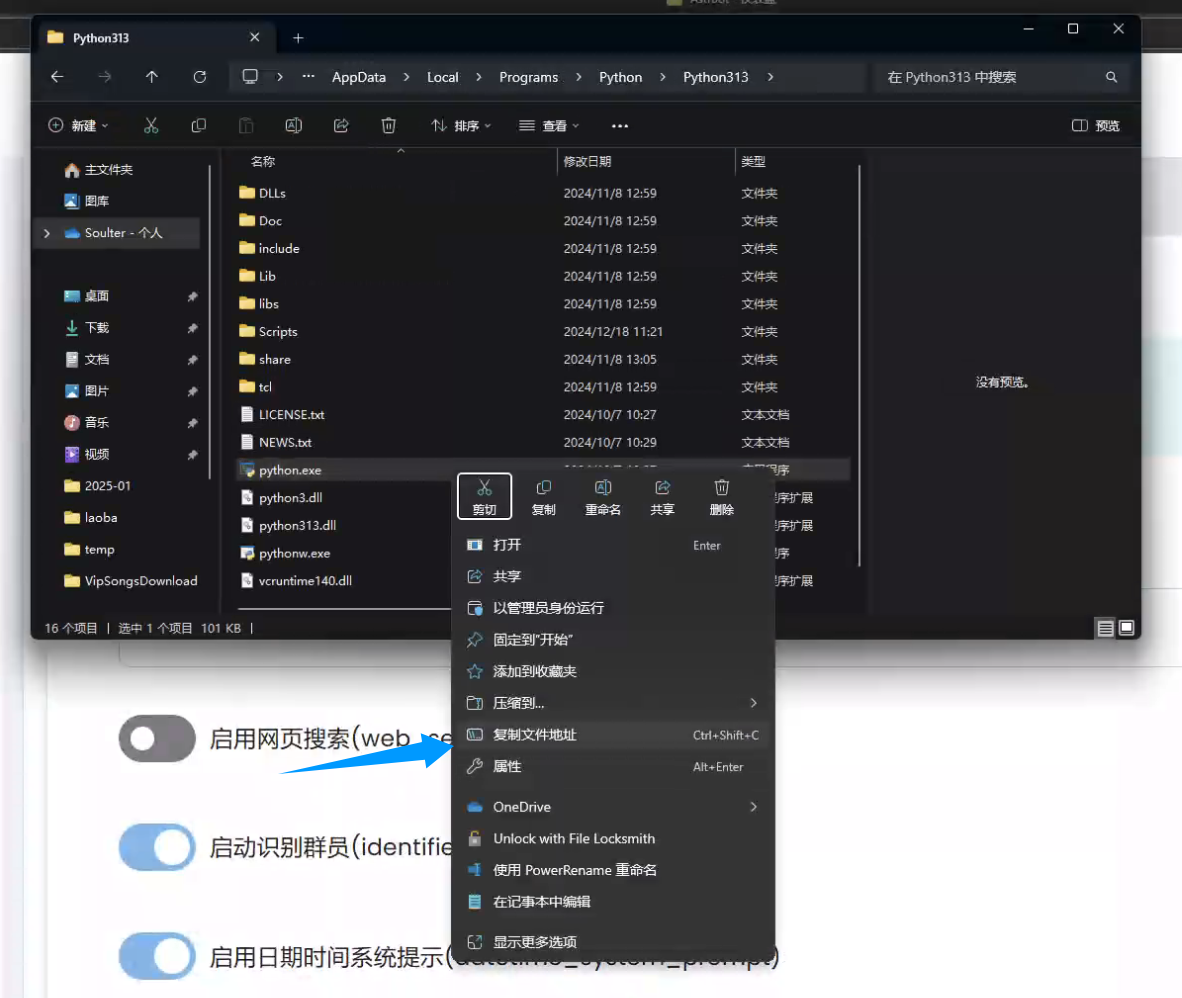
| Copy the file path: |
| |
|  |
| |
| Edit `launcher_astrbot_en.bat` in Notepad, find `set PYTHON_CMD=python`, and replace `python` with your interpreter command/path. Keep quotes if your path contains spaces. |
|
|
| **Method 2** |
|
|
| Reinstall Python, check `Add Python to PATH` during installation, then restart your computer. |
|
|

