| # Deploy AstrBot on BT Panel |
|
|
| [BT Panel](https://www.bt.cn/new/index.html) is a secure, efficient, and production-ready Linux/Windows server operation panel. |
|
|
| AstrBot has been published to BT Panel's Docker App Store, supporting one-click installation. |
|
|
| ## Install BT Panel |
|
|
| If you haven't installed BT Panel yet, please refer to [Install BT Products](https://www.bt.cn/new/download.html) for one-click installation. |
|
|
| ## Set Acceleration URL (For Users in Mainland China) |
|
|
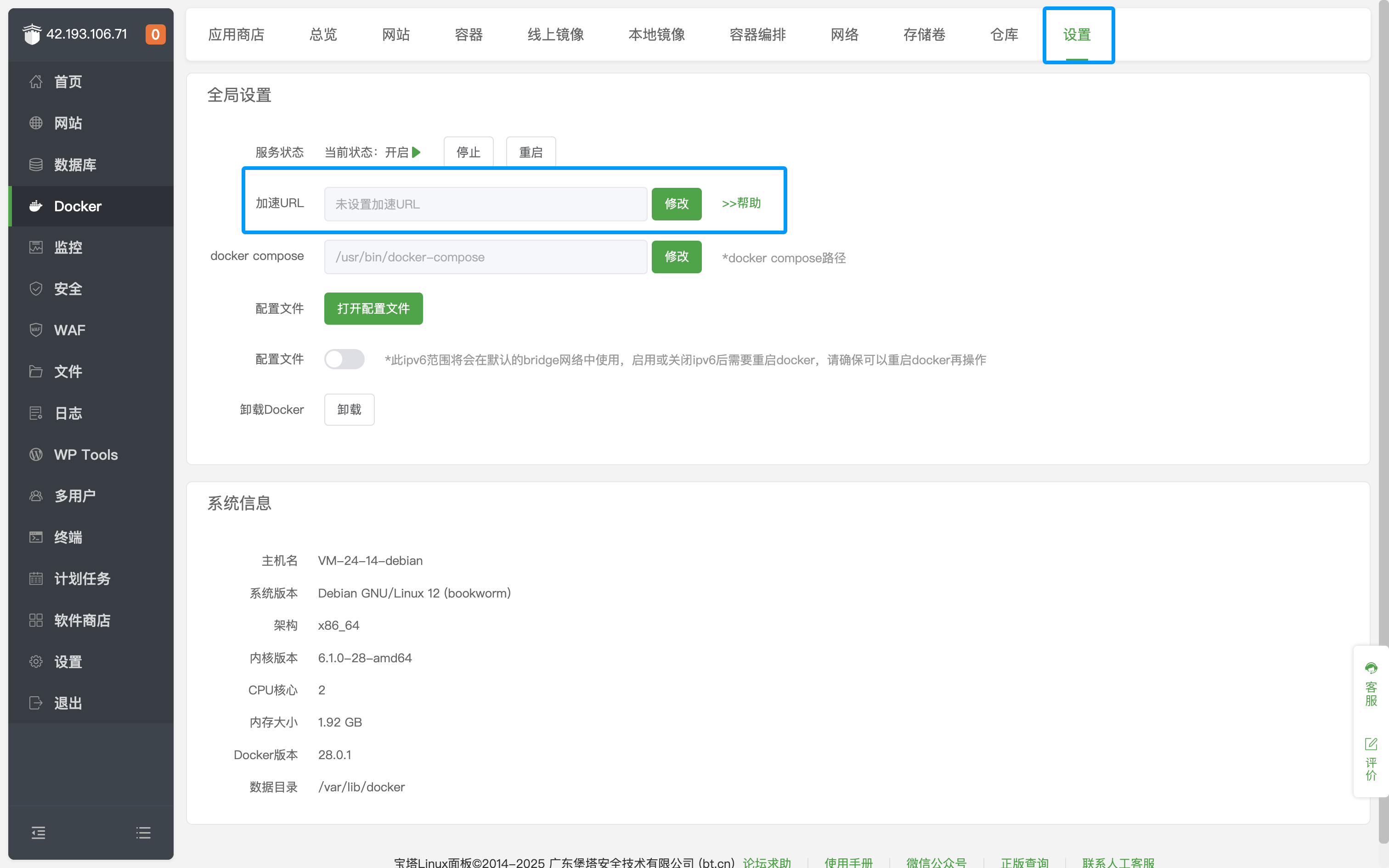
| After entering the BT Panel page, click `Docker` on the left sidebar, click Settings, and modify the `Acceleration URL`. |
|
|
|  |
|
|
| ## Install AstrBot |
|
|
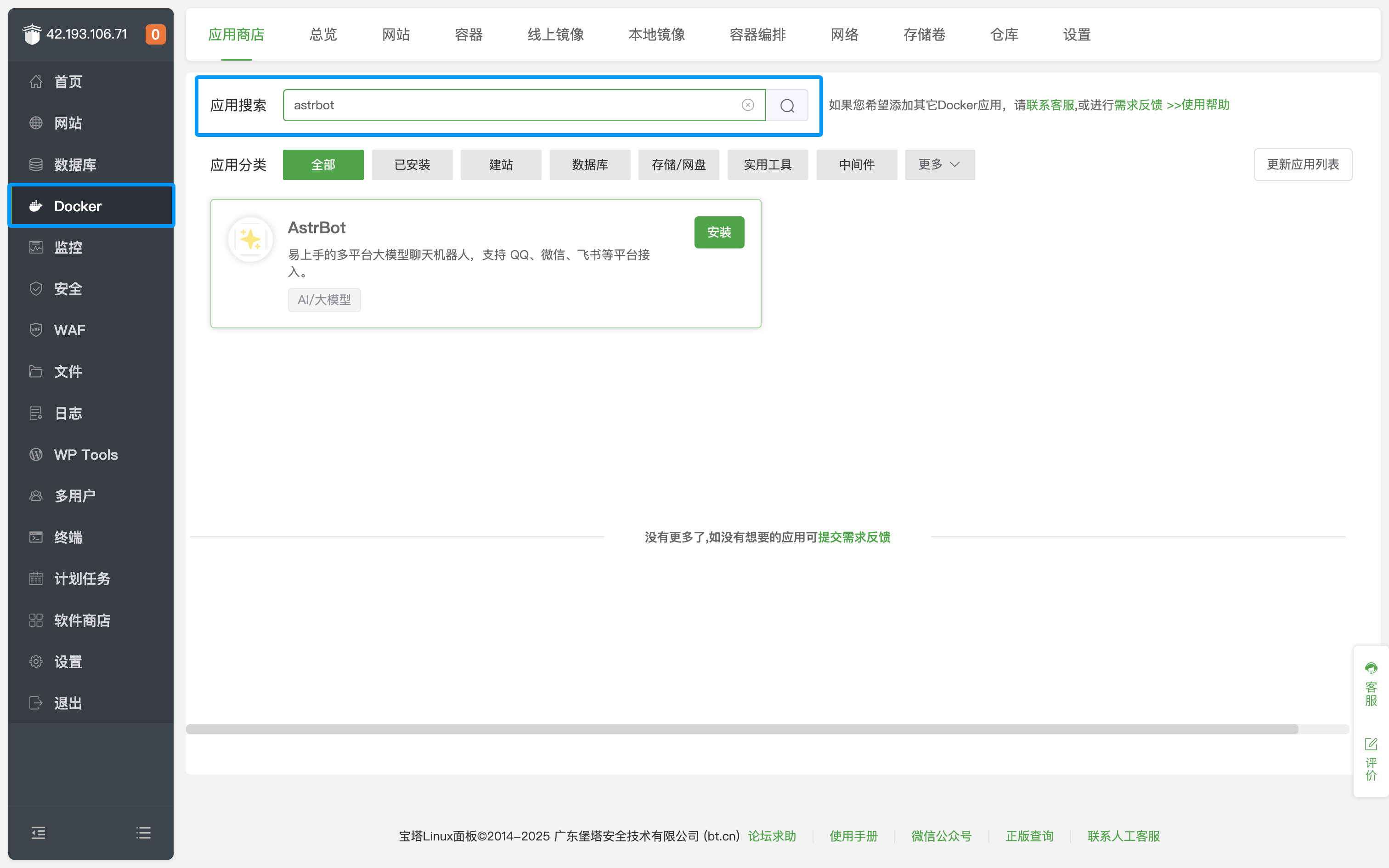
| Go to Docker's App Store and search for `AstrBot`, as shown below. |
|
|
|  |
|
|
| Click Install and wait for the installation to complete. |
|
|
| After successful installation, click `Security` on the left sidebar and open the corresponding AstrBot port (default is 7860). |
|
|
| If you are using cloud servers from providers like AWS, Alibaba Cloud, Tencent Cloud, etc., make sure their security groups also allow the corresponding port. |
|
|
| ## Access AstrBot |
|
|
| Visit `http://IP:7860` to access the AstrBot dashboard. |
|
|
| > [!TIP] |
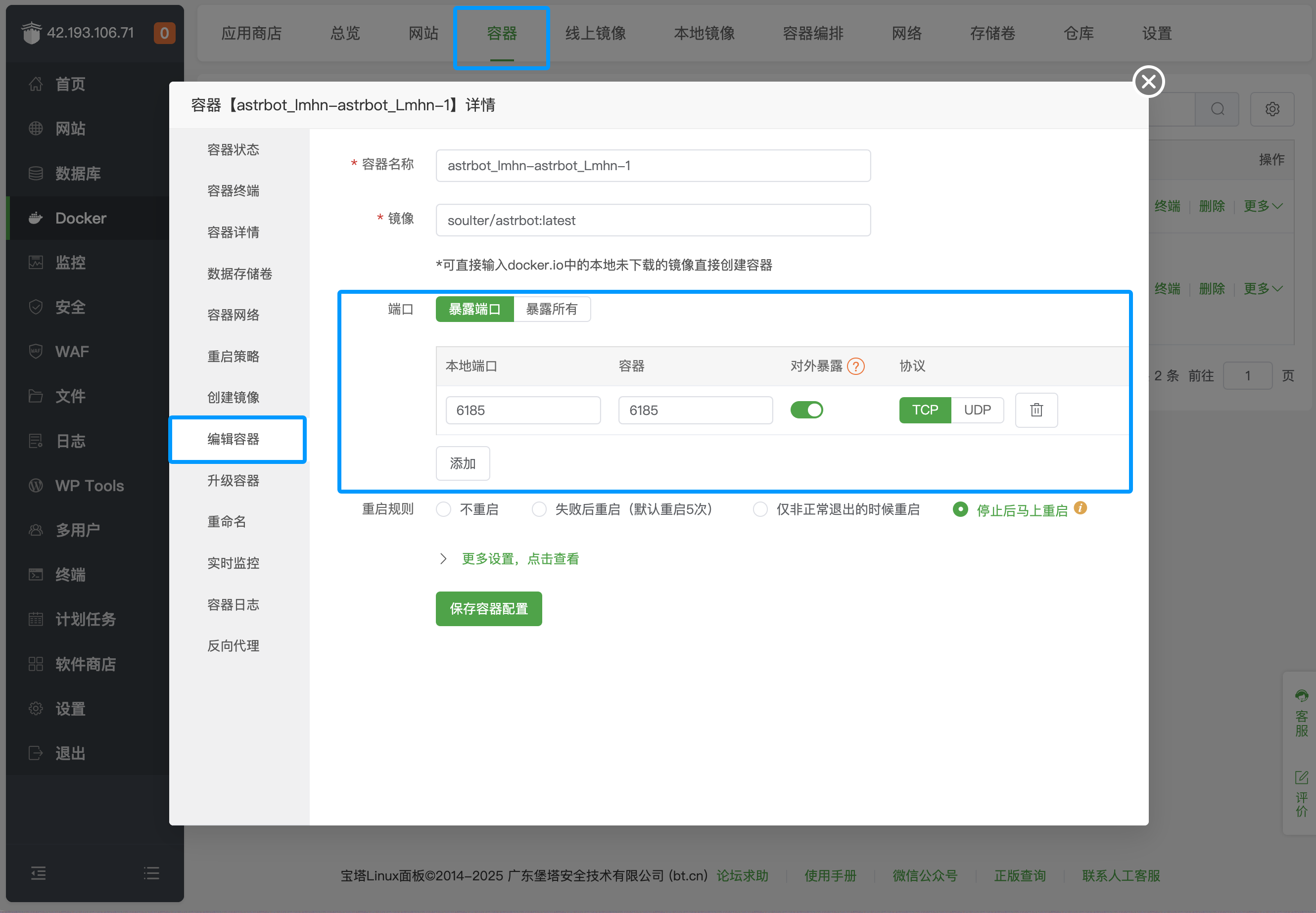
| > By default, the above method only opens port 7860. If you need to deploy messaging platforms, you need to additionally open the corresponding ports. Click `Container` in the top bar, find the AstrBot container, click `Manage`, click `Edit Container`, and add the corresponding ports. |
| > |
| >  |
| > |
| > For specific messaging platform port mappings, refer to the table below: |
| > |
| >| Port | Description | Type |
| >| -------- | ------- | ------- | |
| >| 7860 | AstrBot WebUI `default` port | Required | |
| >| 6195 | WeCom `default` port | Optional | |
| >| 6199 | QQ Personal Account(aiocqhttp) `default` port | Optional | |
| >| 6196 | QQ Official API(Webhook) `default` port | Optional | |
| > |
| > Platforms not listed do not require additional port opening. |
|
|
|
|

