

File size: 3,741 Bytes
8ede856 | 1 2 3 4 5 6 7 8 9 10 11 12 13 14 15 16 17 18 19 20 21 22 23 24 25 26 27 28 29 30 31 32 33 34 35 36 37 38 39 40 41 42 43 44 45 46 47 48 49 50 51 52 53 54 55 56 57 58 59 60 61 62 63 64 65 66 67 68 69 70 71 72 73 74 75 76 77 78 79 80 81 82 83 84 85 86 87 88 | # Connect to WeCom AI Bot Platform
WeCom AI Bot is an official AI-friendly bot platform by WeCom. It can be used directly in one-on-one chats and internal group chats, and supports streaming responses.
AstrBot supports this platform since v4.3.5.
## Supported Basic Message Types
| Message Type | Receive | Send | Notes |
| --- | --- | --- | --- |
| Text | Yes | Yes | |
| Image | Yes | Yes | Requires message push Webhook URL to be configured. |
| Voice | No | Yes | Requires message push Webhook URL to be configured. |
| Video | No | Yes | Requires message push Webhook URL to be configured. |
| File | No | Yes | Requires message push Webhook URL to be configured. |
Proactive message push: Supported, but requires a message push Webhook URL.
## Configure WeCom AI Bot
1. Sign in to [WeCom Admin Console](https://work.weixin.qq.com/wework_admin).
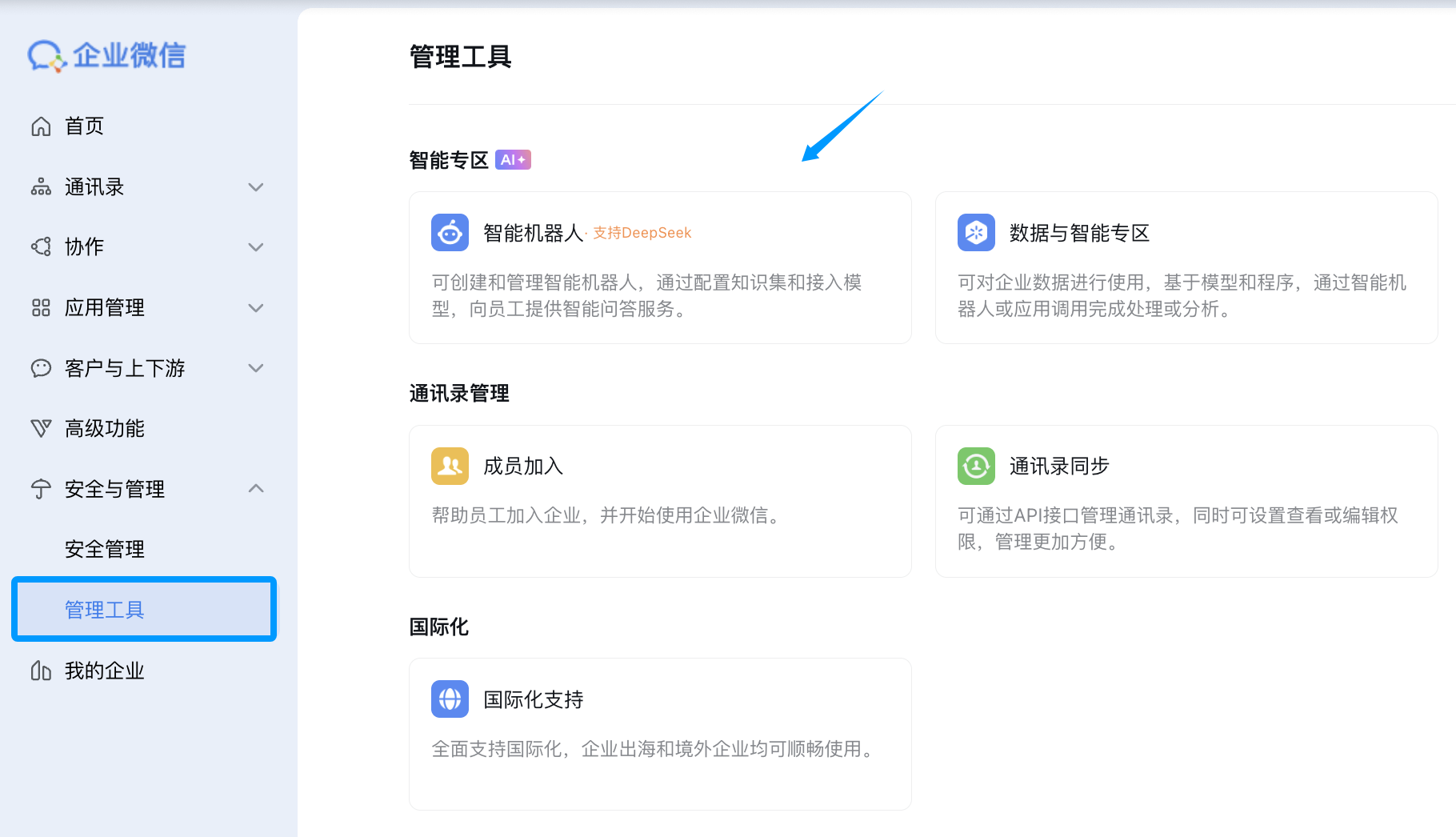
2. In the left sidebar, open `Management Tools` -> `AI Bot`, then click Create Bot.
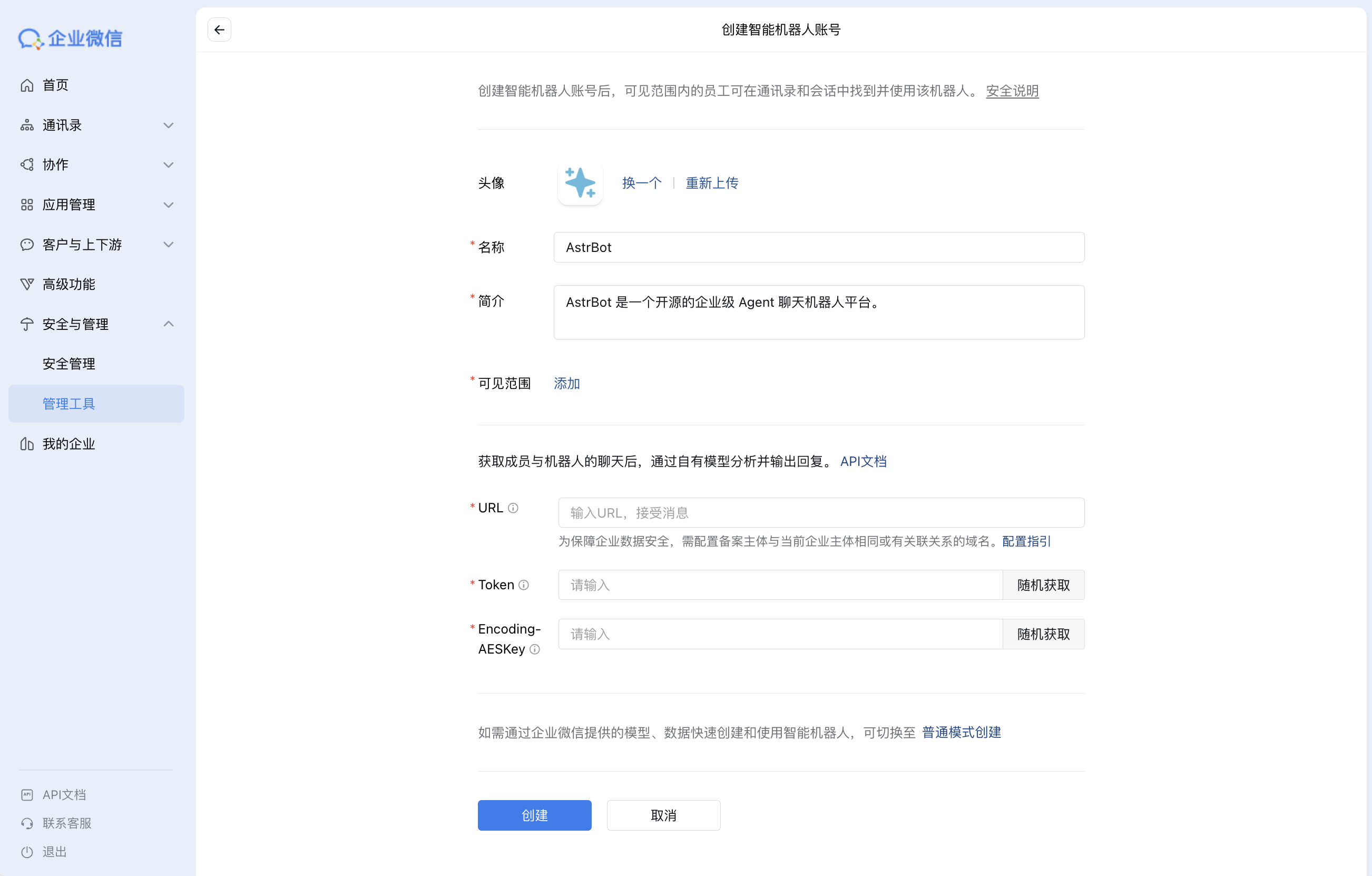
3. On the create page, choose `Create via API Mode`. Fill bot name/avatar and other basic info.
Generate `Token` and `EncodingAESKey` using random generation, but do not click Create yet.
## Configure AstrBot
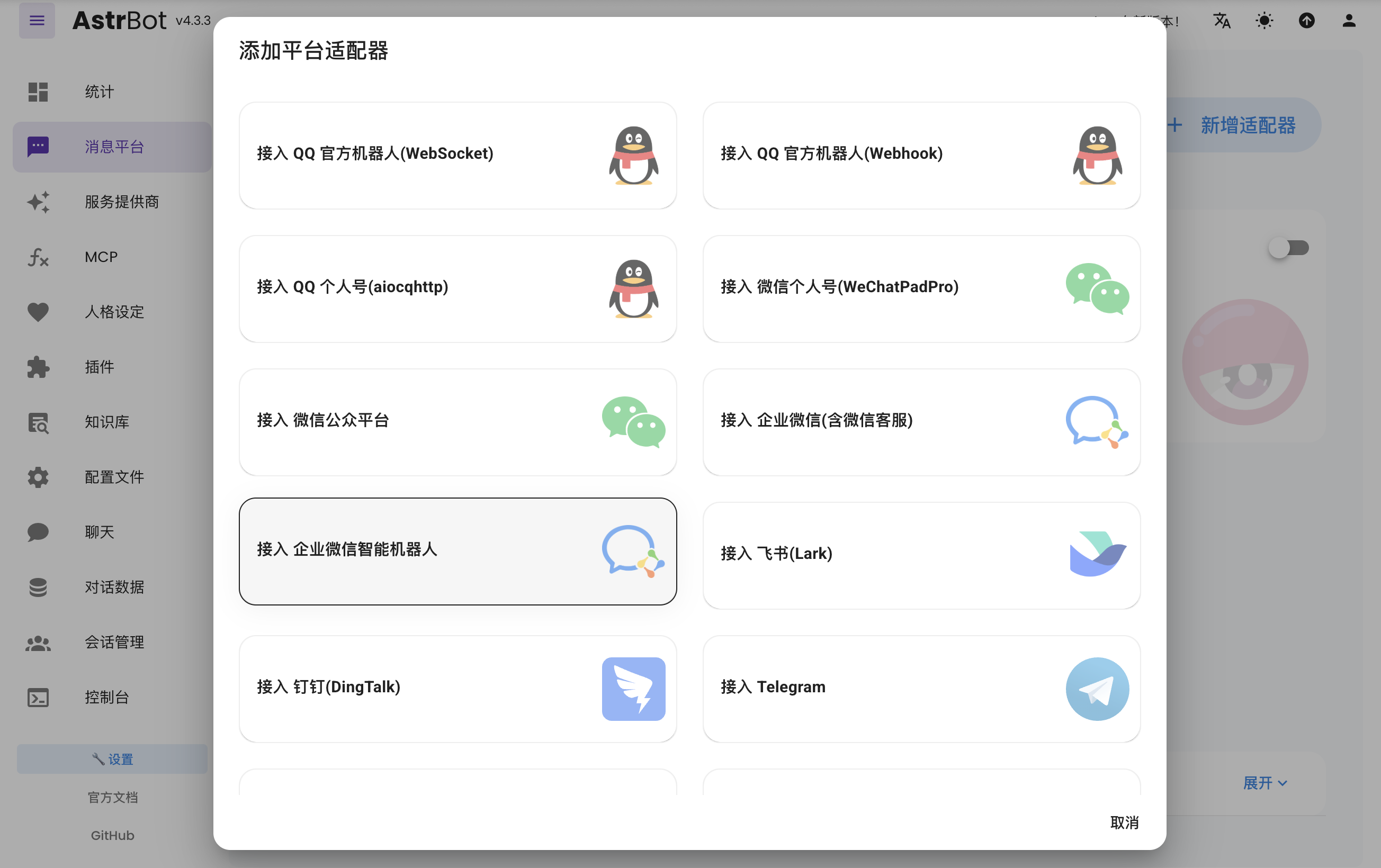
1. Open AstrBot Dashboard, click `Messaging Platforms`, then click `+ Add Adapter`, choose `WeCom AI Bot`.
2. Fill AstrBot fields with values from the WeCom AI Bot create page:
- Bot name
- `token`
- `encoding_aes_key`
- `id` (any unique value)
- `port` (default `6198`, change if needed)
Keep `Unified Webhook Mode (unified_webhook_mode)` enabled and click `Save`.
3. Return to WeCom AI Bot create page and set `URL`:
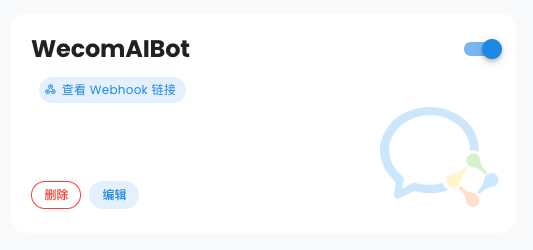
- If unified mode is enabled, AstrBot generates a unique callback URL after save. Copy it from logs or bot card in WebUI.
- If unified mode is disabled, use `http://IP:port/webhook/wecom-ai-bot`.
> It is recommended to use a domain + reverse proxy + HTTPS. You can also use [Cloudflare Tunnel](https://developers.cloudflare.com/cloudflare-one/connections/connect-apps/install-and-setup/tunnel-guide/).
4. Click `Create`. If successful, you will enter bot details page.
If you see `Service did not respond correctly`, re-check AstrBot config and firewall rules.
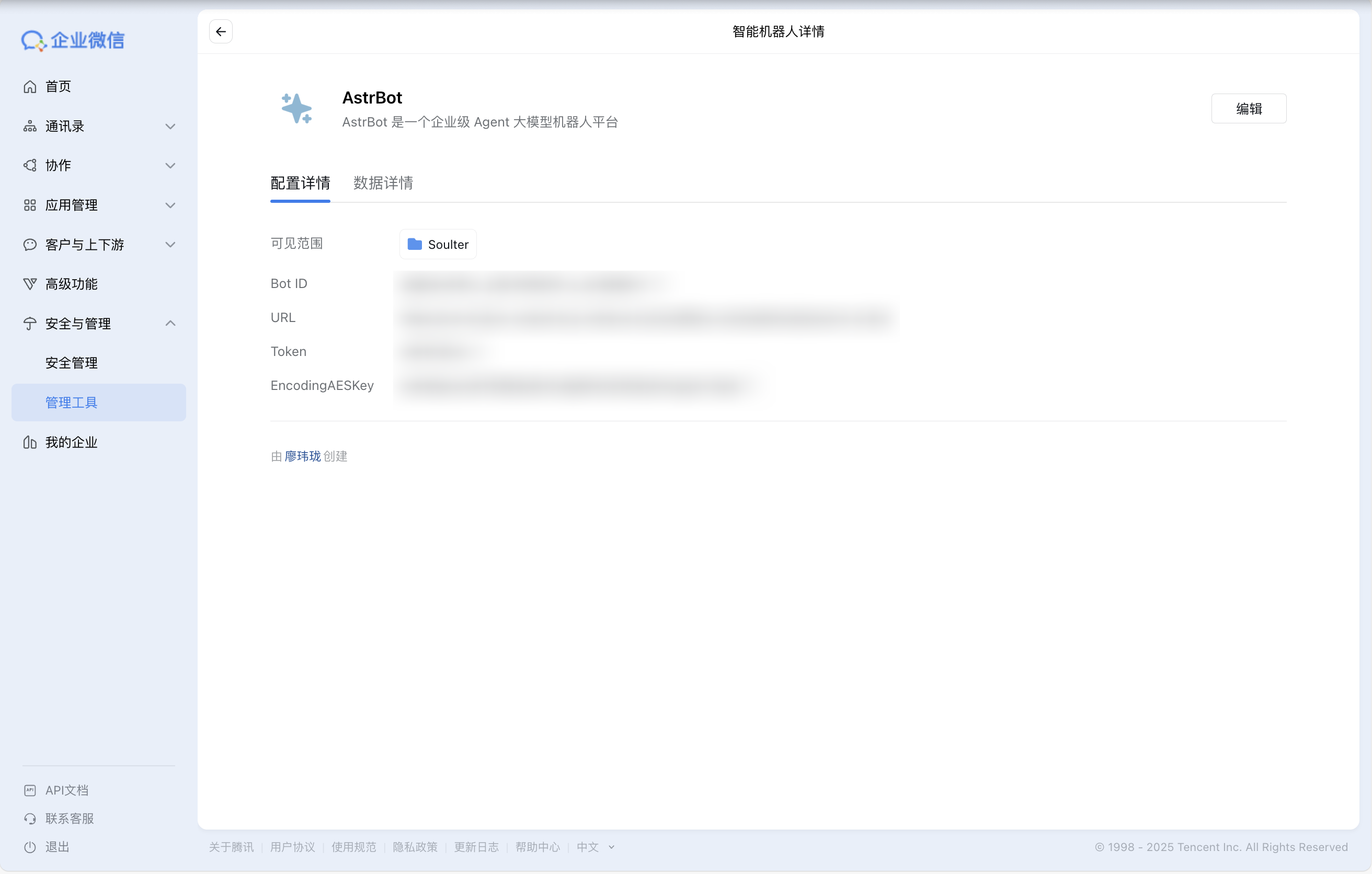
5. Optional (recommended): Configure WeCom message push Webhook URL.
By default, WeCom AI Bot replies only when users send messages first. Configuring message push enables proactive notifications.
6. Optional (recommended): Enable `Send messages via Webhook only` for richer multi-message output and to bypass single-bubble reply limits.
This option requires the message push Webhook URL from step 5.
## Use the Bot
### Add Bot to Group Chat
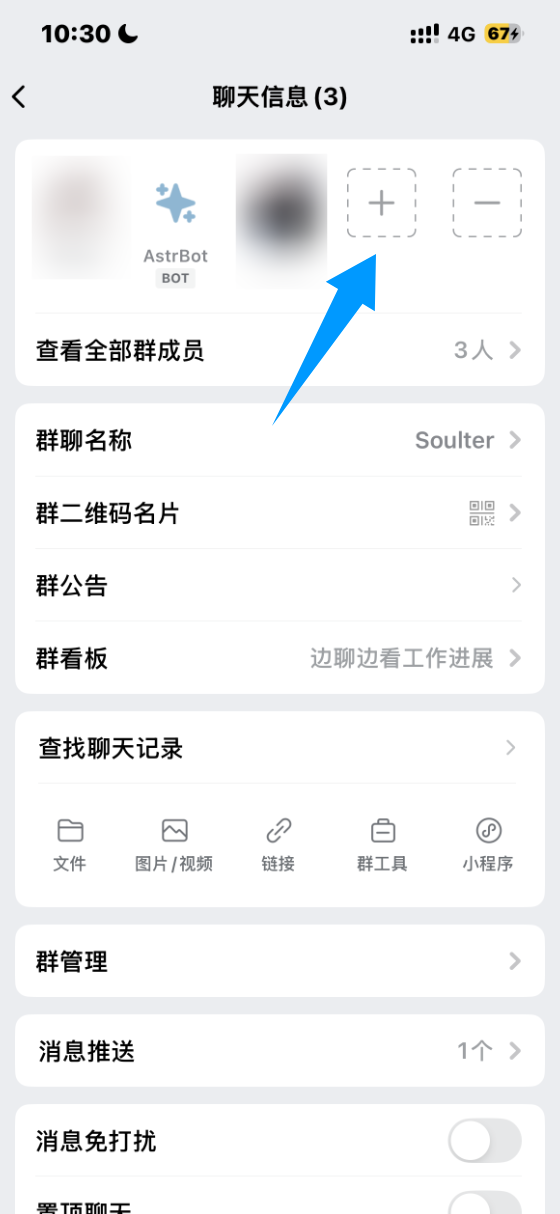
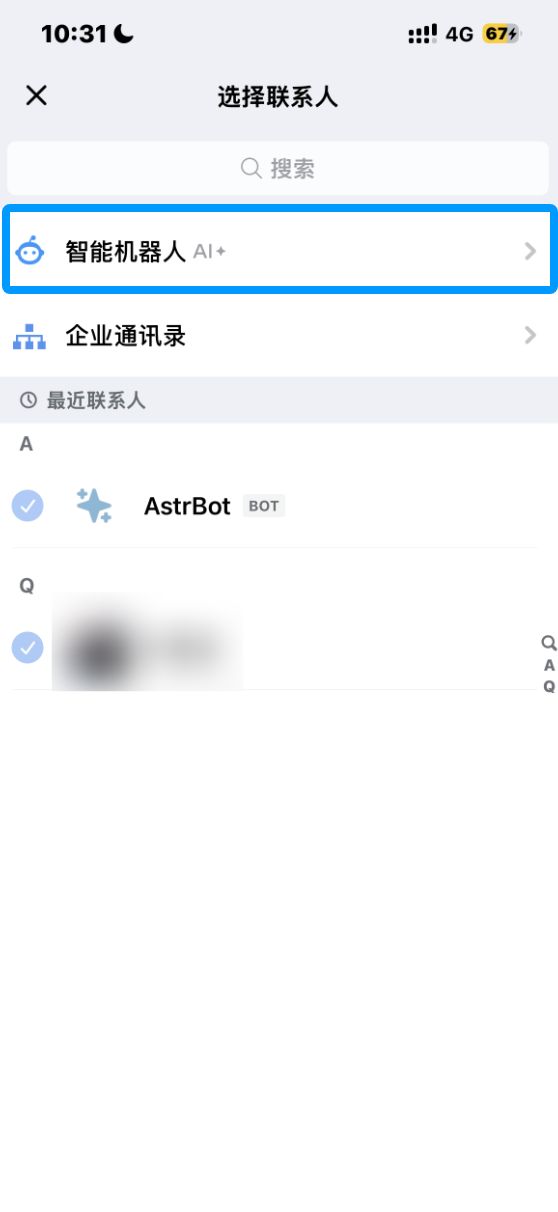
In WeCom client internal group chat, click Add Member -> AI Bot, select the bot you created, and add it.
### Chat with the Bot
Send a message in private chat or group chat to talk to the bot.
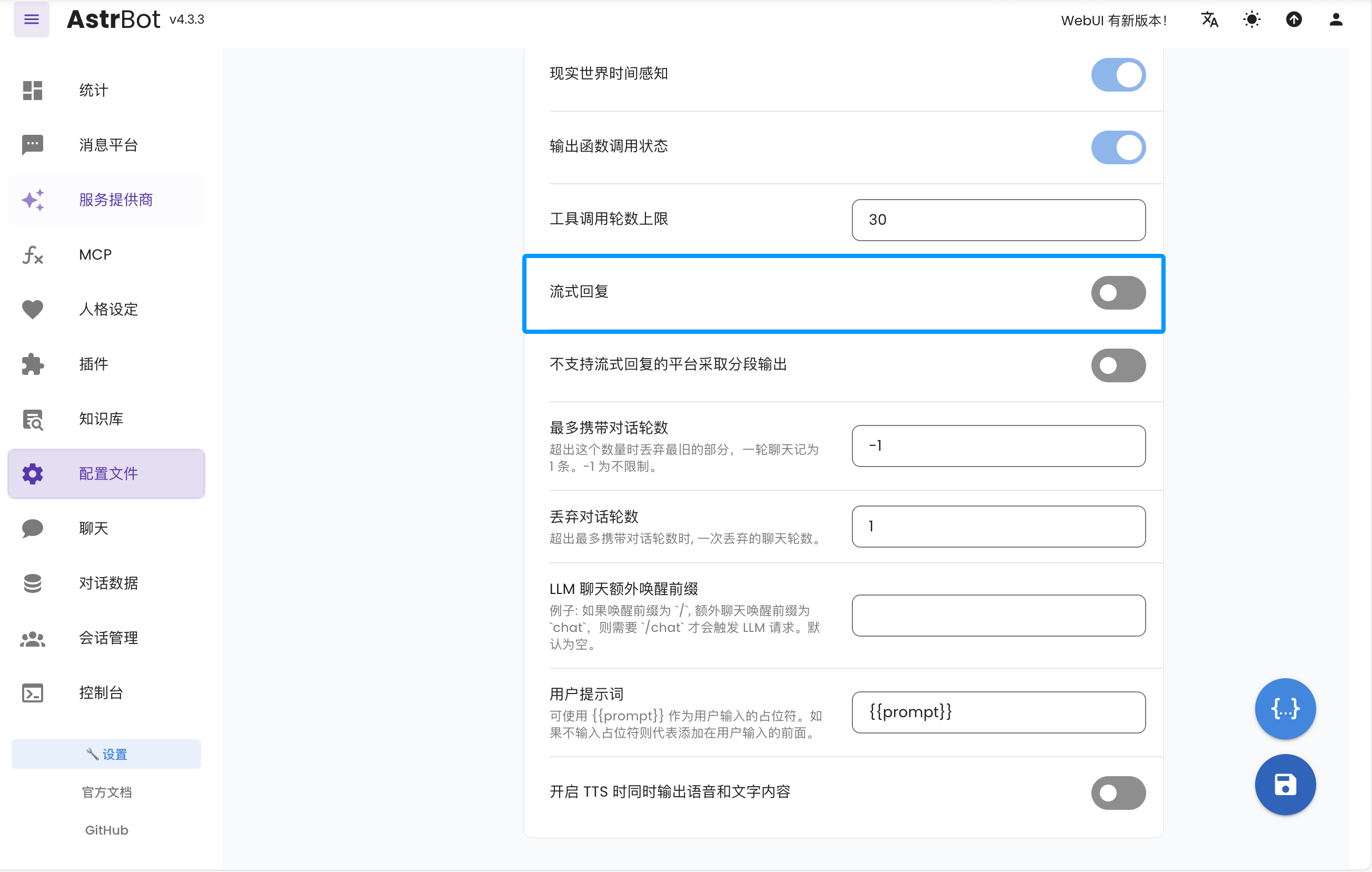
If you need typing-like streaming effect, enable `Streaming Reply` in AstrBot.
## Help & Support
If you have issues during setup/use or need enterprise support, contact: [community@astrbot.app](mailto:community@astrbot.app).
|