

File size: 5,306 Bytes
8ede856 | 1 2 3 4 5 6 7 8 9 10 11 12 13 14 15 16 17 18 19 20 21 22 23 24 25 26 27 28 29 30 31 32 33 34 35 36 37 38 39 40 41 42 43 44 45 46 47 48 49 50 51 52 53 54 55 56 57 58 59 60 61 62 63 64 65 66 67 68 69 70 71 72 73 74 75 76 77 78 79 80 81 82 83 84 85 86 87 88 89 90 91 92 93 94 95 96 97 98 99 100 101 102 103 104 105 106 107 108 109 110 111 112 113 114 115 116 117 118 119 120 121 122 123 124 125 126 127 128 129 130 131 132 133 134 135 136 137 138 | # Connect AstrBot to WeCom
AstrBot supports both WeCom Applications and WeCom Customer Service.
## Supported Basic Message Types
> Version v4.15.0.
| Message Type | Receive | Send | Notes |
| --- | --- | --- | --- |
| Text | Yes | Yes | |
| Image | Yes | Yes | |
| Voice | Yes | Yes | |
| Video | No | Yes | |
| File | No | Yes | |
Proactive message push: Supported for WeCom Application. Not fully tested for WeCom Customer Service.
## Before You Start
1. Open AstrBot Dashboard.
2. Click `Bots` in the left sidebar.
3. Click `+ Create Bot`.
4. Select `wecom`.
A configuration dialog will appear. Keep it open and continue with the steps below.
## Method 1: WeCom Customer Service
> [!NOTE]
> 1. Requires AstrBot >= v3.5.7.
> 2. This method works directly inside WeChat.
1. Open [WeCom Customer Service Console](https://kf.weixin.qq.com/) and sign in with WeCom QR login.
2. Create a customer service account in `Customer Service Account`, then copy its **name** (not account ID) to AstrBot field `wechat_kf_account_name`.
3. Go to [WeCom Enterprise Info](https://work.weixin.qq.com/wework_admin/frame#profile), copy `Corpid`, and fill AstrBot `corpid`.
4. Configure callback verification:
- If this is your first customer service bot, open `Development Configuration`, click `Start` next to internal access.
- If you used it before, open `Callback Configuration` directly and click edit.

5. Click random generation buttons to get `Token` and `EncodingAESKey`, then fill AstrBot `token` and `encoding_aes_key`.
6. Keep `Unified Webhook Mode (unified_webhook_mode)` enabled, click `Save`, and wait for adapter reload.
For callback URL:
- If unified mode is enabled, AstrBot generates a unique webhook callback URL after save. Copy it from logs or bot card in WebUI.
- If unified mode is disabled, use `http://<your-public-server-ip>:6195/callback/command`.
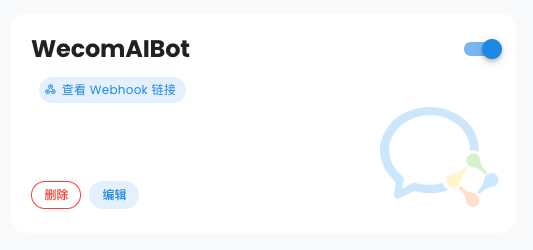
> If unified mode is enabled, forward external requests to AstrBot port `7860`; otherwise forward to configured adapter port (default `6195`).
Back in WeCom Customer Service callback settings, click `Complete`. If successful, status shows completed.
7. In `Development Configuration`, get `Secret`, edit your WeCom adapter in AstrBot, set `secret`, then save again.
> [!TIP]
> Based on [#571](https://github.com/Soulter/AstrBot/issues/571), for newly registered enterprises, `corp_id` may take about 30 minutes to become valid.
Then open AstrBot `Console`, you should see logs asking you to open a WeChat scan link.
```txt
Please open the following link and scan with WeChat ...
```
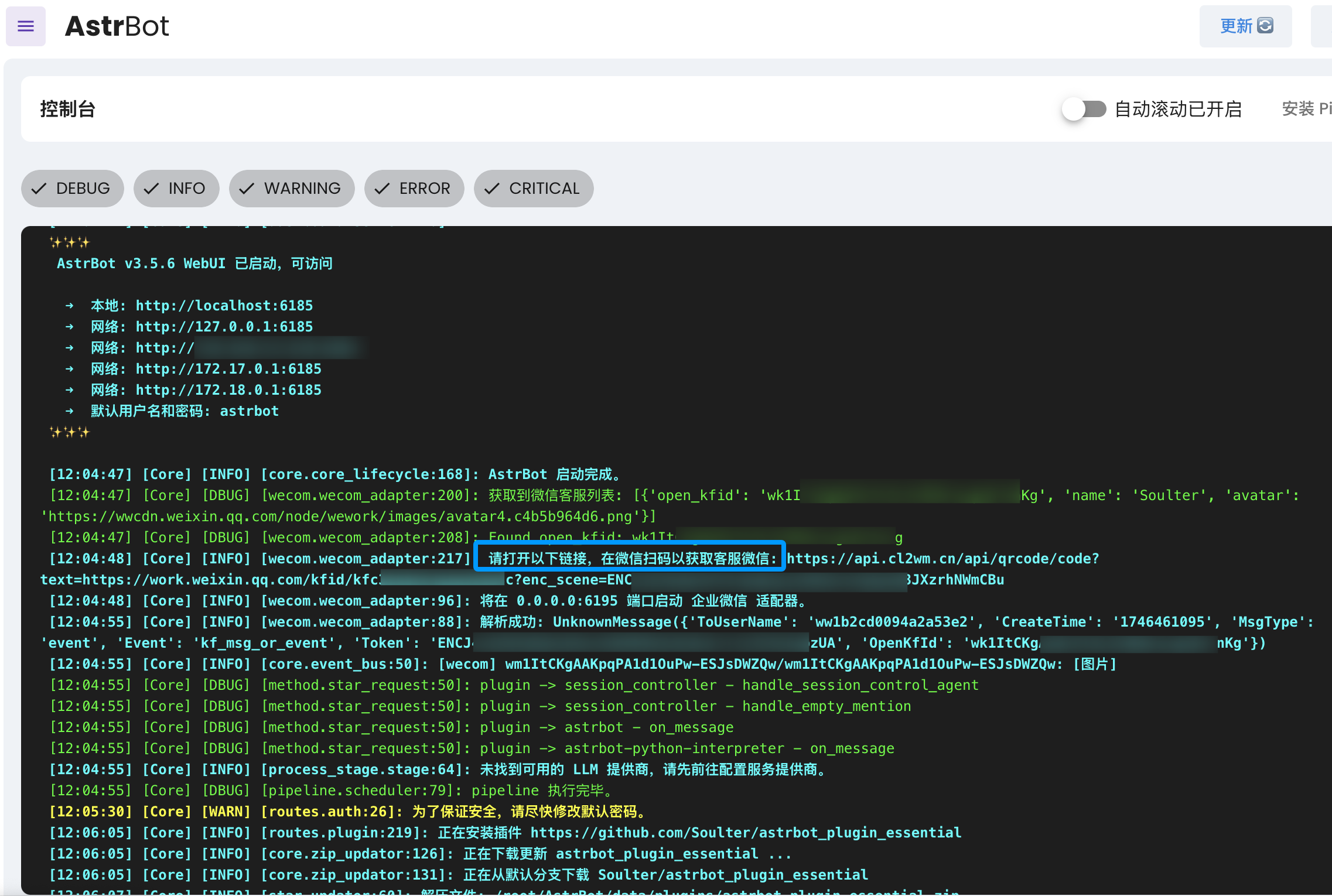
Open the link, scan with WeChat, then send `help` in the customer service chat to test connectivity.
## Method 2: WeCom Application
Open: <https://work.weixin.qq.com/wework_admin/frame#apps>
1. Click `My Company`, copy enterprise ID (`Corpid`), and fill AstrBot `corpid`.
> [!TIP]
> For newly registered enterprises, `corp_id` may take time to become valid. See [#571](https://github.com/Soulter/AstrBot/issues/571).
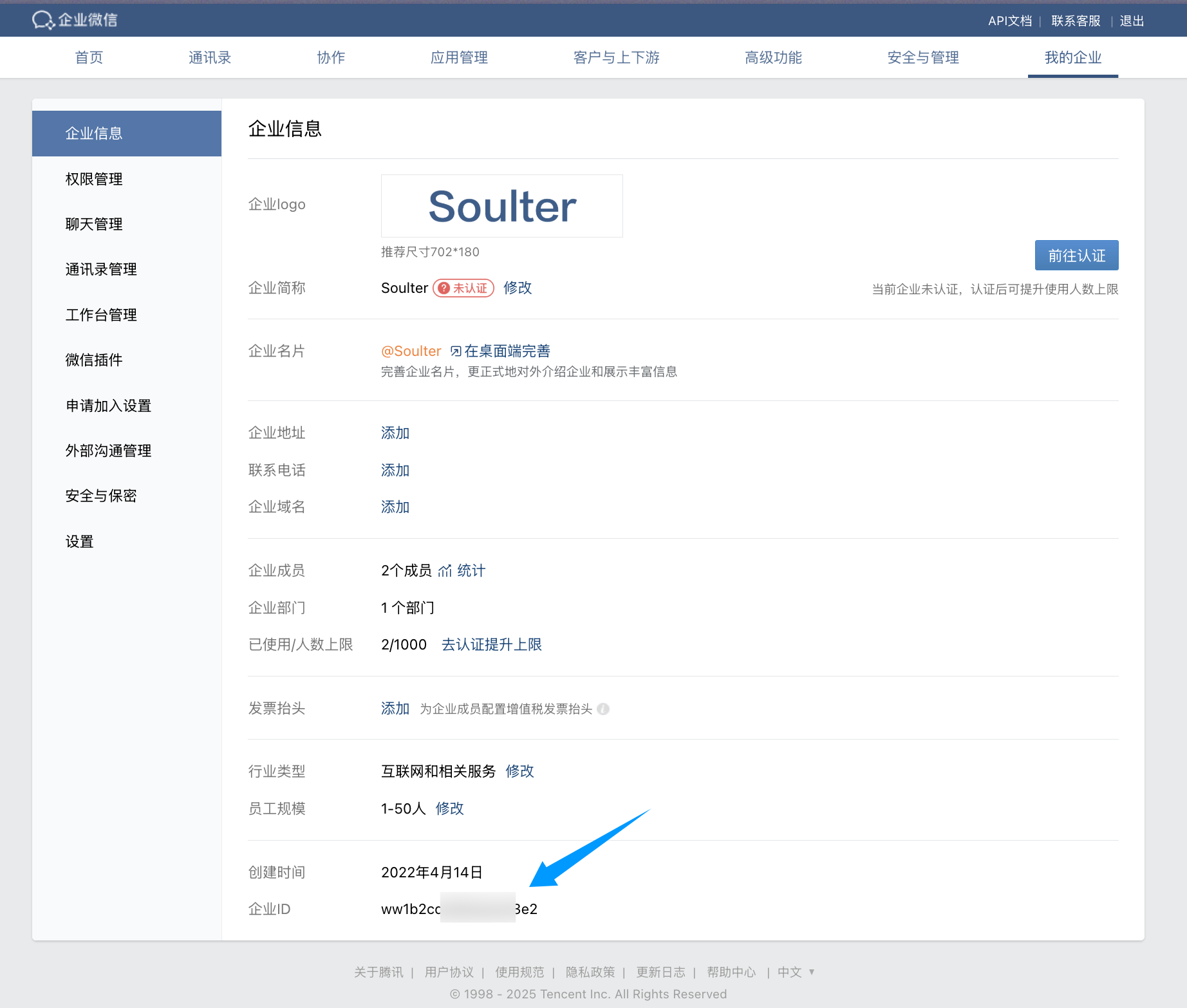
2. Create a custom app (`Custom App`) and fill name/avatar/visibility scope.
3. Open the app, copy `Secret`, and fill AstrBot `secret`.
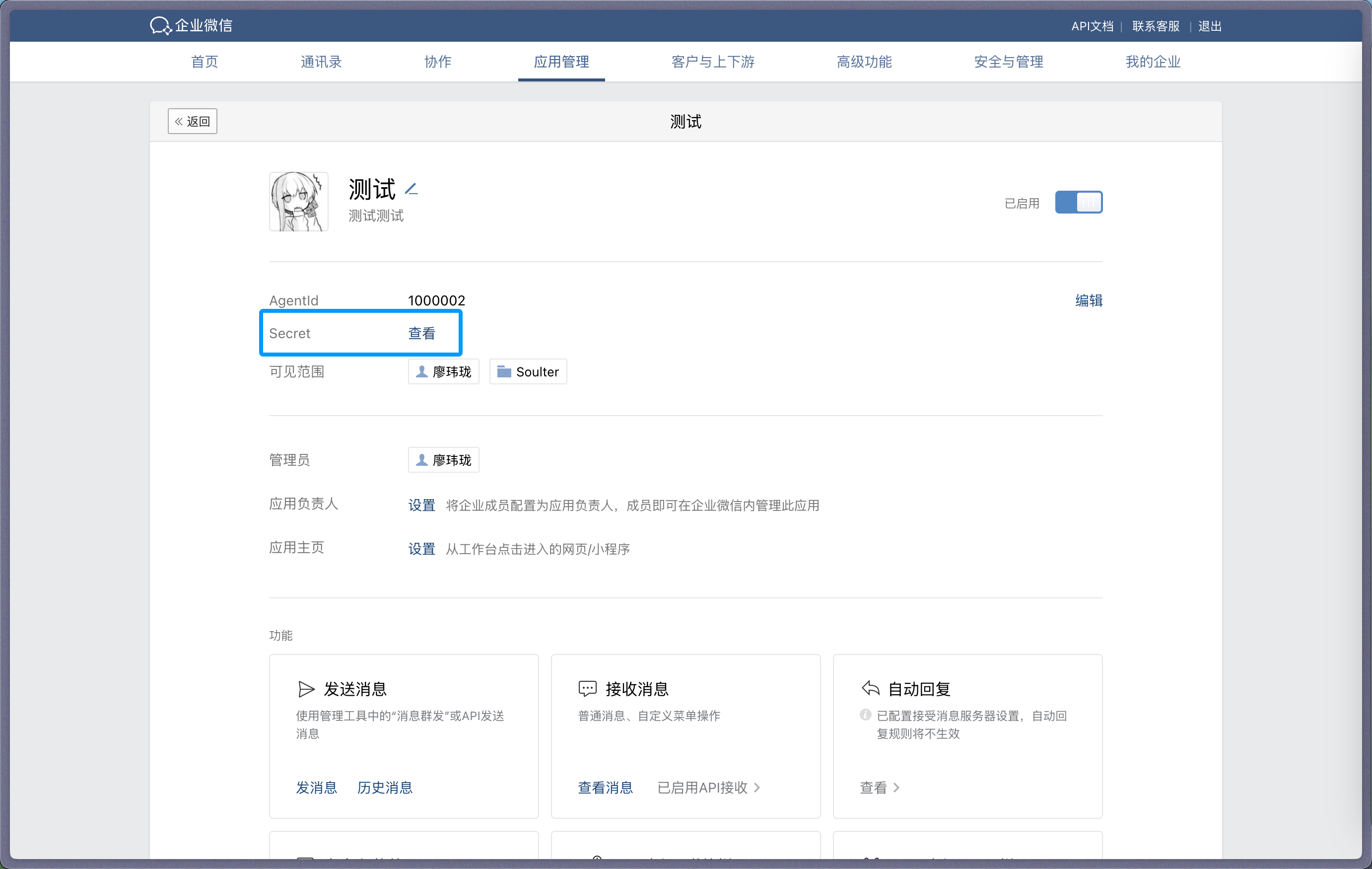
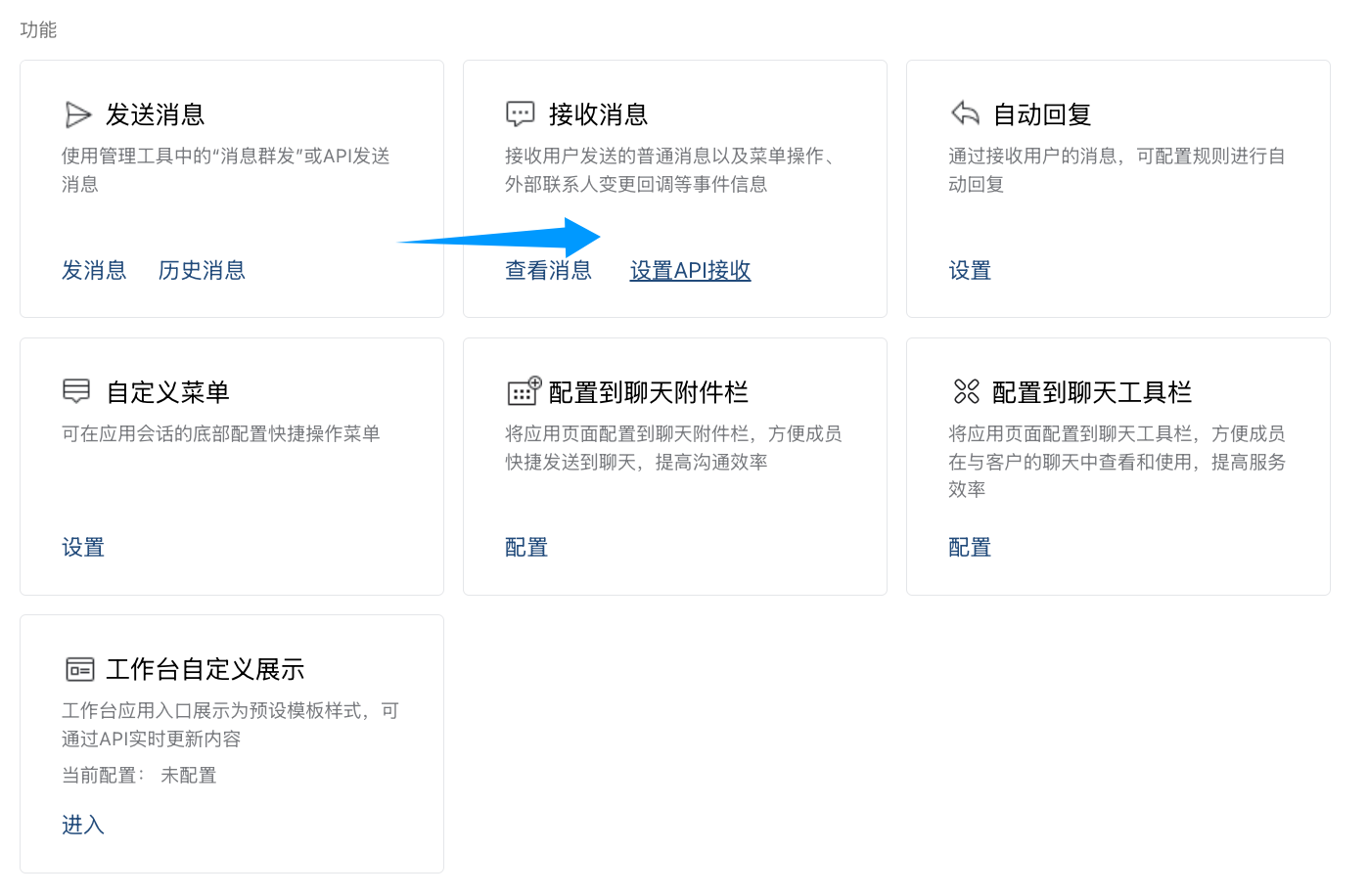
4. In app settings, find `Receive Messages`, click `Set API Receive`.
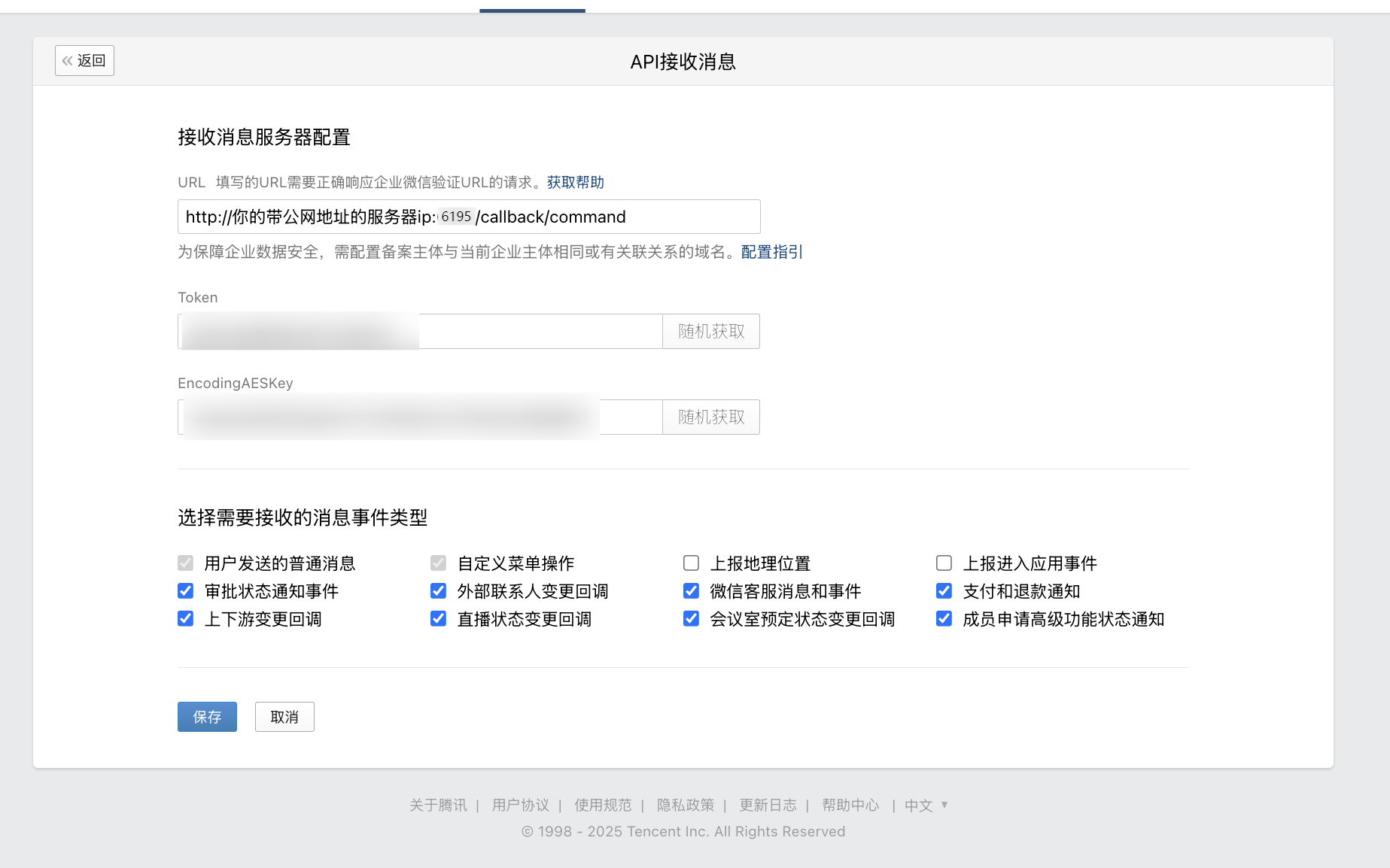
5. Generate `Token` and `EncodingAESKey`, fill AstrBot `token` and `encoding_aes_key`.
6. Keep `Unified Webhook Mode (unified_webhook_mode)` enabled (recommended), then click Save in AstrBot and wait for restart.
For callback URL:
- If unified mode is enabled, use the generated unique callback URL from logs or bot card.
- If unified mode is disabled, use `http://<your-public-server-ip>:6195/callback/command`.

> If unified mode is enabled, forward to port `7860`; otherwise forward to configured adapter port (default `6195`).
7. Configure trusted enterprise IP in WeCom.
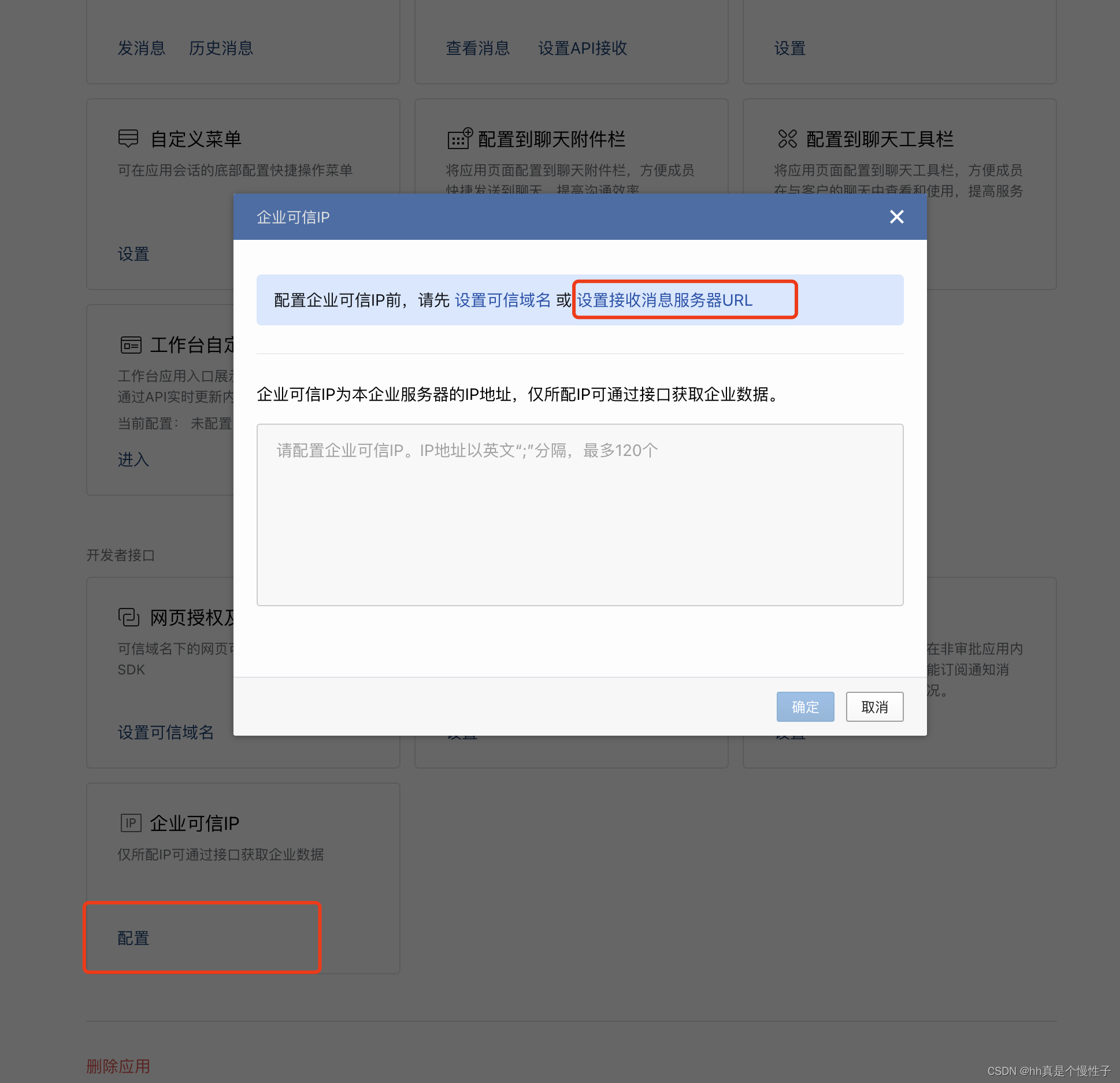
Add your public IP and confirm.

After AstrBot restart, return to API receive page and click save. If you see callback verification errors, re-check all required fields.
If save succeeds, AstrBot can receive messages from WeCom.
## Test
In WeCom Workbench, open the app you just created and send `/help`.
If AstrBot replies, integration is successful.
## Reverse Proxy (Custom API Base)
AstrBot supports custom WeCom endpoint (`api_base_url`) for environments without stable public IP.
Set your custom endpoint in `api_base_url`.
## Voice Input
Install `ffmpeg` for voice input support.
- Linux: `apt install ffmpeg`
- Windows: download from [FFmpeg website](https://ffmpeg.org/download.html)
- macOS: `brew install ffmpeg`
|