

File size: 2,358 Bytes
8ede856 | 1 2 3 4 5 6 7 8 9 10 11 12 13 14 15 16 17 18 19 20 21 22 23 24 25 26 27 28 29 30 31 32 33 34 35 36 37 38 39 40 41 42 43 44 45 46 47 | # Connect to KOOK
## Supported Message Types
> Version v4.19.2
| Message Type | Receive | Send | Remarks |
| ------------ | ------- | ---- | -------------------------------------------------- |
| Text | Yes | Yes | Supports official [kmarkdown] syntax |
| Image | Yes | Yes | Supports external links; `jpeg`, `gif`, `png` only |
| Audio | Yes | Yes | Supports external links |
| Video | Yes | Yes | Supports external links; `mp4`, `mov` only |
| File | Yes | Yes | Supports external links |
| Card (JSON) | Yes | Yes | See [Kook Docs - Card Messages] |
Proactive message push: Supported
Message receiving mode: WebSocket
## Create a Bot on Kook
1. Go to the [Kook Developer Center] and follow these steps:
2. Log in and complete identity verification.
3. Click "Create Application" and customize your Bot's nickname.
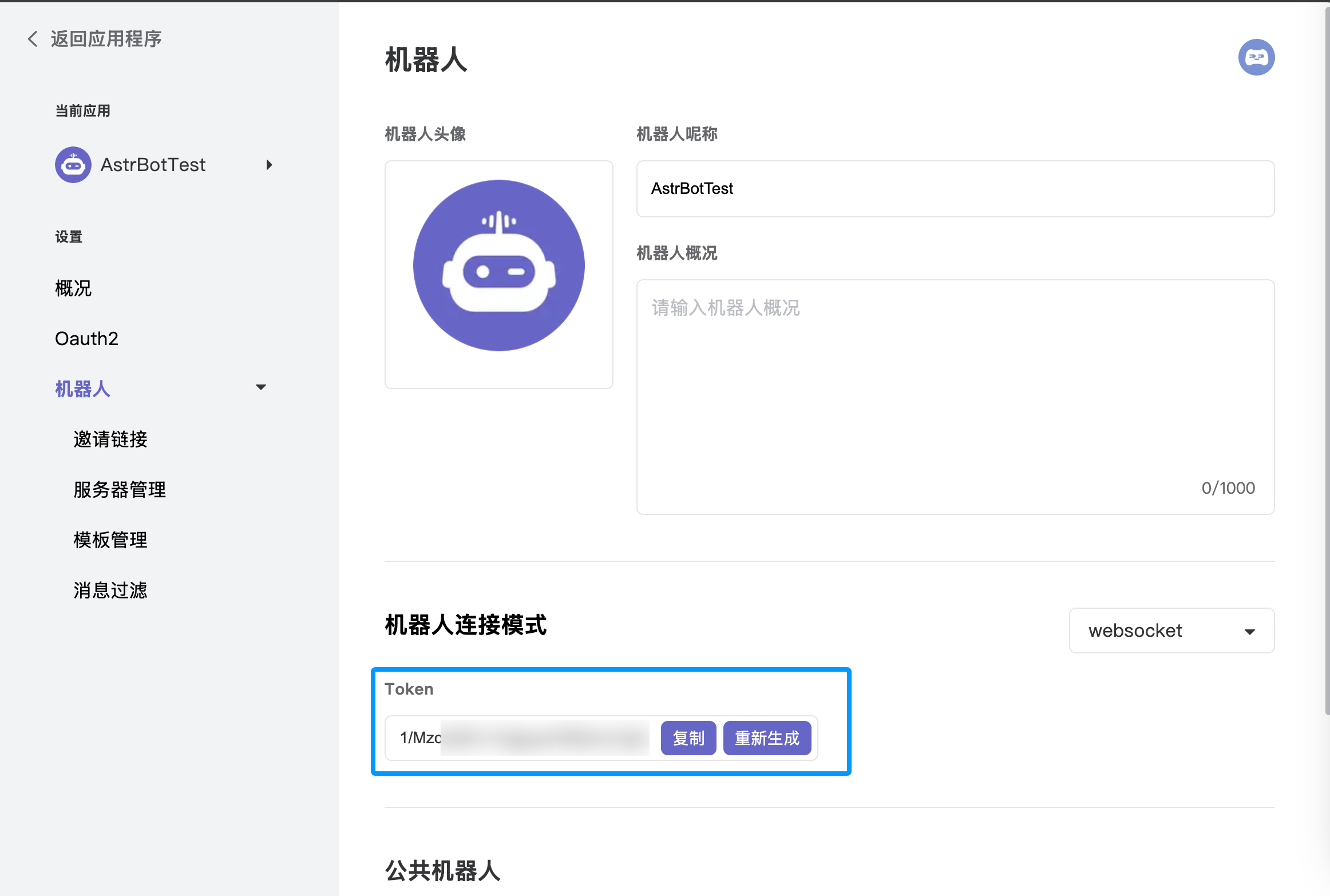
4. Enter the application dashboard, select the **Bot** module, and enable **WebSocket connection mode**. Make sure to save the generated **Token**, as you will need it for the subsequent AstrBot configuration.
5. Under the "Bot" page in the left sidebar, click "Invite Link" and set the role permissions (full permissions are recommended to ensure all features work).
6. Copy the invite link, open it in your browser, and add the bot to your desired server.
## Configure in AstrBot
1. Access the AstrBot management panel.
2. Click **Bots** in the left sidebar.
3. Click `+ Create Bot` on the right side of the interface.
4. Select the `kook` adapter.
5. Fill in the configuration fields:
- ID (id): Any name to identify this specific instance.
- Enable (enable): Check the box.
- Bot Token: Paste the Token generated from the [Kook Developer Center].
6. Click `Save` after filling in the details.
7. Finally, in a Kook server channel (create one first if you haven't), @ the bot and type `/sid`. If the bot responds, the configuration is successful.
[Kook Developer Center]: https://developer.kookapp.cn/app
[kmarkdown]: https://developer.kookapp.cn/doc/kmarkdown
[Kook Docs - Card Messages]: https://developer.kookapp.cn/doc/cardmessage
|