

File size: 2,078 Bytes
8ede856 | 1 2 3 4 5 6 7 8 9 10 11 12 13 14 15 16 17 18 19 20 21 22 23 24 25 26 27 28 29 30 31 32 33 34 35 36 37 38 39 40 41 42 43 44 45 46 47 48 49 50 51 52 53 54 55 56 57 58 59 60 61 62 63 64 65 66 | # Connect to DingTalk
## Supported Basic Message Types
> Version v4.15.0.
| Message Type | Receive | Send | Notes |
| --- | --- | --- | --- |
| Text | Yes | Yes | |
| Image | Yes | Yes | |
| Voice | No | Yes | |
| Video | No | Yes | |
| File | No | Yes | |
Proactive message push: Supported.
## Create and Configure the App
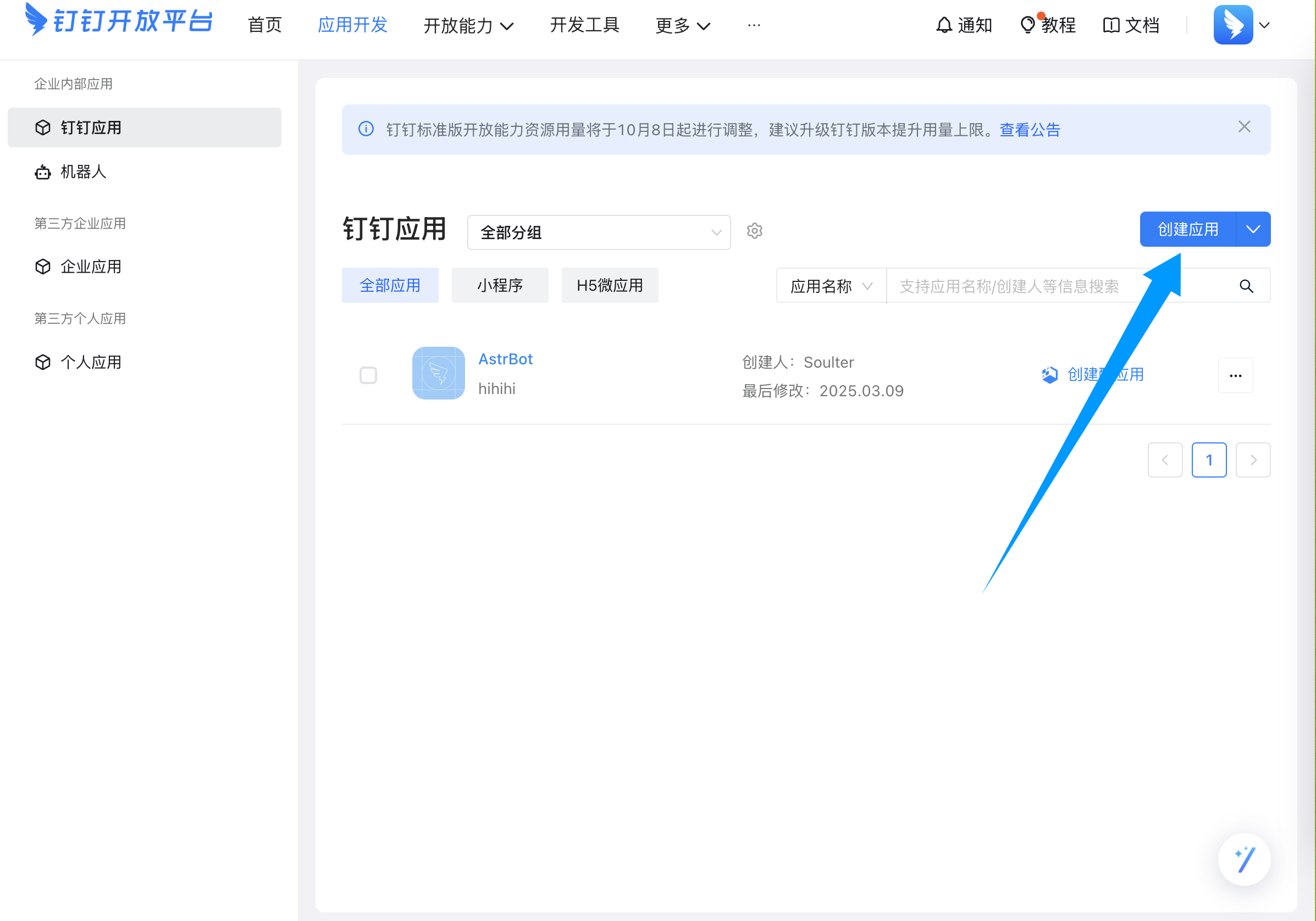
Go to the [DingTalk Open Platform](https://open-dev.dingtalk.com/fe/app), then create an app:
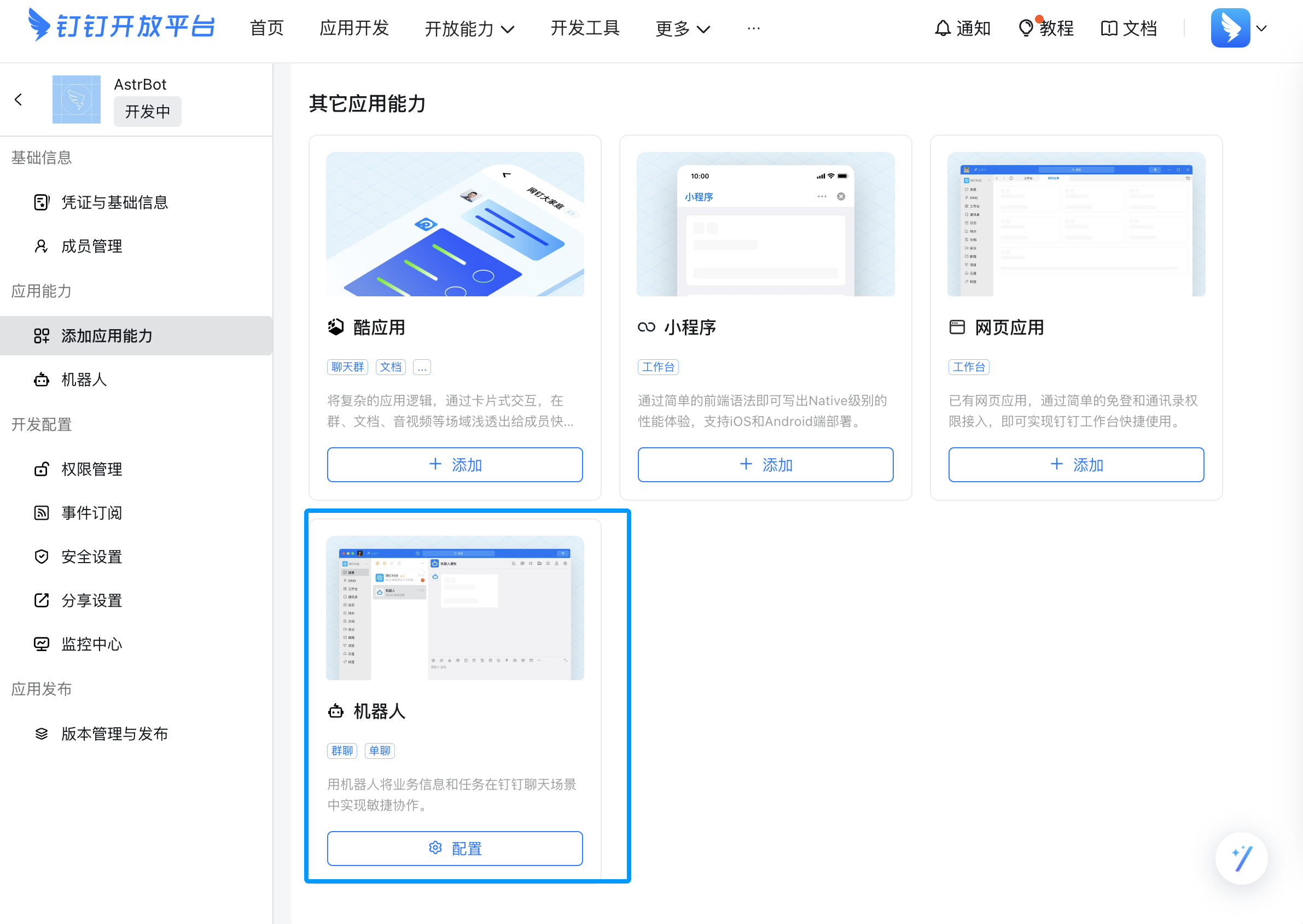
After creation, add app capability and choose Bot:
Open Bot settings and fill in bot information:
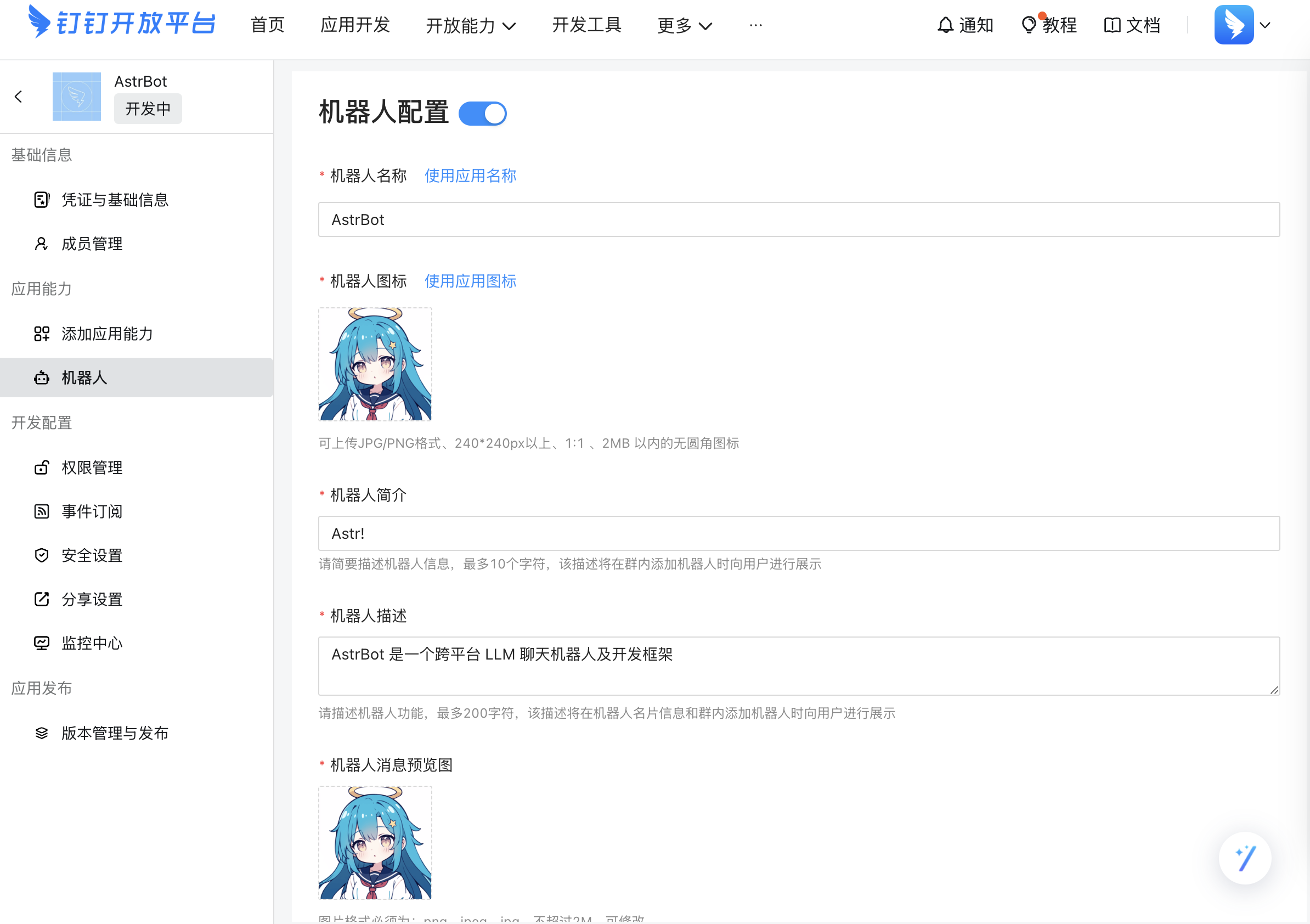
After confirming all settings, click Publish.
Go to Credentials & Basic Information, then copy `ClientID` and `ClientSecret`.
## Connect in AstrBot
Open AstrBot Dashboard -> `Bots` -> `+ Create Bot`, then create a DingTalk adapter.
Fill in `ClientID` and `ClientSecret`, then click Save. AstrBot will request authorization from DingTalk Open Platform automatically.
Back in DingTalk Open Platform, open Event Subscriptions, select `Stream mode push`, and click Save. If successful, you will see a connected status.
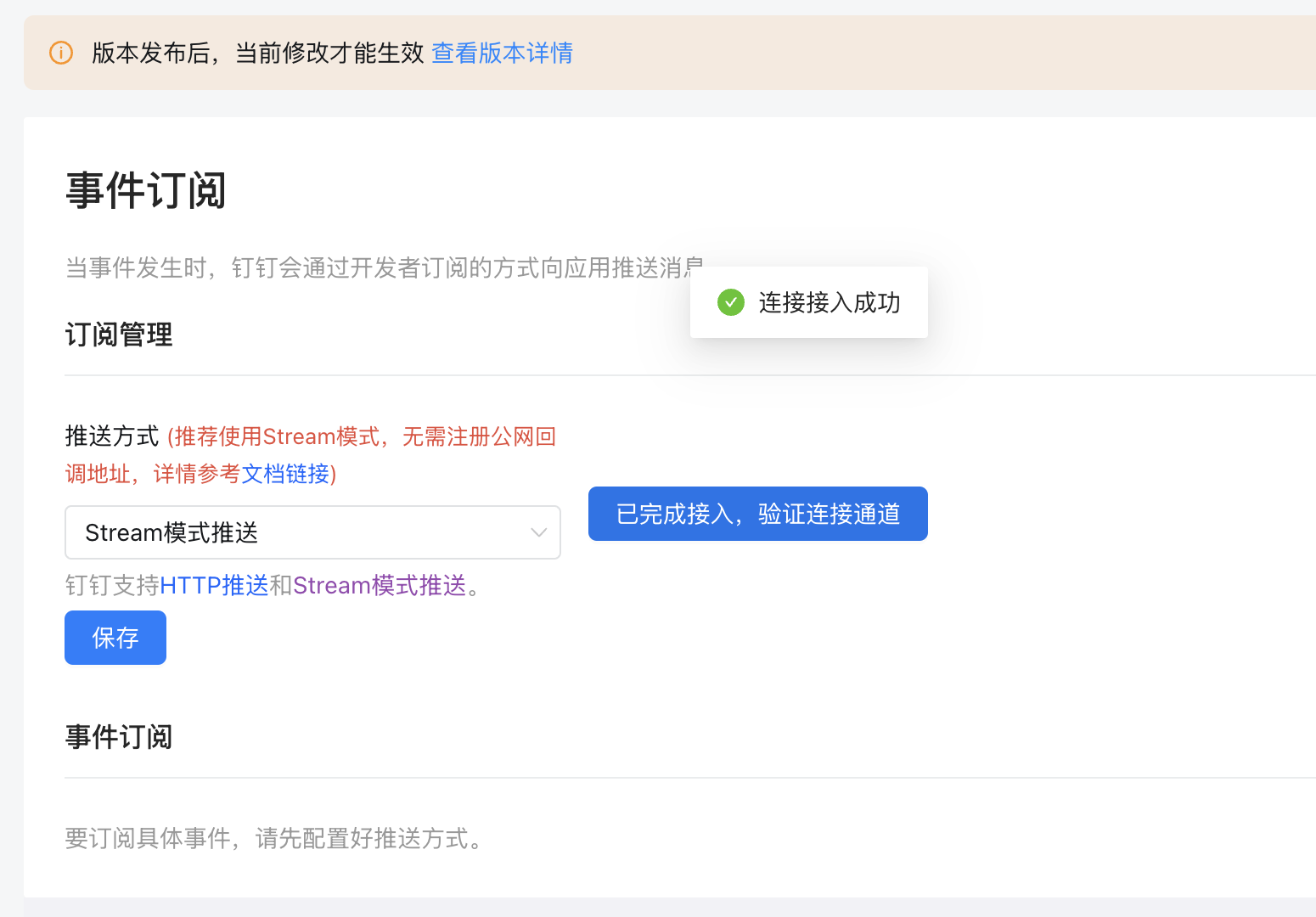
Save the configuration.
## Publish a Version
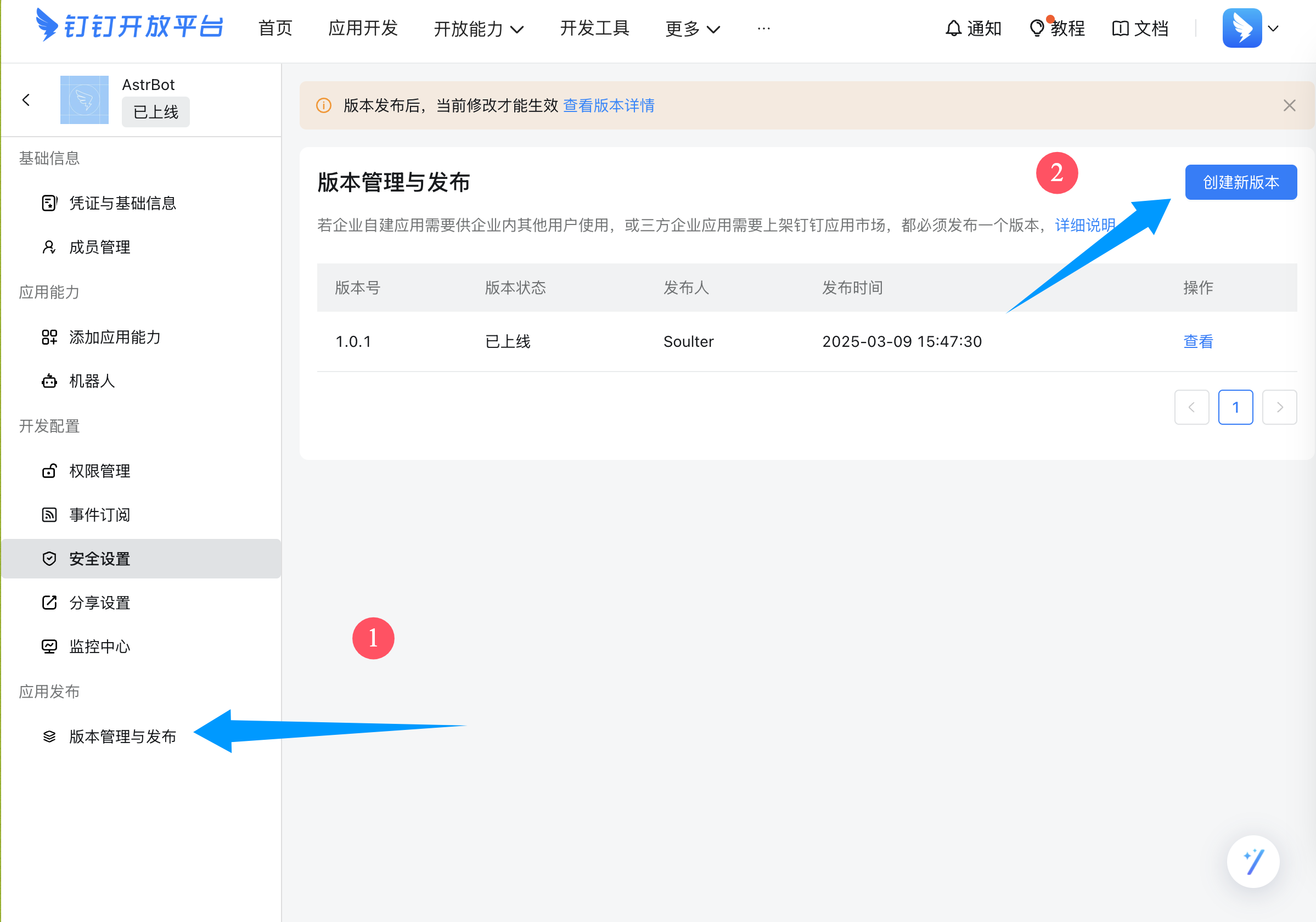
In the left sidebar, open Version Management and Release, then create a new version.
Fill in version number, description, and visibility scope (all employees or as needed), then save and publish.
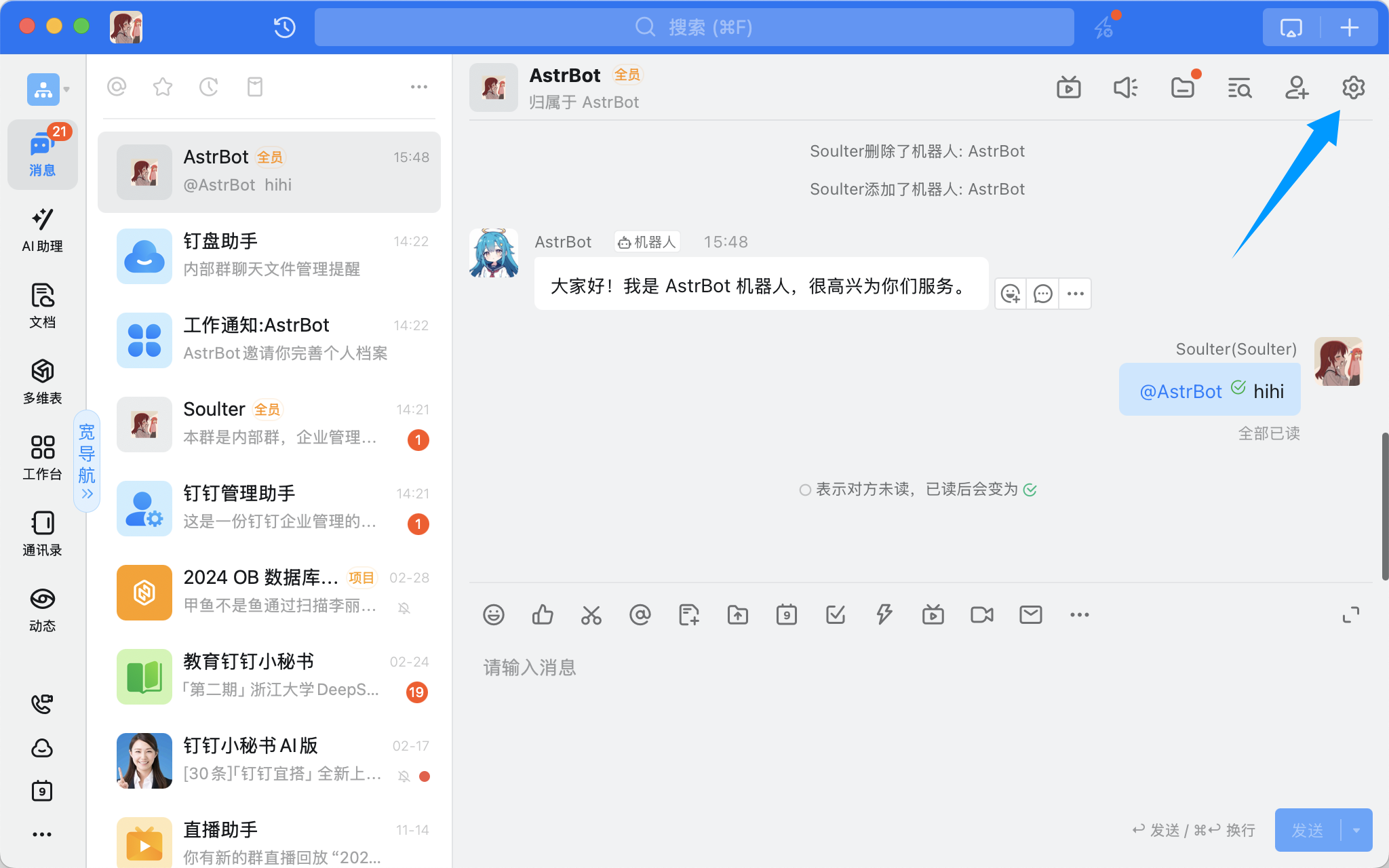
Open a DingTalk group chat and click the top-right settings:
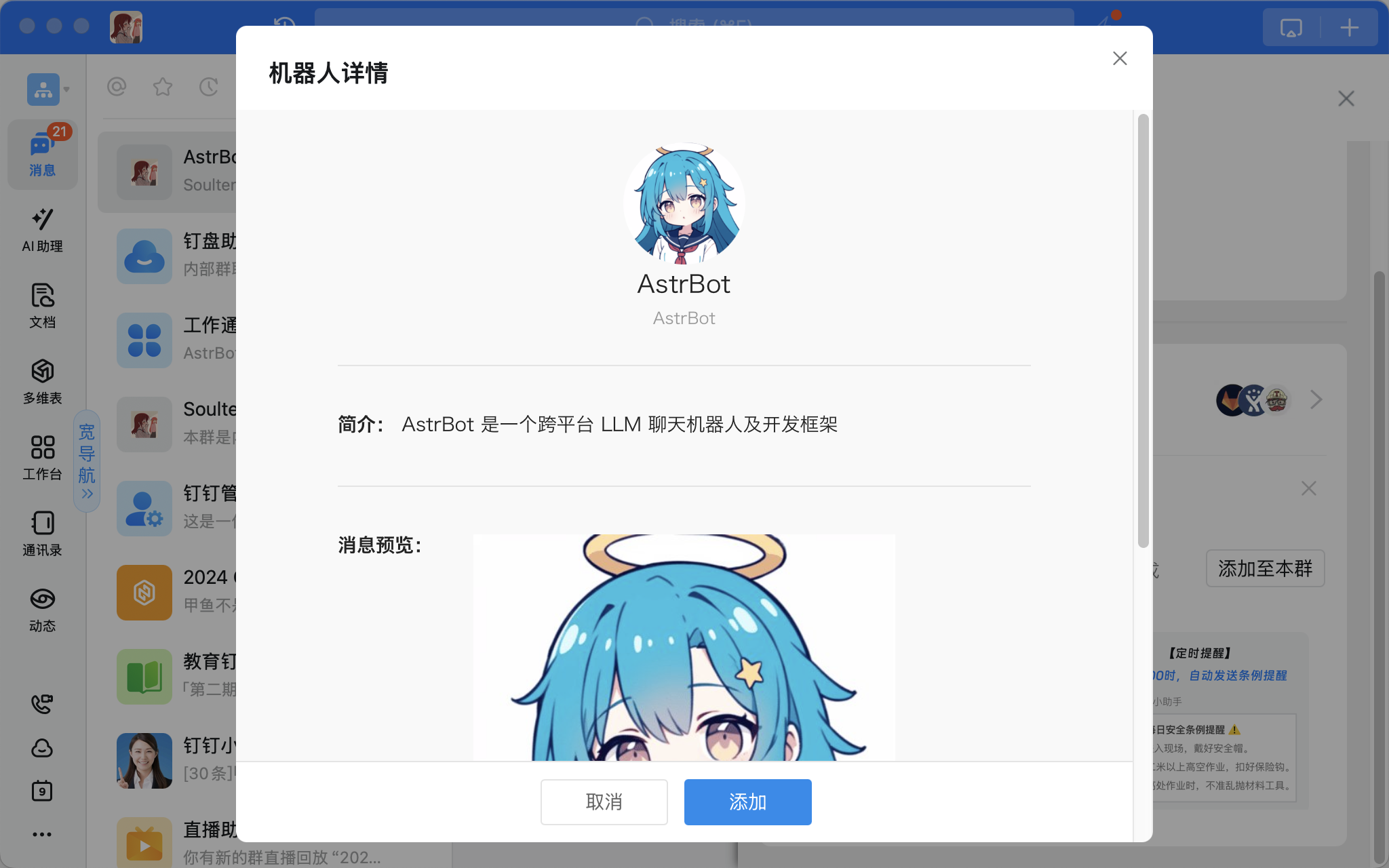
Scroll down to Add Bot, select the bot you just created, and add it:
## Done
In a group chat, mention the bot and send `/help`. If the bot replies, the integration is successful.
|