

File size: 5,208 Bytes
8ede856 | 1 2 3 4 5 6 7 8 9 10 11 12 13 14 15 16 17 18 19 20 21 22 23 24 25 26 27 28 29 30 31 32 33 34 35 36 37 38 39 40 41 42 43 44 45 46 47 48 49 50 51 52 53 54 55 56 57 58 59 60 61 62 63 64 65 66 67 68 69 70 71 72 73 74 75 76 77 78 79 80 81 82 83 84 85 86 87 88 89 90 91 92 93 94 95 96 97 98 99 100 101 102 103 104 105 106 107 108 109 110 111 112 113 114 115 116 117 118 119 120 121 122 123 124 125 126 127 128 129 | ---
outline: deep
---
# AstrBot Plugin Development Guide 🌠
Welcome to the AstrBot Plugin Development Guide! This section will guide you through developing AstrBot plugins. Before we begin, we hope you have the following foundational knowledge:
1. Some experience with Python programming.
2. Some experience with Git and GitHub.
## Environment Setup
### Obtain the Plugin Template
1. Open the AstrBot plugin template: [helloworld](https://github.com/Soulter/helloworld)
2. Click `Use this template` in the upper right corner
3. Then click `Create new repository`.
4. Fill in your plugin name in the `Repository name` field. Plugin naming conventions:
- Recommended to start with `astrbot_plugin_`;
- Must not contain spaces;
- Keep all letters lowercase;
- Keep it concise.
5. Click `Create repository` in the lower right corner.
### Clone the Project Locally
Clone both the AstrBot main project and the plugin repository you just created to your local machine.
```bash
git clone https://github.com/AstrBotDevs/AstrBot
mkdir -p AstrBot/data/plugins
cd AstrBot/data/plugins
git clone <your-plugin-repository-url>
```
Then, use `VSCode` to open the `AstrBot` project. Navigate to the `data/plugins/<your-plugin-name>` directory.
Update the `metadata.yaml` file with your plugin's metadata information.
> [!WARNING]
> Please make sure to modify this file, as AstrBot relies on the `metadata.yaml` file to recognize plugin metadata.
### Set Plugin Logo (Optional)
You can add a `logo.png` file in the plugin directory as the plugin's logo. Please maintain an aspect ratio of 1:1, with a recommended size of 256x256.
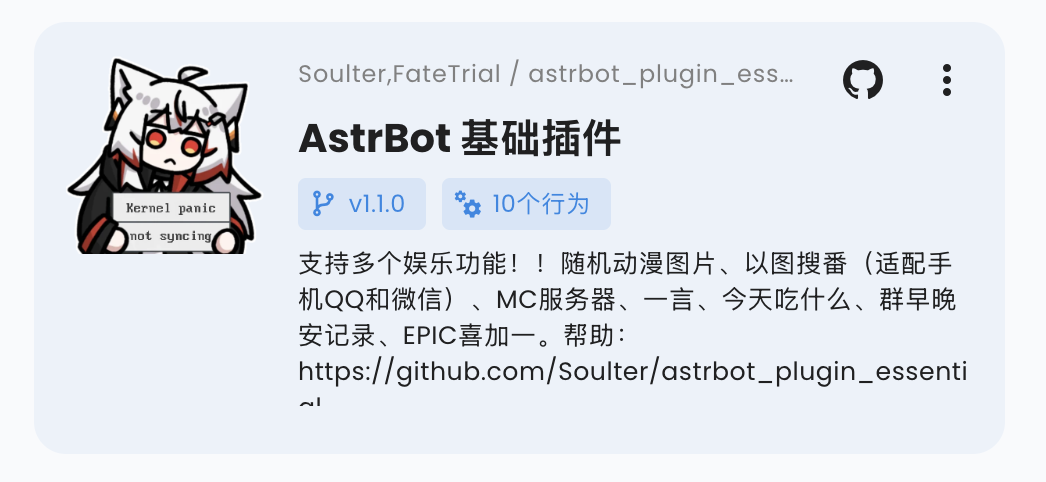
### Plugin Display Name (Optional)
You can modify (or add) the `display_name` field in the `metadata.yaml` file to serve as the plugin's display name in scenarios like the plugin marketplace, making it easier for users to read.
### Declare Supported Platforms (Optional)
You can add a `support_platforms` field (`list[str]`) to `metadata.yaml` to declare which platform adapters your plugin supports. The WebUI plugin page will display this field.
```yaml
support_platforms:
- telegram
- discord
```
The values in `support_platforms` must be keys from `ADAPTER_NAME_2_TYPE`. Currently supported:
- `aiocqhttp`
- `qq_official`
- `telegram`
- `wecom`
- `lark`
- `dingtalk`
- `discord`
- `slack`
- `kook`
- `vocechat`
- `weixin_official_account`
- `satori`
- `misskey`
- `line`
### Declare AstrBot Version Range (Optional)
You can add an `astrbot_version` field in `metadata.yaml` to declare the required AstrBot version range for your plugin. The format follows dependency specifiers in `pyproject.toml` (PEP 440), and must not include a `v` prefix.
```yaml
astrbot_version: ">=4.16,<5"
```
Examples:
- `>=4.17.0`
- `>=4.16,<5`
- `~=4.17`
If you only want to declare a minimum version, use:
- `>=4.17.0`
If the current AstrBot version does not satisfy this range, the plugin will be blocked from loading with a compatibility error.
In the WebUI installation flow, you can choose to "Ignore Warning and Install" to bypass this check.
### Debugging Plugins
AstrBot uses a runtime plugin injection mechanism. Therefore, when debugging plugins, you need to start the AstrBot main application.
You can use AstrBot's hot reload feature to streamline the development process.
After modifying the plugin code, you can find your plugin in the AstrBot WebUI's plugin management section, click the `...` button in the upper right corner, and select `Reload Plugin`.
If the plugin fails to load due to code errors or other reasons, you can also click **"Try one-click reload fix"** in the error prompt on the admin panel to reload it.
### Plugin Dependency Management
Currently, AstrBot manages plugin dependencies using pip's built-in `requirements.txt` file. If your plugin requires third-party libraries, please be sure to create a `requirements.txt` file in the plugin directory and list the dependencies used, to prevent Module Not Found errors when users install your plugin.
> For the complete format of `requirements.txt`, please refer to the [pip official documentation](https://pip.pypa.io/en/stable/reference/requirements-file-format/).
## Development Principles
Thank you for contributing to the AstrBot ecosystem. Please follow these principles when developing plugins, which are also good programming practices:
- Features must be tested.
- Include comprehensive comments.
- Store persistent data in the `data` directory, not in the plugin's own directory, to prevent data loss when updating/reinstalling the plugin.
- Implement robust error handling mechanisms; don't let a single error crash the plugin.
- Before committing, please use the [ruff](https://docs.astral.sh/ruff/) tool to format your code.
- Do not use the `requests` library for network requests; use asynchronous network request libraries such as `aiohttp` or `httpx`.
- If you're extending functionality for an existing plugin, please prioritize submitting a PR to that plugin rather than creating a separate one (unless the original plugin author has stopped maintaining it).
|