

File size: 4,140 Bytes
8ede856 | 1 2 3 4 5 6 7 8 9 10 11 12 13 14 15 16 17 18 19 20 21 22 23 24 25 26 27 28 29 30 31 32 33 34 35 36 37 38 39 40 41 42 43 44 45 46 47 48 49 50 51 52 53 54 55 56 57 58 59 60 61 62 63 64 65 66 67 68 69 70 71 72 73 74 75 76 77 78 79 80 81 82 83 84 85 86 87 88 89 90 91 92 93 | # Deploy via Compshare
Compshare is UCloud's GPU compute rental and LLM API platform, offering compute resources for AI, deep learning, and scientific workloads.
AstrBot provides an Ollama + AstrBot one-click self-deployment image on Compshare, and also supports Compshare model APIs.
## Use the Ollama + AstrBot One-Click Image
> Default image spec: RTX 3090 24GB + Intel 16-core + 64GB RAM + 200GB system disk. Billing is pay-as-you-go, so please monitor your balance.
1. Register a Compshare account via [this link](https://passport.compshare.cn/register?referral_code=FV7DcGowN4hB5UuXKgpE74).
2. Open the [AstrBot image page](https://www.compshare.cn/images/0oX7xoGrzfre) and create an instance.
3. After deployment, open `JupyterLab` from the [console](https://console.compshare.cn/light-gpu/console/resources).
4. In JupyterLab, create a new terminal and run:
```bash
cd
./astrbot_booter.sh
```
If startup succeeds, you should see output similar to:
```txt
(py312) root@f8396035c96d:/workspace# cd
./astrbot_booter.sh
Starting AstrBot...
Starting ollama...
Both services started in the background.
```
After startup, open `http://<instance-public-ip>:7860` in your browser to access the AstrBot dashboard.
You can find the public IP in Console -> Basic Network (Public).
> It may take around 30 seconds before the page becomes reachable.
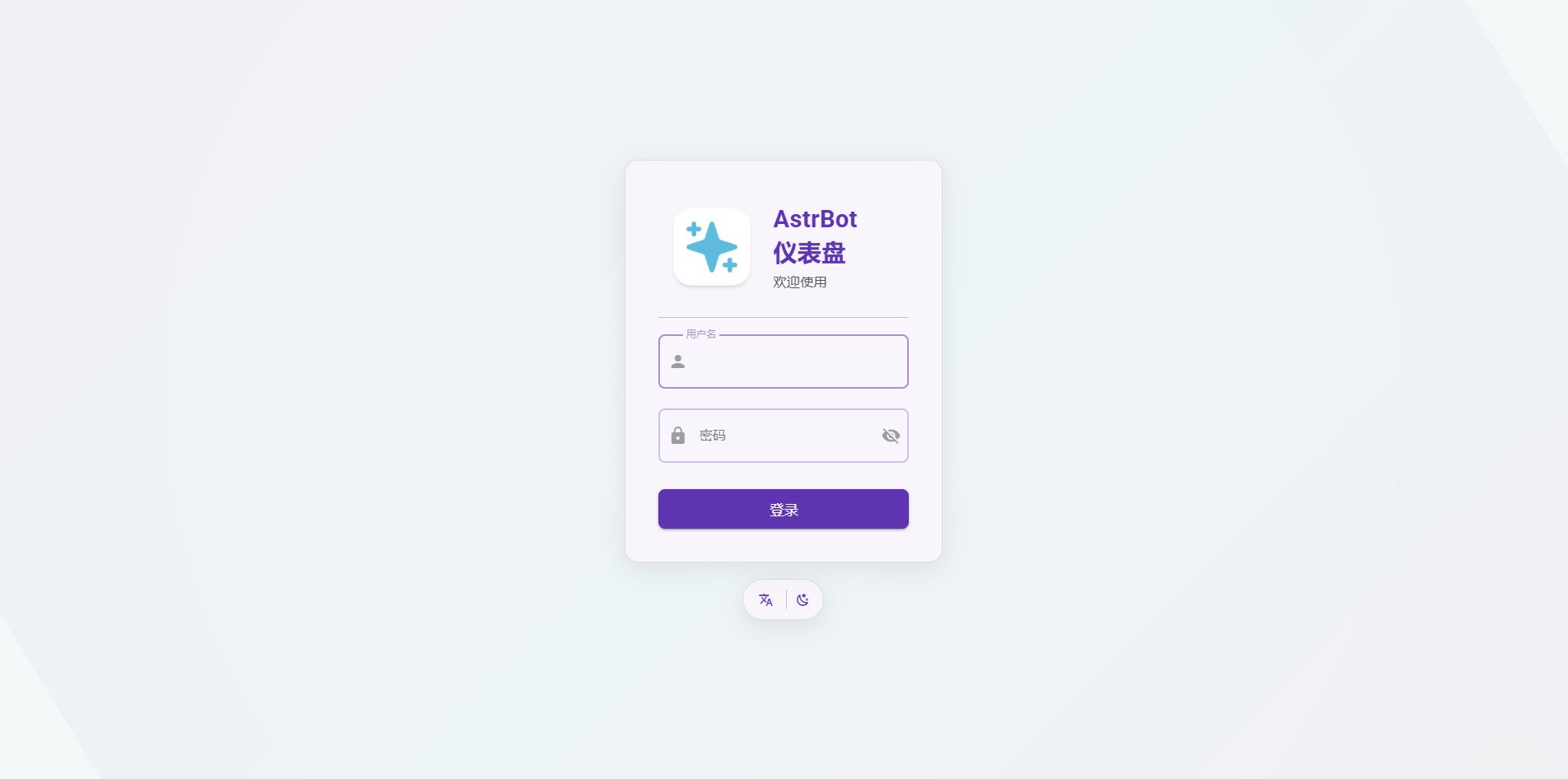
Login with username `astrbot` and password `astrbot`.
After logging in, you can reset your password and continue setup.
The instance imports `Ollama-DeepSeek-R1-32B` by default.
## Use Other Models
### Pull Models with Ollama
The image includes Ollama. You can pull any model and host it locally on the instance.
1. Choose a model from [Ollama Search](https://ollama.com/search).
2. Connect to the instance terminal via SSH (from Compshare Console -> Instance List -> Console Command and Password).
3. Run `ollama pull <model-name>` and wait for completion.
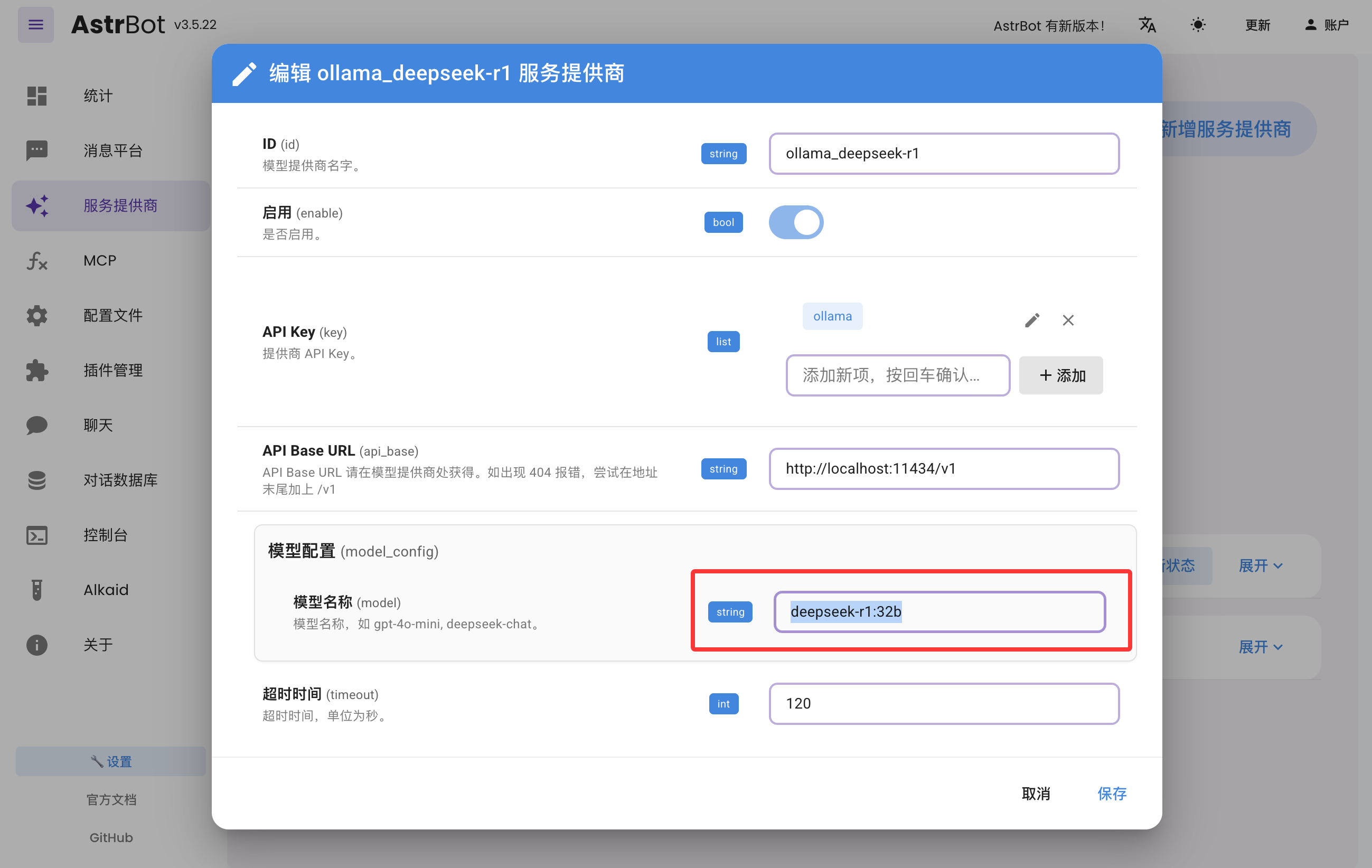
4. In AstrBot Dashboard -> Providers, edit `ollama_deepseek-r1`, update the model name, and save.
### Use Compshare Model API
AstrBot supports direct access to model APIs provided by Compshare.
1. Find the model you want at [Compshare Model Center](https://console.compshare.cn/light-gpu/model-center).
2. In AstrBot Dashboard -> Providers, click `+ Add Provider`, then choose Compshare.
If Compshare is not listed, choose OpenAI-compatible access and set API Base URL to `https://api.modelverse.cn/v1`.
Enter the model name in model configuration and save.
### Test
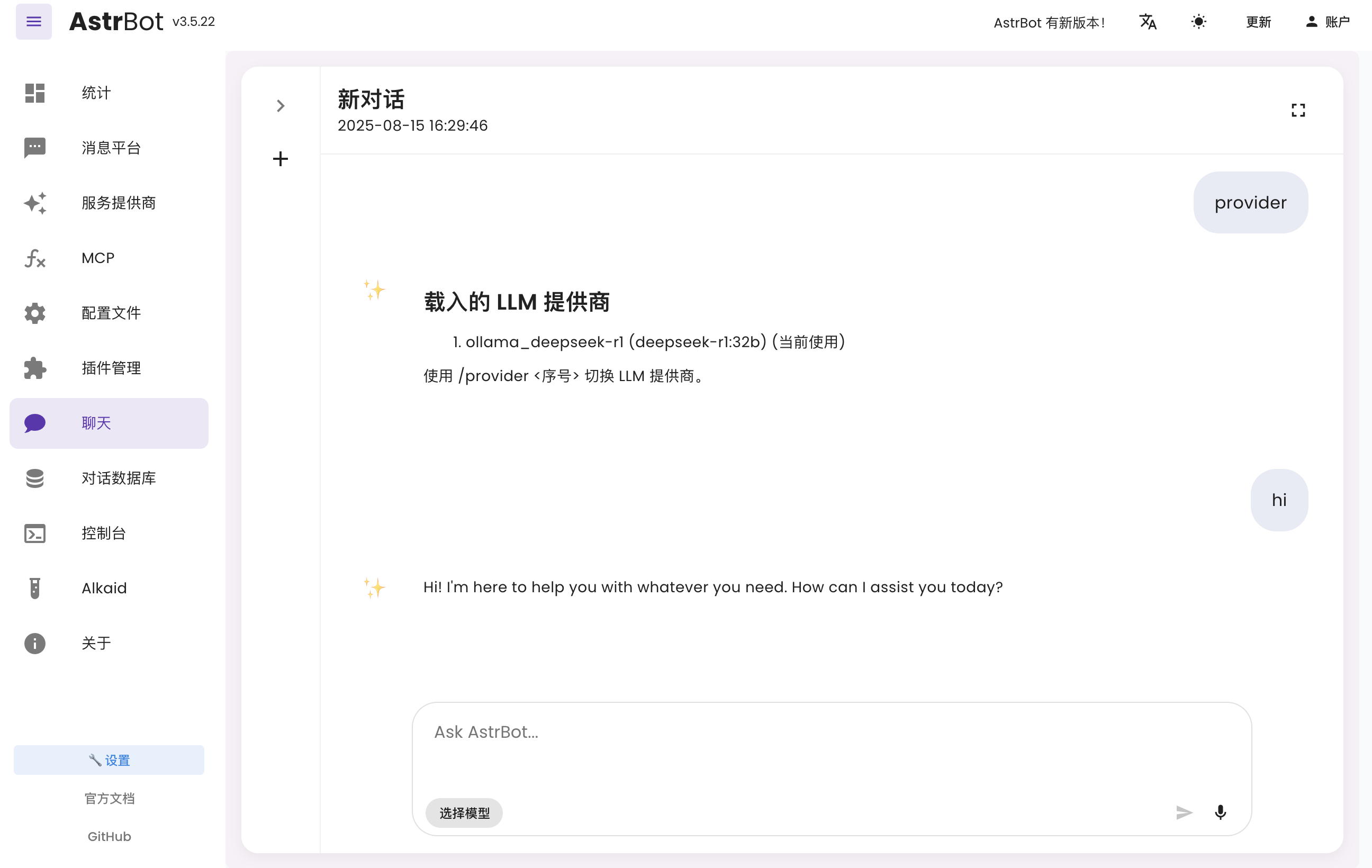
In AstrBot Dashboard, click `Chat` and run `/provider` to view and switch your active provider.
Then send a normal message to test whether the model works.
## Connect to Messaging Platforms
You can follow the latest platform integration guides in the [AstrBot Documentation](https://docs.astrbot.app/en/what-is-astrbot.html).
Open the docs and check the left sidebar under Messaging Platforms.
- Lark: [Connect to Lark](https://docs.astrbot.app/en/platform/lark.html)
- LINE: [Connect to LINE](https://docs.astrbot.app/en/platform/line.html)
- DingTalk: [Connect to DingTalk](https://docs.astrbot.app/en/platform/dingtalk.html)
- WeCom: [Connect to WeCom](https://docs.astrbot.app/en/platform/wecom.html)
- WeChat Official Account: [Connect to WeChat Official Account](https://docs.astrbot.app/en/platform/weixin-official-account.html)
- QQ Official Bot: [Connect to QQ Official API](https://docs.astrbot.app/en/platform/qqofficial/webhook.html)
- KOOK: [Connect to KOOK](https://docs.astrbot.app/en/platform/kook.html)
- Slack: [Connect to Slack](https://docs.astrbot.app/en/platform/slack.html)
- Discord: [Connect to Discord](https://docs.astrbot.app/en/platform/discord.html)
- More methods: [AstrBot Documentation](https://docs.astrbot.app/en/what-is-astrbot.html)
## More Features
For more capabilities, see the [AstrBot Documentation](https://docs.astrbot.app/en/what-is-astrbot.html).
|