

File size: 14,156 Bytes
8766bc5 | 1 2 3 4 5 6 7 8 9 10 11 12 13 14 15 16 17 18 19 20 21 22 23 24 25 26 27 28 29 30 31 32 33 34 35 36 37 38 39 40 41 42 43 44 45 46 47 48 49 50 51 52 53 54 55 56 57 58 59 60 61 62 63 64 65 66 67 68 69 70 71 72 73 74 75 76 77 78 79 80 81 82 83 84 85 86 87 88 89 90 91 92 93 94 95 96 97 98 99 100 101 102 103 104 105 106 107 108 109 110 111 112 113 114 115 116 117 118 119 120 121 122 123 124 125 126 127 128 129 130 131 132 133 134 135 136 137 138 139 140 141 142 143 144 145 146 147 148 149 150 151 152 153 154 155 156 157 158 159 160 161 162 163 164 165 166 167 168 169 170 171 172 173 174 175 176 177 178 179 180 181 182 183 184 185 186 187 188 189 190 191 192 193 194 195 196 197 198 199 200 201 202 203 204 205 206 207 208 209 210 211 212 213 214 215 216 217 218 219 220 221 222 223 224 225 226 227 228 229 230 231 232 233 234 235 236 237 238 239 240 241 242 243 244 245 246 247 248 249 250 251 252 253 254 255 256 257 258 259 260 261 262 263 264 265 266 267 268 269 270 271 272 273 274 275 276 277 278 279 280 281 282 283 284 285 286 287 288 289 290 | # Key Features
Let's go through some of the most popular features of Gradio! Here are Gradio's key features:
1. [Adding example inputs](#example-inputs)
2. [Passing custom error messages](#alerts)
3. [Adding descriptive content](#descriptive-content)
4. [Setting up flagging](#flagging)
5. [Preprocessing and postprocessing](#preprocessing-and-postprocessing)
6. [Styling demos](#styling)
7. [Queuing users](#queuing)
8. [Iterative outputs](#iterative-outputs)
9. [Progress bars](#progress-bars)
10. [Batch functions](#batch-functions)
11. [Running on collaborative notebooks](#colab-notebooks)
## Example Inputs
You can provide example data that a user can easily load into `Interface`. This can be helpful to demonstrate the types of inputs the model expects, as well as to provide a way to explore your dataset in conjunction with your model. To load example data, you can provide a **nested list** to the `examples=` keyword argument of the Interface constructor. Each sublist within the outer list represents a data sample, and each element within the sublist represents an input for each input component. The format of example data for each component is specified in the [Docs](https://gradio.app/docs#components).
$code_calculator
$demo_calculator
You can load a large dataset into the examples to browse and interact with the dataset through Gradio. The examples will be automatically paginated (you can configure this through the `examples_per_page` argument of `Interface`).
Continue learning about examples in the [More On Examples](https://gradio.app/guides/more-on-examples) guide.
## Alerts
You wish to pass custom error messages to the user. To do so, raise a `gr.Error("custom message")` to display an error message. If you try to divide by zero in the calculator demo above, a popup modal will display the custom error message. Learn more about Error in the [docs](https://gradio.app/docs#error).
You can also issue `gr.Warning("message")` and `gr.Info("message")` by having them as standalone lines in your function, which will immediately display modals while continuing the execution of your function. Queueing needs to be enabled for this to work.
Note below how the `gr.Error` has to be raised, while the `gr.Warning` and `gr.Info` are single lines.
```python
def start_process(name):
gr.Info("Starting process")
if name is None:
gr.Warning("Name is empty")
...
if success == False:
raise gr.Error("Process failed")
```
## Descriptive Content
In the previous example, you may have noticed the `title=` and `description=` keyword arguments in the `Interface` constructor that helps users understand your app.
There are three arguments in the `Interface` constructor to specify where this content should go:
- `title`: which accepts text and can display it at the very top of interface, and also becomes the page title.
- `description`: which accepts text, markdown or HTML and places it right under the title.
- `article`: which also accepts text, markdown or HTML and places it below the interface.

If you're using the `Blocks` API instead, you can insert text, markdown, or HTML anywhere using the `gr.Markdown(...)` or `gr.HTML(...)` components, with descriptive content inside the `Component` constructor.
Another useful keyword argument is `label=`, which is present in every `Component`. This modifies the label text at the top of each `Component`. You can also add the `info=` keyword argument to form elements like `Textbox` or `Radio` to provide further information on their usage.
```python
gr.Number(label='Age', info='In years, must be greater than 0')
```
## Flagging
By default, an `Interface` will have "Flag" button. When a user testing your `Interface` sees input with interesting output, such as erroneous or unexpected model behaviour, they can flag the input for you to review. Within the directory provided by the `flagging_dir=` argument to the `Interface` constructor, a CSV file will log the flagged inputs. If the interface involves file data, such as for Image and Audio components, folders will be created to store those flagged data as well.
For example, with the calculator interface shown above, we would have the flagged data stored in the flagged directory shown below:
```directory
+-- calculator.py
+-- flagged/
| +-- logs.csv
```
_flagged/logs.csv_
```csv
num1,operation,num2,Output
5,add,7,12
6,subtract,1.5,4.5
```
With the sepia interface shown earlier, we would have the flagged data stored in the flagged directory shown below:
```directory
+-- sepia.py
+-- flagged/
| +-- logs.csv
| +-- im/
| | +-- 0.png
| | +-- 1.png
| +-- Output/
| | +-- 0.png
| | +-- 1.png
```
_flagged/logs.csv_
```csv
im,Output
im/0.png,Output/0.png
im/1.png,Output/1.png
```
If you wish for the user to provide a reason for flagging, you can pass a list of strings to the `flagging_options` argument of Interface. Users will have to select one of the strings when flagging, which will be saved as an additional column to the CSV.
## Preprocessing and Postprocessing
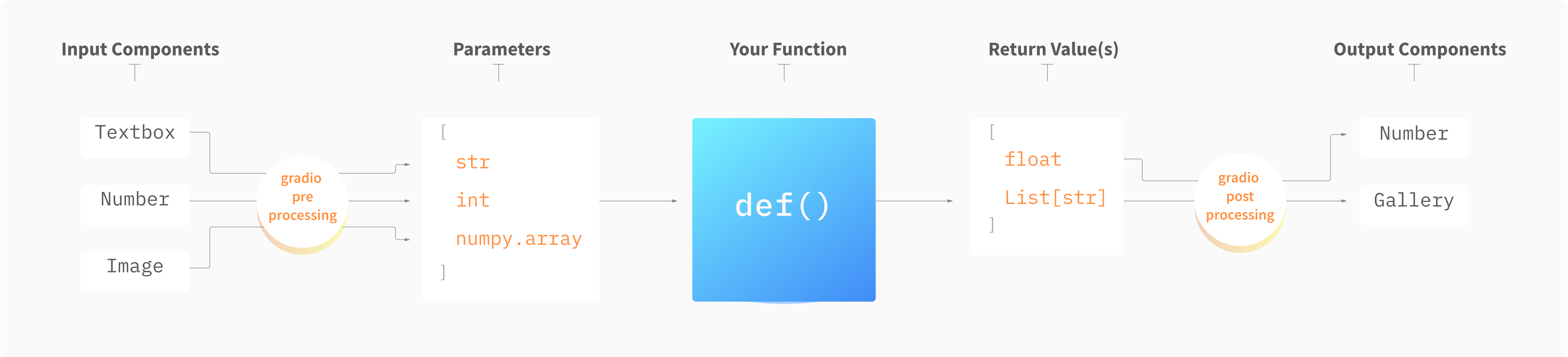
As you've seen, Gradio includes components that can handle a variety of different data types, such as images, audio, and video. Most components can be used both as inputs or outputs.
When a component is used as an input, Gradio automatically handles the _preprocessing_ needed to convert the data from a type sent by the user's browser (such as a base64 representation of a webcam snapshot) to a form that can be accepted by your function (such as a `numpy` array).
Similarly, when a component is used as an output, Gradio automatically handles the _postprocessing_ needed to convert the data from what is returned by your function (such as a list of image paths) to a form that can be displayed in the user's browser (such as a `Gallery` of images in base64 format).
You can control the _preprocessing_ using the parameters when constructing the image component. For example, here if you instantiate the `Image` component with the following parameters, it will convert the image to the `PIL` type and reshape it to be `(100, 100)` no matter the original size that it was submitted as:
```py
img = gr.Image(shape=(100, 100), type="pil")
```
In contrast, here we keep the original size of the image, but invert the colors before converting it to a numpy array:
```py
img = gr.Image(invert_colors=True, type="numpy")
```
Postprocessing is a lot easier! Gradio automatically recognizes the format of the returned data (e.g. is the `Image` a `numpy` array or a `str` filepath?) and postprocesses it into a format that can be displayed by the browser.
Take a look at the [Docs](https://gradio.app/docs) to see all the preprocessing-related parameters for each Component.
## Styling
Gradio themes are the easiest way to customize the look and feel of your app. You can choose from a variety of themes, or create your own. To do so, pass the `theme=` kwarg to the `Interface` constructor. For example:
```python
demo = gr.Interface(..., theme=gr.themes.Monochrome())
```
Gradio comes with a set of prebuilt themes which you can load from `gr.themes.*`. You can extend these themes or create your own themes from scratch - see the [Theming guide](https://gradio.app/guides/theming-guide) for more details.
For additional styling ability, you can pass any CSS to your app using the `css=` kwarg.
The base class for the Gradio app is `gradio-container`, so here's an example that changes the background color of the Gradio app:
```python
with gr.Interface(css=".gradio-container {background-color: red}") as demo:
...
```
## Queuing
If your app expects heavy traffic, use the `queue()` method to control processing rate. This will queue up calls so only a certain number of requests are processed at a single time. Queueing uses websockets, which also prevent network timeouts, so you should use queueing if the inference time of your function is long (> 1min).
With `Interface`:
```python
demo = gr.Interface(...).queue()
demo.launch()
```
With `Blocks`:
```python
with gr.Blocks() as demo:
#...
demo.queue()
demo.launch()
```
You can control the number of requests processed at a single time as such:
```python
demo.queue(concurrency_count=3)
```
See the [Docs on queueing](/docs/#queue) on configuring other queuing parameters.
To specify only certain functions for queueing in Blocks:
```python
with gr.Blocks() as demo2:
num1 = gr.Number()
num2 = gr.Number()
output = gr.Number()
gr.Button("Add").click(
lambda a, b: a + b, [num1, num2], output)
gr.Button("Multiply").click(
lambda a, b: a * b, [num1, num2], output, queue=True)
demo2.launch()
```
## Iterative Outputs
In some cases, you may want to stream a sequence of outputs rather than show a single output at once. For example, you might have an image generation model and you want to show the image that is generated at each step, leading up to the final image. Or you might have a chatbot which streams its response one word at a time instead of returning it all at once.
In such cases, you can supply a **generator** function into Gradio instead of a regular function. Creating generators in Python is very simple: instead of a single `return` value, a function should `yield` a series of values instead. Usually the `yield` statement is put in some kind of loop. Here's an example of an generator that simply counts up to a given number:
```python
def my_generator(x):
for i in range(x):
yield i
```
You supply a generator into Gradio the same way as you would a regular function. For example, here's a a (fake) image generation model that generates noise for several steps before outputting an image:
$code_fake_diffusion
$demo_fake_diffusion
Note that we've added a `time.sleep(1)` in the iterator to create an artificial pause between steps so that you are able to observe the steps of the iterator (in a real image generation model, this probably wouldn't be necessary).
Supplying a generator into Gradio **requires** you to enable queuing in the underlying Interface or Blocks (see the queuing section above).
## Progress Bars
Gradio supports the ability to create a custom Progress Bars so that you have customizability and control over the progress update that you show to the user. In order to enable this, simply add an argument to your method that has a default value of a `gr.Progress` instance. Then you can update the progress levels by calling this instance directly with a float between 0 and 1, or using the `tqdm()` method of the `Progress` instance to track progress over an iterable, as shown below. Queueing must be enabled for progress updates.
$code_progress_simple
$demo_progress_simple
If you use the `tqdm` library, you can even report progress updates automatically from any `tqdm.tqdm` that already exists within your function by setting the default argument as `gr.Progress(track_tqdm=True)`!
## Batch Functions
Gradio supports the ability to pass _batch_ functions. Batch functions are just
functions which take in a list of inputs and return a list of predictions.
For example, here is a batched function that takes in two lists of inputs (a list of
words and a list of ints), and returns a list of trimmed words as output:
```py
import time
def trim_words(words, lens):
trimmed_words = []
time.sleep(5)
for w, l in zip(words, lens):
trimmed_words.append(w[:int(l)])
return [trimmed_words]
```
The advantage of using batched functions is that if you enable queuing, the Gradio
server can automatically _batch_ incoming requests and process them in parallel,
potentially speeding up your demo. Here's what the Gradio code looks like (notice
the `batch=True` and `max_batch_size=16` -- both of these parameters can be passed
into event triggers or into the `Interface` class)
With `Interface`:
```python
demo = gr.Interface(trim_words, ["textbox", "number"], ["output"],
batch=True, max_batch_size=16)
demo.queue()
demo.launch()
```
With `Blocks`:
```py
import gradio as gr
with gr.Blocks() as demo:
with gr.Row():
word = gr.Textbox(label="word")
leng = gr.Number(label="leng")
output = gr.Textbox(label="Output")
with gr.Row():
run = gr.Button()
event = run.click(trim_words, [word, leng], output, batch=True, max_batch_size=16)
demo.queue()
demo.launch()
```
In the example above, 16 requests could be processed in parallel (for a total inference
time of 5 seconds), instead of each request being processed separately (for a total
inference time of 80 seconds). Many Hugging Face `transformers` and `diffusers` models
work very naturally with Gradio's batch mode: here's [an example demo using diffusers to
generate images in batches](https://github.com/gradio-app/gradio/blob/main/demo/diffusers_with_batching/run.py)
Note: using batch functions with Gradio **requires** you to enable queuing in the underlying Interface or Blocks (see the queuing section above).
## Colab Notebooks
Gradio is able to run anywhere you run Python, including local jupyter notebooks as well as collaborative notebooks, such as [Google Colab](https://colab.research.google.com/). In the case of local jupyter notebooks and Google Colab notbooks, Gradio runs on a local server which you can interact with in your browser. (Note: for Google Colab, this is accomplished by [service worker tunneling](https://github.com/tensorflow/tensorboard/blob/master/docs/design/colab_integration.md), which requires cookies to be enabled in your browser.) For other remote notebooks, Gradio will also run on a server, but you will need to use [SSH tunneling](https://coderwall.com/p/ohk6cg/remote-access-to-ipython-notebooks-via-ssh) to view the app in your local browser. Often a simpler options is to use Gradio's built-in public links, [discussed in the next Guide](https://gradio.app/guides/sharing-your-app/#sharing-demos).
|