
If you get any issues (happens on various systems and configurations, please look at the guide below for the possible solutions). If not, please post a screenshot of your error in the class forum and we'll try to assist.
Summary of this document.
ERROR # 1: Failed to Import Appliance
ERROR # 2: Failed to open a session for the virtual machine Deep Learning CV Ubuntu
ERROR # 3 - (May appear as Warnings) Broken links to shared folder found?
ERROR # 4 - On Macs it's advised you install the feature the feature pack for virtualbox
ERROR # 5 (Common) - VirtualBox fails with “Implementation of the USB 2.0 controller not found” after upgrading
MAC OS Guide - Installing VirtualBox Extension Pack on MacOS (required to access webcam)
NOTE 2019 Update:
With newer versions of windows there are more Virtualbox issues.
The following need to be turned off in windows features for VM to run:
<any> Guard
Containers
Hyper-V
Virtual Machine Platform
Windows Hypervisor Platform
Windows Sandbox
Windows Subsystem for Linux (WSL)
If you get the following error:
1. Move the .vmdk file to your second (bigger) disk. To do this click on "Global tools", choose the correct vmdk file and select move. It requires few minutes to do it.
2. Create a new virtual machine clicking on the new button.
3. Select Linux -> Ubuntu 64 bit.
4. Choose either 8192 or 4096 megabytes of RAM. Rule of thumb is half of your installed RAM.
5. On the next screen choose "Use an existing fixed virtual disk" and selected the just created .vmdk file
If for some reason this doesn't work. Try this:
1. Go the properties:

2. Click on remove to delete your virtual hard disk
3. Do the procedure of importing the virtual machine again from the start (only once) and you will get the error again.
4. Then try the above procedure again
Thanks to student PierLuigi for this guide!
Import OVA using VMWare
Implementation of the USB 2.0 controller not found!
Because the USB 2.0 controller state is part of the saved VM state, the VM cannot be started. To fix this problem, either install the 'Oracle VM VirtualBox Extension Pack' or disable USB 2.0 support in the VM settings.
Note! This error could also mean that an incompatible version of the 'Oracle VM VirtualBox Extension Pack' is installed (VERR_NOT_FOUND).
Result Code: E_FAIL (0x80004005)Component: ConsoleWrapInterface: IConsole {872da645-4a9b-1727-bee2-5585105b9eed}
SOLUTION HERE - https://www.virtualbox.org/ticket/8182
Simply:
Right click on the vm image > USB > USB 1.1
Ignore those messages and if needed setup your own shared folder (see Lecture 9).
Disable USB Controller when first loading if USB Error. Uncheck the Enable USB Controller box.

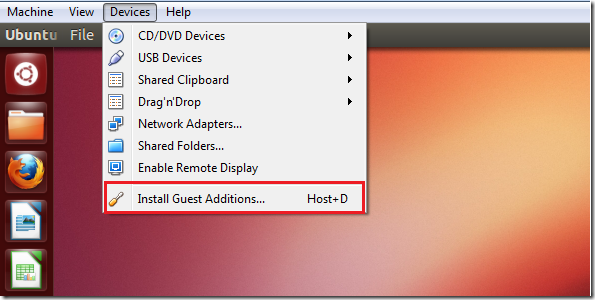
Then after loaded up, install the Guest Additions by finding it here from the top toolbar menu.
ERROR 6: E_FAIL(0x8004005)

Solution: youtube.com/watch?reload=9&v=u0AWnCr80Ws
Credit for these steps goes to one of your yellow students, Erwin.


